


.jpg.a8b184e26c2c7143438a65893a1b7496.jpg)

danksg
-
Joined
-
Last visited
Everything posted by danksg
-
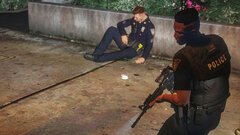
From the album: Dank LSPDFR Adventures
LSPD - Officer Down -
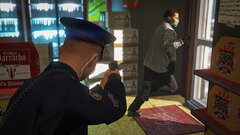
From the album: Dank LSPDFR Adventures
LSPD - Suspect Attempting to Flee -
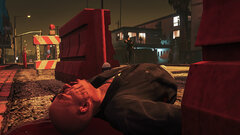
From the album: Dank LSPDFR Adventures
LSPD - Suspect Down -
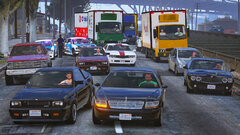 Hhahaha I have no idea. I did add some vehicle AI metas though, so maybe that made traffic a little bit more stable? 🤷♂️
 -
LSPD Patrol A traffic stop gone wrong, terrible traffic for a code 3 response, my shot up ride, and a cat.
-
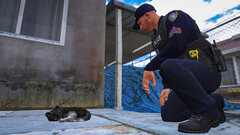
From the album: Dank LSPDFR Adventures
LSPD - Meow -
From the album: Dank LSPDFR Adventures
LSPD - Terrible Traffic for Code 3 -
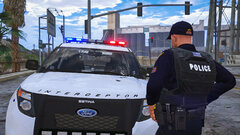
From the album: Dank LSPDFR Adventures
LSPD - My Ride! -
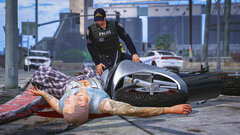
From the album: Dank LSPDFR Adventures
LSPD - "Simple" Traffic Stop -
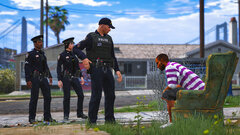
From the album: Dank LSPDFR Adventures
LSPD - Do you know anything? -
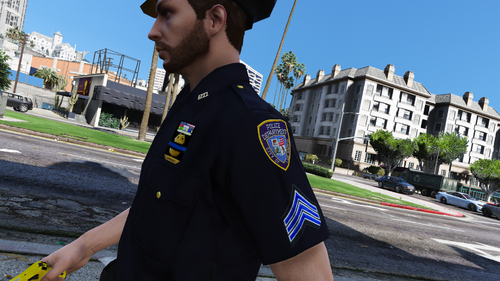 Great quality textures. A must-have for anyone who loves the NYPD uniform but wants it lore-friendly. This pack is a great overhaul which adds badges, vests, jackets, and so on. Love it!
- 38 comments
- 3 reviews
-
-

- 1
-
-
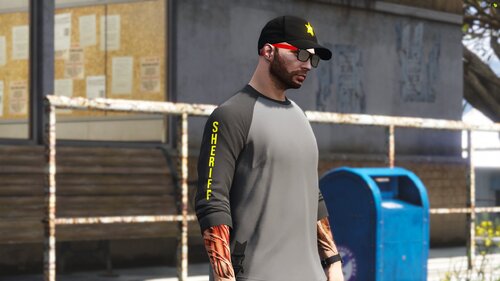 Looks good! Is there any chance of a tucked in version to be used with a duty belt?
 -
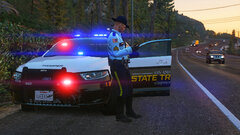 Here you go my man.
 -
San Andreas State Patrol Patrolling the Great Ocean Highway.
-
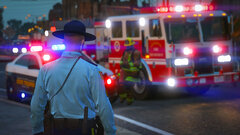
From the album: Dank LSPDFR Adventures
SASP - Help is here -
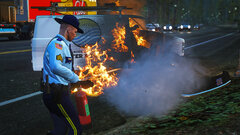
From the album: Dank LSPDFR Adventures
SASP - Fire! -
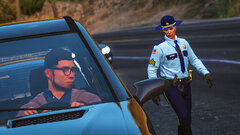
From the album: Dank LSPDFR Adventures
SASP - Traffic stop -
From the album: Dank LSPDFR Adventures
SASP - Waiting for tow truck -
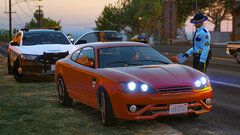
From the album: Dank LSPDFR Adventures
SASP - Ticket -
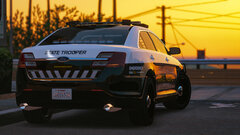
From the album: Dank LSPDFR Adventures
-
Welcome! Love it. It's not always crazy pursuits and shootouts. Most of the time, it's writing tickets, waiting, watching, and a heck load of paperwork. Great screenshots!
-
LSPD Patrol Illegal parking, high-speed pursuits, and traffic control duty.
-
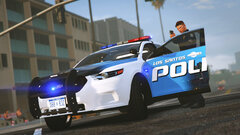
From the album: Dank LSPDFR Adventures
LSPD - Freeze! -
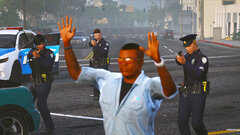
From the album: Dank LSPDFR Adventures
LSPD - Suspect Complying -
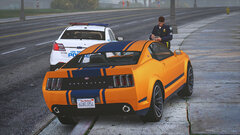
From the album: Dank LSPDFR Adventures
LSPD - Illegal Parking

