Harford Studios
Members
-
Joined
-
Last visited
Everything posted by Harford Studios
-
-
-
-
-
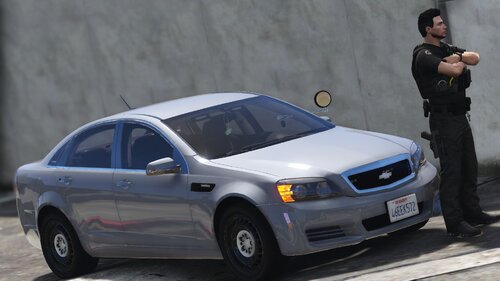 Spotlight doesn't rotate and carvariations line and carcol file isn't included.
- 19 comments
- 3 reviews
-
From the album: Sheriff Smith’s Screenies
-
This is where I’ll post my screenshots
-
From the album: Sheriff Smith’s Screenies
-
In order to make ragepluginhook work you have to restart your computer and than after that fire up gta v then ragepluginhook that should work!
-
Ok so now my rage plugin hook working is hit or miss but when it loads LSPDFR it immediately crashes and says “LSPDFR has crashed” Any ideas on how to rage plugin hook and LSPDFR to work properly?
-
Do you know the pathways to see if these dlc folders exist?? Just wondering.
-
Ok so a few days ago I updated gta v and LSPDFR and rage plugin hook haven’t worked since. Any suggestions or ideas?
-
My rage plugin hook won’t load properly and I have all the latest updates. I just wanna play LSPDFR with no issues. Any ideas on how to make it work again?
-
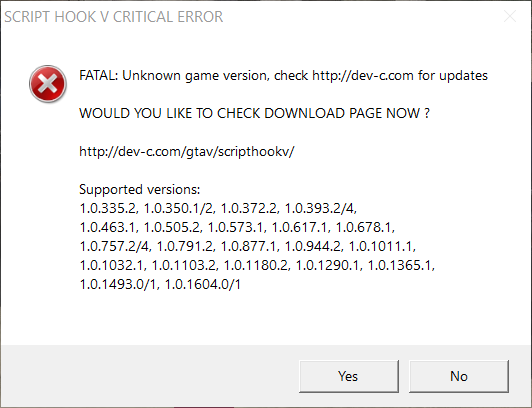
When I open up gta v it opens like normal and then goes to a page where it says my game version isn't supported. Any feedback would be appreciated!
-
It is an angering feeling to not have els working
-
My els (emergency lighting system) refuses to work with 0.4 LSPDFR and I did everything correctly and it still refuses to work. Anyone that knows anything and any info will be helpfull.
-
Can't wait for 0.4 lspdfr!