



Pacific Creations
Members
-
Joined
-
Last visited
Everything posted by Pacific Creations
-
Yes, GTA V is compatible and should run fine on a computer with your specs. Could send a Rage Plugin Hook crash log? I’ve gotten GTA to run ok on a computer with interstates graphics and 4gb of ram. If you can send a RPH long however I can look into the crash for you!
-
Can you post a RPH log?
-
Name your mods folder to _mods and see if it works
-
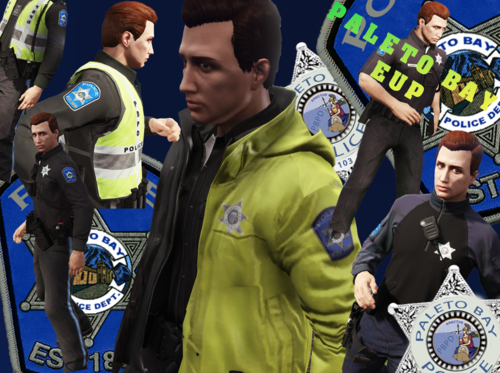 This pack replace the vintage brown sheriff jacket on the bomber jacket, class A, B, C replace the first texture of those shirt which is just the dark blue texture with now patches. The pants replace the LSPD pants that have only one texture (that's the best I can describe it) there's more pants that have LSP textures. The cargo pants replace the first camo texture of the cargo pants. The traffic vest replaces the police traffic vest. The raincoat replaces the police raincoat. I'm sure I missed a few things but those are the important ones.
 -
Can I still see all of your DLC packs in the mods folder.
-
No problem glad I could help!
-
The crash could be caused due to a mod
-
Yes but if there is a problem in the mods folder with a mod it will make it pretty obvious
-
Rename your mods folder to _mods and see if it works.
-
It looks like your ragenativeui.dll and Super Callouts are not loading properly. Try to reinstall them.
-
No problem, sorry I couldn’t help you out, one last thing you may want to try is adding RPH to your firewall exceptions.
-
Install the most up to date game config and requirements with it such as heap limiter and pack file size adjuster. You can find it here
-
Have you ever installed a game config?
-
I would do a full fresh install of Los Santos Red It appears in your log it crashes right when it try’s to load the .dll and now knowing there is no other plugins that could be the suspect here, I think the problem is with Los Santos Red.
-
Yes it shouldn’t have worked after renaming to _plugins as that disables your plugins. Is Los Santos Red the only RPH plugin you have installed? Now that it is loading after renaming it means the problem is within your plugins folder and has to do with one of your plugins.
-
Ok, keep you mods folder at _mods and try to rename plugins to _plugins If that doesn’t work I would go and make sure Windows Defender or another antivirus is not blocking it. And I would also add RPH and GTAV to your firewall exceptions.
-
No problem glad you got it working!
-
When loading the game when RPH pops up, hit the setting button and make sure it’s still checked to load LSPDFR on startup. Make sure you click save and launch
-
Check and make sure it’s till set to load with the game
-
Are you loading the plugin when you load the game or are you doing F4 in game and typing Loadplugin? Because I don’t see LSPDFR loaded at all in the log.
-
Can you post a RPH Log?
-
Agree with this 100%, I would give it a try, my whole computer blue screen sometimes when using reshades lol.
-
No problem, glad I could help! It’s a very common problem, and very easy fix.
-
Open your RPH setting and disable DirectX loading
-
Try to rename plugins folder to _plugins, and see if it works if it doesn’t then try to rename mods folder to _mods. This is to maybe help us single out where the problem is and help us focus on one area rather then having the whole game to troubleshoot. if after doing both it still doesn’t work let me know and we can try some more things.


