



Pacific Creations
Members
-
Joined
-
Last visited
Everything posted by Pacific Creations
-
 Very sorry about that, just picked up modding again so some things definitely slipped through the cracks. I'll add that into the read me next update. Shouldn't be to hard to figure out though, just replace the name with the name of the other DLC. I highly recommend having some knowledge on how to mod the game before proceeding to do so! Honestly, I am not sure! I have never tried it on the Remastered version. Just got back into this so I'm not the most up to date on if it has to be converted to the new version or something along those lines.
 -
 That would help! I've found a few decent models that would work. Not the most realistic lighting package but you gotta work with what you have. If you could share that list I may be able to find a more realistic lighting package.
 -
@jdscott757 Unfortunately not, it was a great model! If I can find another model this works on I will make an update. It should work with any model using the RAZ3R base model though! I'll pin this response to maybe help some others.
-
Sorry for the late response took a year or so off from modding. I'll look into this problem! Thank you for bringing it to my attention, always appreciated it's hard to find all the bugs myself sometimes! Most traffic control devices (cones, paddles, barriers ,etc.) are placed using the vanilla game road textures. So it should load and work however some places may have props that appear to be in the lane of traffic or in places they don't make sense.
-
Is your ragenativeui updated?
-
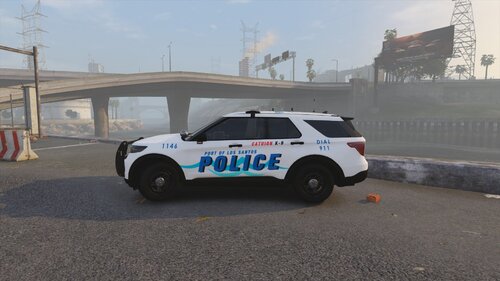 Los Santos Port Authority 2021 Ford Explorer Texture Pack To Get These Textures To Work You Have To Replace The Reflective Texture File With A Blank File In The YTD or There Will Be The Reflective Textures For DASO Over The LSPA Textures Read More About Replacing In The Download For The Vehicle Models For Help Installing Join Our Discord: Here Pack includes: Unit 1112 - Supervisor Unit Unit 1129 - Patrol Unit Unit 1146 - K-9 Unit (Unit Numbers Are Messed Up Will Fix Next Update) Future Plans Unit 1120 - 2021 Slicktop Tahoe Patrol Unit Unit 1111 - 2021 Tahoe Supervisor Unit Unit 1121 - 2021 Tahoe Patrol Unit Unit 1113 - 2019 Tahoe Supervisor Unit Unit 1122 - 2019 Tahoe Patrol Unit Unit 1123 - 2019 Slicktop Tahoe Patrol Unit Known Bugs: - Some numbers on K-9 unit are the same as unit 1112 Follow Along With My Projects: TRELLO Vehicle Not Included In Download Can Be Found Here: Credits: Textures- Pacific Creations Explorer Base Model- Kane104 Templates and Car From- Fenario98
 -
Did you use a mod folder? And have you installed a gameconfig.xml the requirements for the game config?
-
You then want to go to mods/update/update.rpf/common/data find dlclist.xml and add EUP to the list you can copy and paste another entry and replace the name of the dlc with EUP
-
Go to mods/update/x64/dlcpacks and drag and drop the EUP folder into the dlcpacks folder.
-
Click tools in OpenIV, click ASI manger, and click install on asi loader and openiv.asi Those have to be enabled for the game to be able to read the mods folder. Try that before trying to instal EUP again as they could be the cause, and if it is you won’t have to go through the trouble of installing EUP again.
-
Have you installed the asi loader and openiv.asi in openiv?
-
Have you tried to give the manual install a shot?
-
Download EUP serve and protect the OIV, got to openiv and click tools, package installer, find and select the eup.oiv package in the download, click install to mods folder, and then it will install EUP to the mods folder It’s not called EUP.oiv however it’s the only .oiv file in the download
-
When installing EUP did you do the oiv or manual install? If you did manual make sure the dlc is in dlclist.xml within the mods folder. Also if you have updated your mods folder recently you will need to re-add it to the dlclist.xml Also not sure if you knew but EUP Law and Order and EUP menu are different, not sure if you installed both just wanted to add that just in case.
-
Did you install the requirements such as heap limiter. And package adjuster? For the game config
-
It says in that error you need to raise your pool size in the game config, have you tried that?
-
It will most likely still crash however it will make a crash report, that you can then upload here.
-
I’ve never seen of a pool manager crash. If you look up Pool Manager GTA V, the first link should be to a gta5-mods post. It’s a tool where it will attempt to read a Pool Manager crash and point you towards the file that is crashing the game. Other than that I don’t have anything else to suggest.
-
Are you sure your on-duty?
-
In your GTA V main directory you should see a file ragepluginhook.exe try to launch the game by double clicking on that
-
Is it the same problem you had yesterday? If so can you upload a updated RPH log?
-
Could you send a picture of the error message? And stupid question but when starting the game are you starting it by clicking on the Rage Plugin Hook EXE or are you running it through the Rockstar Game Launcher/Steam/Epic? The log may not have been generated as your not running the game through the Rage Plugin Hook exe
-
It should be in your main GTA V folder. Search for ragepluginhook.log
-
Is your ragenativeui.DLL updated?
-
Have you updated ragenativeui and scripthook v? Along with LSPDFR? If not try to update those as well

