


Whisk3yTango
Members
-
Joined
-
Last visited
Everything posted by Whisk3yTango
-
Im using one vehicle for the slot it is intended for and another slot. I used the same meta just changed the model names to match the other slot. What should I do with the <firstPersonDrivebyData>? Im using a provided meta for the police3 slot. Im using the same vehicle and meta file for the Sheriff2 slot I just changed the model names and driver in the meta to match sheriff2 then copied over the original sheriff2. so should I use the <firstPersonDrivebyData> from the original sheriff2 meta or change it to the new meta files <firstPersonDrivebyData>? Also any info on what <firstPersonDrivebyData> is and does would be greatly appreciated.
-
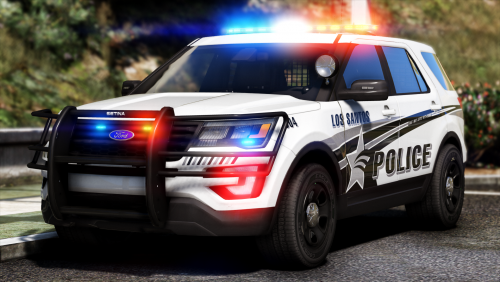 Im using this vehicle in multiple slots but found that skins dont work correctly in the other slots. Simply changing the handling ID for the other slots didnt work either. So I used the vehicles meta you provided and just changed the names to the vehicle slot I was using it for. so its the same meta just with the model names changed to sheriff including the driver and the handling ID is kept as the gersley. everything works great including the skins. I havnt had any issue yet but I was wondering if I should keep the <firstpersondrivebydata> the same as your meta or keep the model names that are there for the sheriff2?
- 427 comments
- 75 reviews
-

