


leon01
Members
-
Joined
-
Last visited
Everything posted by leon01
-
It seems like this isn't an persistent error, because at the moment it starts normally again
-
When LSPDFR is loading I get an "unhandled exception during game fiber tick" error, and then LSPDFR proceeds to shut down. The log file is uploaded below, but I think the most important part is this: Thanks! 😄 RagePluginHook.log
-
-
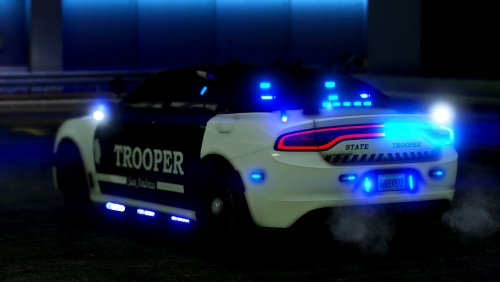 When you're using custom slots do you put it in the regular patchday folder or another dlcpack? I figured out that the lights do work, they're just not ON the car, they're offset for some reason... Any reason for this?
- 253 comments
- 53 reviews
-
What I find confusing is what vehicle.meta item im supposed to copy, i copied the police one as per the tutorial, but im unsure when im supposed to do that compared to when im supposed to choose another <item> btw im a really new to lspdfr and modding. And can this light problem maybe be something with these " <lightSettings value="1" /> <sirenSettings value="1" />" " in carvariations? !!! FIXED !!! I found out i had to set the <LstgActivationType>auto</LstgActivationType> to manual
-
After i did this and installed the car, the ELS wont work correctly, i can turn on the sirens but the lights dont turn on, does this have anything to do with this?
-
Thanks, yeah i just saw that sorry for wasting your time 😉
-
How can I add several police vehicles, with a custom name (not a slot name) because if i do not use slot names, my game crashes on load, and id rather not use slots as they're pretty messy
