ZombieRickRude
Members
-
Joined
-
Last visited
Everything posted by ZombieRickRude
-
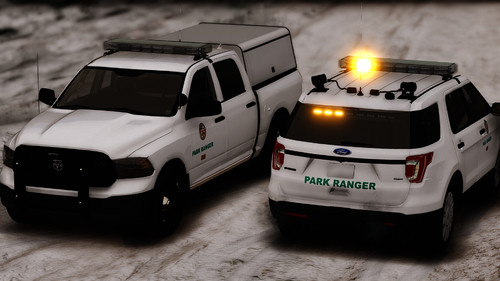 Imagine having a Explorer with Crown Vic rims. 😂
 -
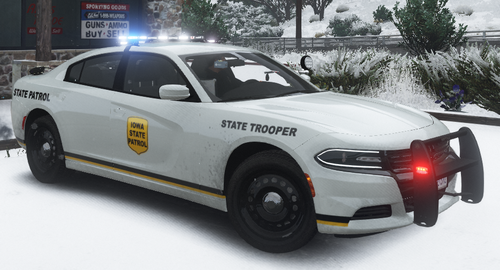 This is based off of a 2018 Charger Iowa State Patrol. Video:
 -
 Can I somehow get my Corsair K55 keyboard and my Harpoon mouse to work with the police lights. I know its not supported but I don't want to spend $80 to get a new keyboard and mouse.
- 113 comments
- 13 reviews
-
-
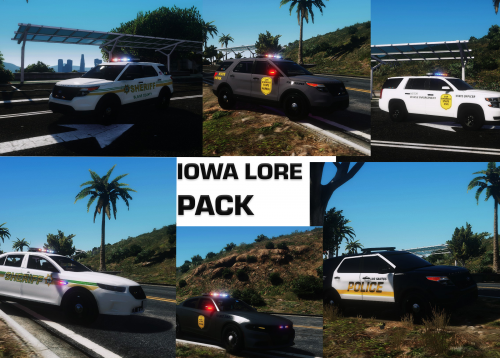 Could you make a Davenport based one for LSPD? Its ok if you can't but would be cool because I live in Davenport. It might be hard to find pictures but we have a FPIS, 2013 and 2016 FPIU and 2006 CVPI. Also the ISP charger is quite dark.
- 5 comments
- 1 review
-
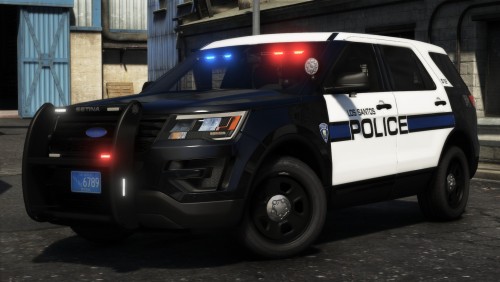 Love this pack, probably one of my favorite police packs. I watch a lot of LivePD and Warwick is one of my favorite departments on LivePD. Definitely a 5/5, Thank you.
- 63 comments
- 37 reviews
-
-

- 1
-
-
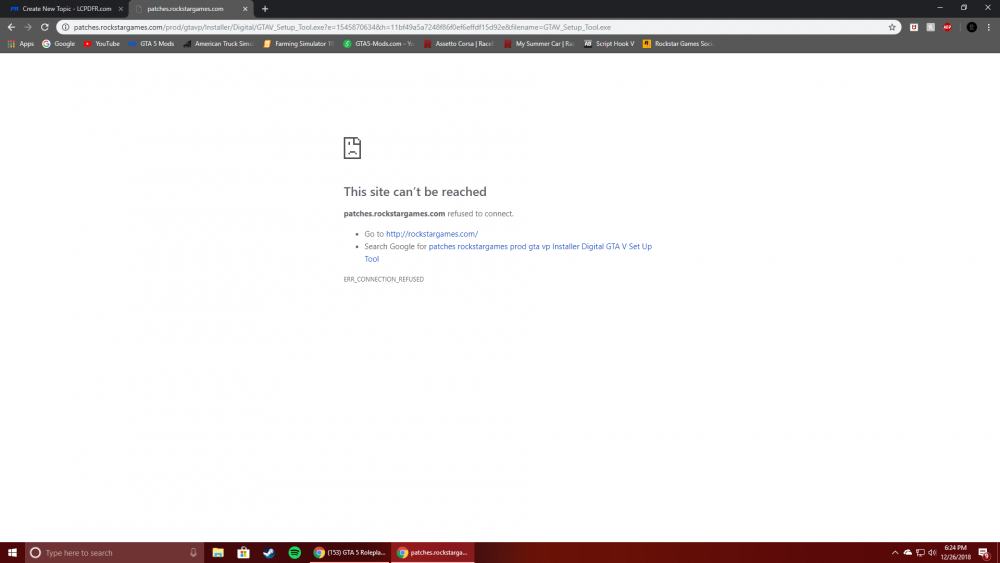
I downloaded GTA 5 Setup off of the official Rockstar Website and when I run the setup, after the bootstrap, it loads for 10 seconds and then it say's "The Rockstar update service is unavailable (code 202)". I was trying to download the setup again and the "patches.rockstargames.com" isn't working. I tried to reinstall it again but it said the samething. I've tried everything I can think of and still can't get it to work. Help Please!!! https://drive.google.com/file/d/12PPSLN46CUiJzgWWrbKxpc6gvXz9U_9L/view : this is the GTA 5 launcher screenshot (couldn't upload it to this post because it was too big of a size).
-
-