
RoguePlus
Members
-
Joined
-
Last visited
Everything posted by RoguePlus
-
 I use to know what county is was, I'm trying to find it again.
 -
-

From the album: Rogue's Photos
© NSD
-
 ya I know, still working out where I want to go with the Dept.
 -
If you download Bxbugs123 ELS CVPI you can use his he made
-
Not public yet. still want to add some more details.
-
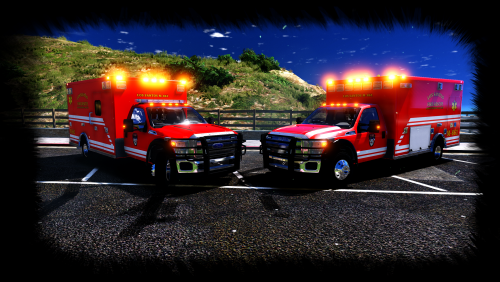
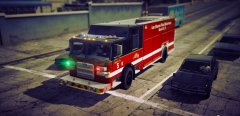 We need public Pumper truck
 -
It kinda is... its Bxbug's but I re-created it add some of my own details.
-
From the album: Rogue's Photos
Special Operations Unit. -
-
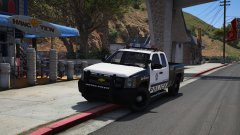 ohhh shit!!
 -
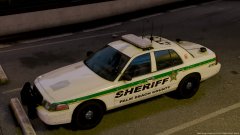
From the album: Rogue's Photos
© NSD
-
-
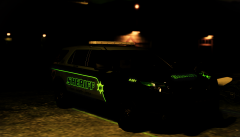 Is that reflections or the texture it self?? Looks really cool
 -
-
-
-
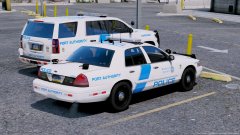
From the album: Rogue's Photos
© NSD
-
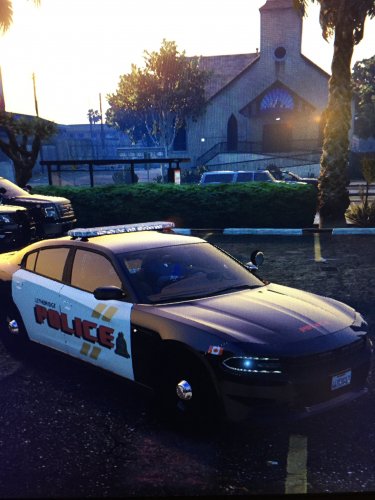
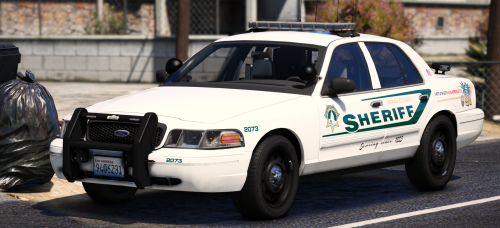
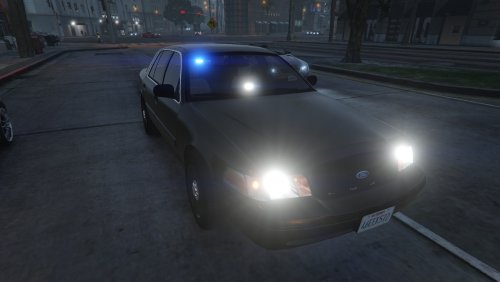
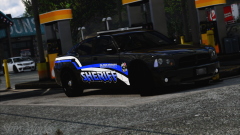 Idk about the black car with white and blue combo. Can I see a White car with green and yellow?
 -
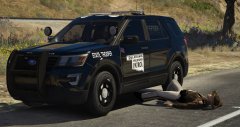 You broke before the ford, How is that possible!?
 -

From the album: Rogue's Photos
© NSD
-
 Think its a private one. Don't quote me on that
 -
-
They say a picture is worth a thousand words, not the case here. Only one word can describe the photos..... SEXY!
-
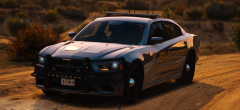 I'm really falling for those Legacy bars. Think its the stealth aspect