


TravisGB96
Members
-
Joined
-
Last visited
Everything posted by TravisGB96
-
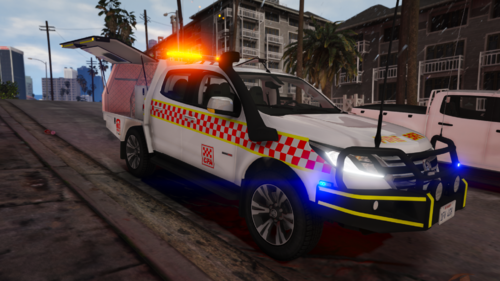 Hey mate, The lights don't work when i add the vehicle. Using Non-ELS have no lights?
- 7 comments
- 1 review
-
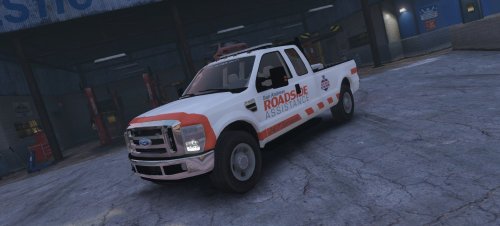 Hey @AlexBoosted Do you have the carcols for this? Im trying to change the lighting as a way to practise how to do it. Im also having trouble changing the slim lights on the front and rear of the car, everytime i try to change the light colour, the slim lights end up with a grey cover over them? is there a way to avoid this? (After Carcols to adjust ambient colours) Thanks in Advanced. P.S AMAZING model.
- 8 comments
- 1 review
-
ANy release date for this?
-
Yeah, the latest version available of both Rage and Script
-
yeah the game launches directly for steam but it still says its outdated on rage?
-
I Opened Open IV and let it update, but it still doesn't work.
-
I have done that, and it still doesn't work.
-
Hey Guys, I recently updated my RageHook and ScriptHook to the latest versions (18th Dec) to allow for v1603 but when i load Rage, it says im using an outdated version of the game, but i updated script hook so it should work? Also, when i try to load GTA V via the root directly GTAV.exe, it says i need to launch using playgtav.exe, however, i don't have this file? I have verified the game Via steam and still nothing. I really want to get back onto my LSPDFR ASAP so if anyone can help me, please please please do.
-
 When should we expect to see some of these done? Also, do you have any other Lore Friendly, Non-ELS Fire Trucks, Engines and anything LSFD/EMS related?
 -
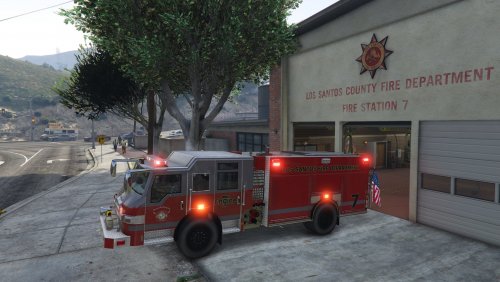 Will these work without ELS?


