


xKyranStormx
Members
-
Joined
-
Last visited
Everything posted by xKyranStormx
-
 when i install via the manual method, the sirens dont change theyre still default in fivem, and for GTA, the game doesnt load it just sits at the loading screen. i also use a mods folder for it, so i dont know if using a mods folder doesnt let it work also, do i also need to use the OIV installer with the manual installer?
- 221 comments
- 40 reviews
-
i was playing the game on patch 8, had a save game for it. i downgraded to patch 7, and proceeded to install LCPDFR 1.1 via auto install, i installed with xlive.dll and the game crashes at a black screen for loading. i then deleted xlive.dll and copies in dsound.dll from the manual install folder for lcpdfr 1.1, and its still not working. all folders and files are not read only, i did try running as admin these are all the logs i can find. ScriptHook.logasilog.txtAdvancedHookInit.logScriptHookDotNet.logDiagnostics_1.7.2018_20_48_27.log
-
I used the guide on this website to downgrade GTA 4 to patch 7, and now my settings are all locked at low / and minimum resolution.. it also says im meeting or exceeding the suggested gpu settings or something. i have a GTX 1070 can anyone help?
-
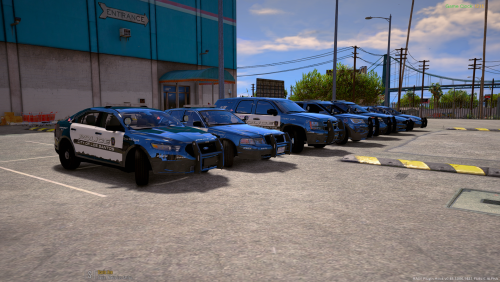 I installed both of these and the game crashes at start up. i tried both of the gameconfig xml files provided in the FAQ but now RAGE fails to load with the game so im presented with the vanilla loading screen (i.e Quit, option, story mode, multiplayer, etc) I dont know what to do at this point
- 779 comments
- 187 reviews
