Skip to content
View in the app

A better way to browse. Learn more.

LCPDFR.com

A full-screen app on your home screen with push notifications, badges and more.

To install this app on iOS and iPadOS
  1. Tap the Share icon in Safari
  2. Scroll the menu and tap Add to Home Screen.
  3. Tap Add in the top-right corner.
To install this app on Android
  1. Tap the 3-dot menu (⋮) in the top-right corner of the browser.
  2. Tap Add to Home screen or Install app.
  3. Confirm by tapping Install.

foxhound66

Members
  • Joined

  • Last visited

  1.    Dippa reacted to a comment on a file: BCSD Slicktop Crown Vic
  2.    foxhound66 reacted to a comment on a file: San Andreas State Police Pack
    Excellent addon! I would give a 5 but the driver's side blue strobe in the headlight doesn't come on in stage 2 but does for stage 3 lighting, and missing takedowns.
  3. Such a perfect model, has everything I was looking for in an unmarked cruiser: ALPR, antennas aplenty, radar, ELS! I did have one gripe and that was the headlights, they look way too light and almost oxidized. I messed around with the glass texture and was able to get the right mix to make them not look so faded (attached below). Thanks for the mod!! to install the glass texture: 1) Download the small png below 2) rename glass.png 3) open the texture dictionary for this car (police4.ytd in my case) 4) find "glass" and replace with the one you just downloaded. 5) enjoy!
  4.    GrandTheftPD reacted to a gallery image: Armed LSSD resopnse
  5.    foxhound66 reacted to a gallery image: Grapeseed got a new car
  6. foxhound66 started following Tahoe Patrol
  7. Images added to a gallery album owned by foxhound66 in GTA V Galleries
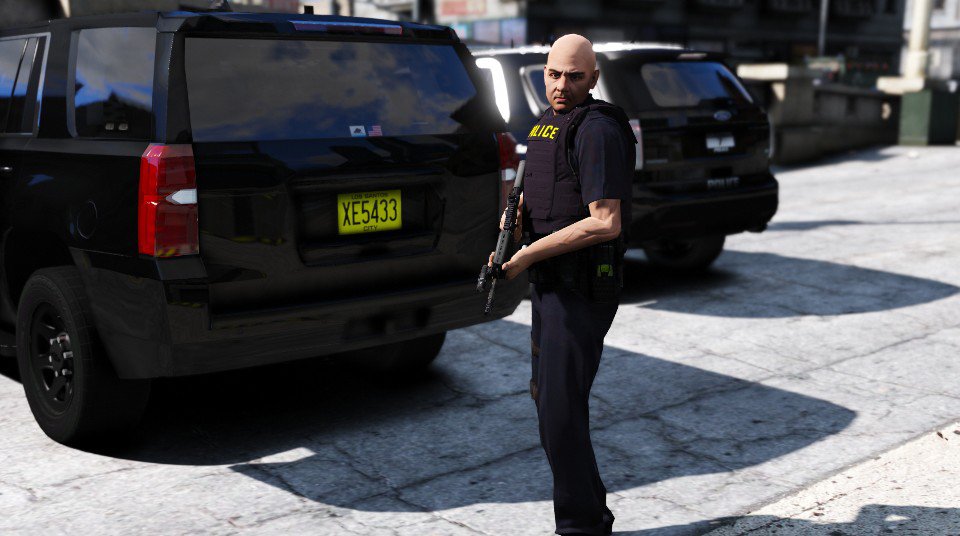
    Just wanted to share some of my screens with the community. Comments and criticism always encouraged. Thanks for looking!

Account

Navigation

Search

Search

Configure browser push notifications

Chrome (Android)
  1. Tap the lock icon next to the address bar.
  2. Tap Permissions → Notifications.
  3. Adjust your preference.
Chrome (Desktop)
  1. Click the padlock icon in the address bar.
  2. Select Site settings.
  3. Find Notifications and adjust your preference.