



FrealModz
Members
-
Joined
-
Last visited
Everything posted by FrealModz
-
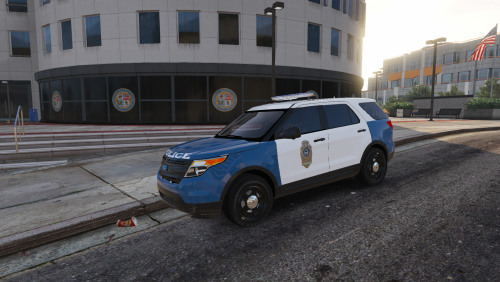
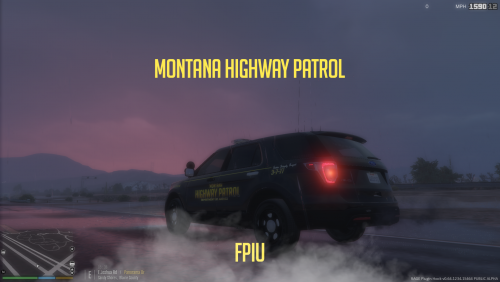 Hello and welcome to my file! This is my first ever skin, so it may have flaws 😛 I will be releasing the Fleet soon, so stay tuned! The model is made by Thehurk, thank you sir for letting me use it! All instructions are posted in the file...
 -
 This is an good AMAZING pack! Thank you OP for this! This is a really good pack, the uniforms look nice, the installation is quick and easy, thank you, again!
- 15 comments
- 1 review
-
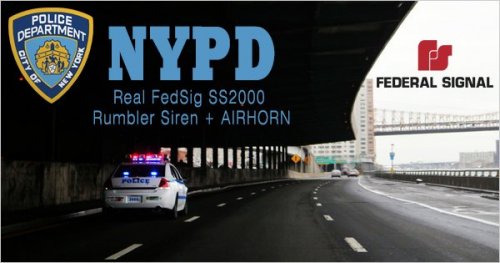 Definitely my favorite siren pack in GTA. The siren sounds amazing, the airhorn too. Great job OP!
- 21 comments
- 12 reviews
-
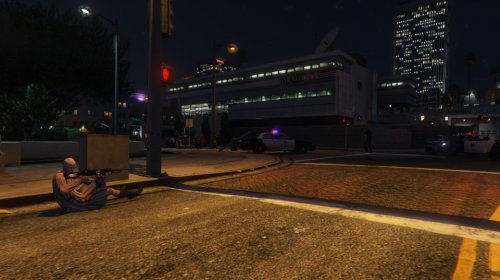 After being bored out of my mind with stock/ vanilla callouts, and wanting to do SWAT patrols, I downloaded this addon, and I love it! 10/10, great addon!
- 61 comments
- 17 reviews
-
 Honestly, I tend to not review when downloading addons/ mods, but this is WAY to good to go unnoticed. This addon, or "Modding DLC Pack" is absolutely essential for users who want to install replacement/ addon vehicles to LSPDFR. Definitely 10/10 Grapes!
- 266 comments
- 36 reviews
-
 Also.. where do the carcols.ymt go? Thanks again Is it DLC.rpf / common / data- in the modding folder?
- 10 comments
- 3 reviews
-
-
what directory should I put these in? patchday3ng or ?... Thanks, Im still a beginner at this.
- 10 comments
- 3 reviews

