arsenuhl
Members
-
Joined
-
Last visited
Everything posted by arsenuhl
-
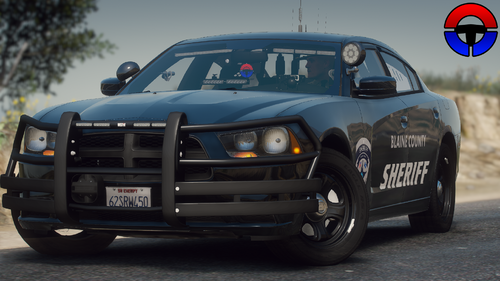 Best lighting out of any pack in this game. Well done, thank you
 -
I have a vehicle that i'd like to spawn in with the window tint level thats called "Stock" in native trainer (this makes the lightbar clear) I've tried every code i can find from other vehicles, and none are right. Anyone know the correct code? PS Stock and none are different, none (0x00FFFFFF) doesnt remove the color from the lightbar. I'm sure i could edit the lightbar but i have no idea how to do anything outside of openiv
-
-
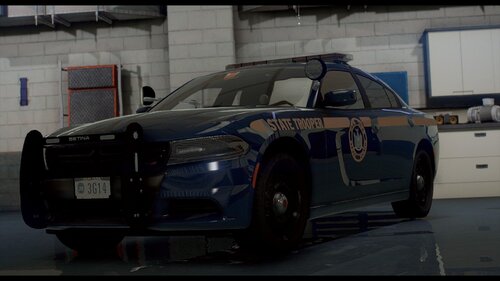 i know this is a year old mod and hasn't been updated since (unless its somewhere else) but this would be the best NYSP charger models by far anywhere if the few small errors were fixed like the grey lights floating on the side and the traffic advisor light bar not working properly (facing the wrong way with stage 3 and always on facing forward for some reason). Anyways thank you for making these, they are still more accurate than any others and the reflective stripes are a great detail and makes me still use the cars very often even with the errors (PS I use larger pack that uses the same name, so I have to replace some vehicle files in that pack to use these, so it may be because i dont have the carcols installed but I dont have access to it without using the oiv 😞
- 21 comments
- 8 reviews
-