


Officer Kozeluh
Members
-
Joined
-
Last visited
-
-
 I'll admit I definitely copied ur font on the words at the top right my intention was to just create a better background than u because in my opinion I just didn't like the way u made urs so I decided to create my own. Also u cant really say I copied u on the stars and stripes because the original creator made almost all of his backgrounds with stripes like how u did. Overall in MY OPINION I thought ur design was kinda plain. All of this was mainly for my use but I decided to put it out there just in case anyone else liked it. Sorry for this mix up or offending u in anyway. Hope u read this @FTW Flamez
 -
Included: A Read Me including instructions and the image for the background This Background is for ComputerPlus while driving "police, police2, police3" CREDIT: I created the image myself Dedicated to all my Chiraq LSPDFR players
-
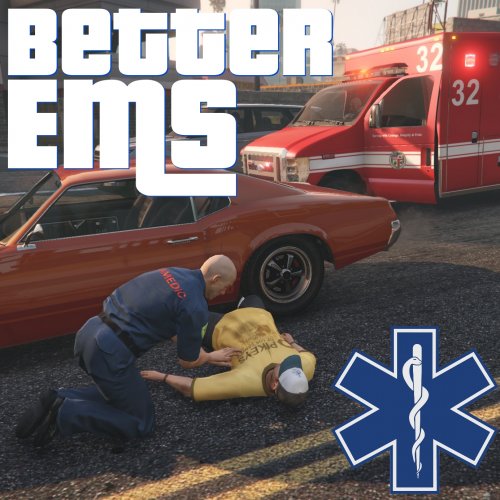 Whenever I call EMS the truck spawns but doesn't move from spawned location. I have one ELS SUV and Non ELS Firetruck but reskin/model. And they just never move. Also When I call EMS they only spawn one location.
- 783 comments
- 86 reviews
-
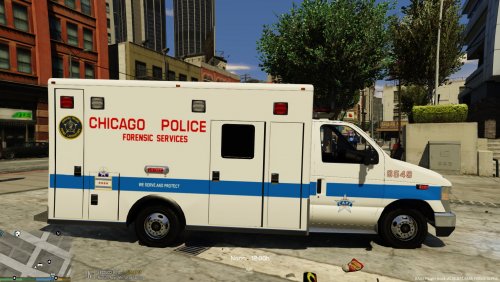 can u make the lights blue???????? PLZ? it would be more realistic.
 -
how do i make it work without finkones radio. i tried just renaming it but then the lights are red.

