


ericpolowski
Members
-
Joined
Everything posted by ericpolowski
-
You are griping over day 1 stuff, you really need to appreciate this community a little more. This game wasn’t designed with lspdfr in mind, it was created from some very talented people who made it work (if you yourself ask why can’t it be easy, think of how complex coding lspdfr is ) You got a perfect response for realtjennings and snap at him because you didn’t take the time to research this on your own. I really hate seeing responses like yours. Constructive criticism: you will get no help from this community with your attitude Now with that being said. Did you figure everything out yet or still having issues?
-
Oh boy...... where to even start. I want to help you because I remember where you were at one point. I truthfully was so overwhelmed when I initially started but I scoured these pages and forced myself to read and pick up little tips as I went. The key was attempting to the best of my ability and failing many times until the little things all made sense. Unfortunately you likely will need to do the same. It is absolutely impossible (for me at least) to write out in a post how to do this. But I can give you a great starting point and basically a MUST if you are going to mod 1. Make a mods folder in open iv !!!! Google “lcpdfr mod folder” or something like that to get a description 2. I make a separate folder on my desktop for all the original files. If you change ANY file at all, before you do drag that original file out of open iv and put it into your backup folder. That way if something goes horribly wrong or your game crashes (it will happen many times while you are starting off. Get used to it) you will have the original right there to replace 3. Only make one change at a time and then load up the game to test. That way if it crashes you know what files caused it 4. Youtube “how to add real cars gtav” in Youtube. The author is firstthirtyminutes it may or may not be outdated a little but the basics are there. This is my take on it. These steps seem basic and aren’t exactly what you asked. But if you don’t do them first , don’t bother trying to add cars.
-
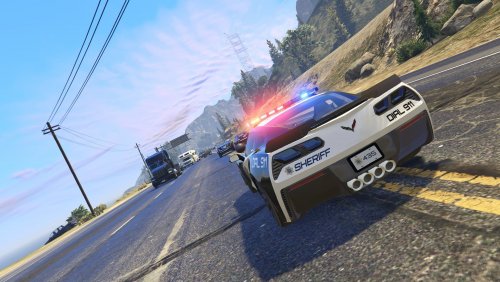 I found my new favorite! You did an excellent job with this pack! This is your first experience modding gtav?!?! I don't believe that with how good these look 😜
- 50 comments
- 15 reviews
-
-

- 1
-
-
The problem here is I can’t “like” your post enough!
-
I agree I’m driving myself crazy checking back daily for updates. 😂😂
-
.thumb.png.e2108197eebd2a115a71434e78afdd67.png) I absolutely love this callout! I find myself doing this one over and over, love coming from a distance into all the chaos. I also LOVE arriving on scene to squad cars already in place. It is highly realistic (I don’t know why anyone would say there are too many cars??). There would be just as many in real life if not more. Anyway, after playing this and another few of your call outs you are now on my radar, whenever you post something new I’m all in! Feel free to make more high profile callouts such as active search / containment!😄
I absolutely love this callout! I find myself doing this one over and over, love coming from a distance into all the chaos. I also LOVE arriving on scene to squad cars already in place. It is highly realistic (I don’t know why anyone would say there are too many cars??). There would be just as many in real life if not more. Anyway, after playing this and another few of your call outs you are now on my radar, whenever you post something new I’m all in! Feel free to make more high profile callouts such as active search / containment!😄- 31 comments
- 15 reviews
-
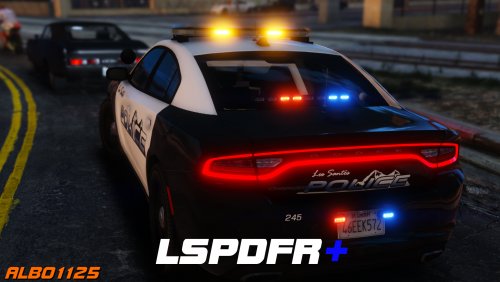 I know I know I’m late to the party, but I am fairly new to lspdfr. Albo, I hope this message finds you- Beside all of the lspdfr developers, you are absolutely hands down the main artery of this whole program. I can’t say enough for the time and energy you went through. I appreciate your work more than I can express. I love lspdfr and your mods and tutorials helped make me comfortable to mod gta. Thank you !
- 1,178 comments
- 137 reviews
-
-
- 2
-
-
I cannot provide any insight, but all I can say is yes!! I thought I was the only one. I always say they deserved it after the fact though
-
I’m fairly new to lcpdfr (joined approx 1 month ago )and I have to say this is some of the most incredible developing I have ever seen! I am beyond thrilled to see an update fairly close to me starting off. To any developers involved in anyway, shape, or form it is because of you and this mod that I bought a gaming pc i have ZERO regrets

.thumb.png.e2108197eebd2a115a71434e78afdd67.png)
