


janach1331
Members
-
Joined
-
Last visited
-
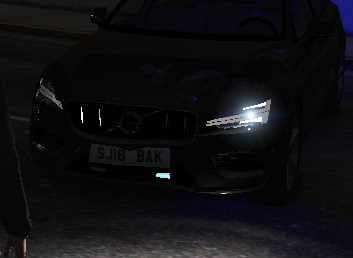
As you can see on photo, my lights are not bright. I have installed Radiance V and Visual V. I tried everything. Normal lights (in vanilla cars) are very bright, but the ELS vehicles not. Please, help!
-
Thanks, now it works, but the other problem is, that my ELS lights aren't bright. I have installed RadianceV (very bright file) What should I do? I have same problem like here, but it isn't solved yet.
-
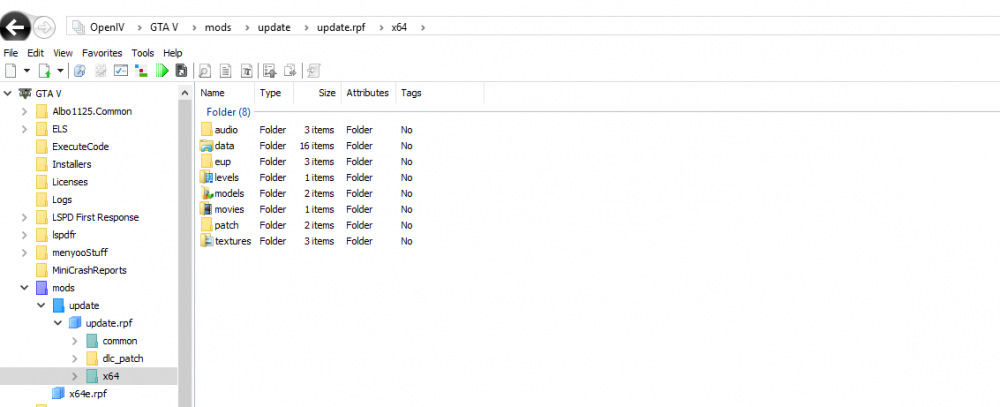
I would try, but I don't have dlcpacks folder ://
-
I have a problem with installing any police cars into GTA V. My vehicles.rpf file is located into mods - - - x64e. When I swap (by OpenIV) for example police3 files with other vehicle, install ELS files, ingame there is no new cars. Does somebody can help me with that issue? :///
-
-
I cheked everything, it was my fault. Thanks!
-
Hi, I have just installed the EUP menu and EUP Law and order plugins. When I put all EUP menu files into my GTA folder, it work, but all Albo1125 plugins (Traffic Policer, LSPDFR+, Assorted Callouts) don't. I think this is caused by RagenativeUI.dll files, there are 2 different. What should I do? (When i don't put RagenativeUI.dll from EUP Menu all other plugins work.)

