




HolyGobo
Members
-
Joined
-
Last visited
Everything posted by HolyGobo
-
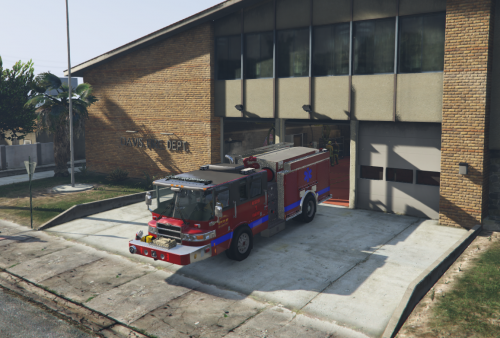 You can go onto gta5-mods.com and search siren. There should be some. I know that this one is pretty cool for the fire department: https://www.gta5-mods.com/vehicles/q-siren-powercall-grover-airhorn-sound-mod
- 10 comments
- 1 review
-
I was wondering how to make a car have multiple colours and shape that layer to fit a certain part of the template. So if there is a way to customize which parts of the car has which colours and in a way cut the colour layers to suite the vehicle indents and designs.
-
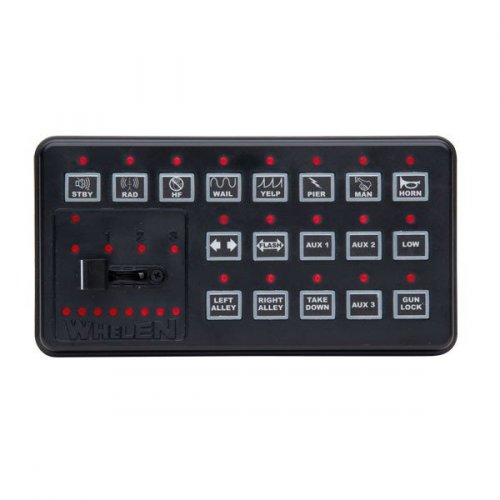 The thing is that everything with the siren works except for the main siren when it loops. When I hold down "R" the siren obviously plays and has the sound as the it should with the cencom, but when it comes to turning on the siren for example using for lspdfr "J" and then turning on siren 1, it plays the generic ingame GTA 5 Firetruck siren. Is there a way to fix this?
- 29 comments
- 7 reviews
-
This siren is absolutely amazing buddy! Well done! I was wondering one thing though. While using the firetruck the main siren is not the siren from this mod but rather the ingame one. When I hold down "R" to use the main siren while tapping it works fine but when the siren is in the full use mechanic while having the siren turned on for looping, it is the generic GTA 5 firetruck siren. Do you know a possible fix for this?
- 29 comments
- 7 reviews

