Skip to content
View in the app

A better way to browse. Learn more.

LCPDFR.com

A full-screen app on your home screen with push notifications, badges and more.

To install this app on iOS and iPadOS
  1. Tap the Share icon in Safari
  2. Scroll the menu and tap Add to Home Screen.
  3. Tap Add in the top-right corner.
To install this app on Android
  1. Tap the 3-dot menu (⋮) in the top-right corner of the browser.
  2. Tap Add to Home screen or Install app.
  3. Confirm by tapping Install.

Mags

Community Team
  • Joined

  • Last visited

Everything posted by Mags

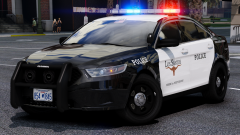
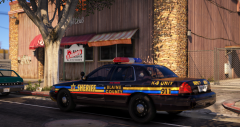
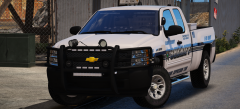
  1. Its pretty cool! Are these the only two vehicles that you would have it available for? Would have to see more pictures, but looks pretty damn close to the Beverly hills cars.
  2. Mags commented on RoguePlus's gallery image in GTA V Galleries
  3. Mags commented on SilentEagle's gallery image in GTA V Galleries
  4. Mags commented on t0y's gallery image in GTA V Galleries
  5. K-9

    Mags commented on xDZYx's gallery image in GTA V Galleries
  6. Mags posted a gallery image in GTA V Galleries
  7. Mags commented on pilo88's gallery image in GTA V Galleries
  8. This topic has been moved to the appropriate forum. Please post in the correct location in the future.
  9. Mags commented on Skin Works's gallery image in GTA V Galleries
  10. Mags commented on Jmannnn's gallery image in GTA V Galleries
  11. Mags commented on xDZYx's gallery image in GTA V Galleries
  12. Did you put the .xml file that was provided with the mod in the ELS folder? Which is located in your GTA V main directory?
  13. Very cool! Nice to see something different!
  14. Mags commented on ISPfan12's gallery image in GTA V Galleries
  15. Mags commented on Cameron Waller's gallery image in GTA V Galleries
  16. Mags commented on Braydentx's gallery image in GTA V Galleries

Account

Navigation

Search

Search

Configure browser push notifications

Chrome (Android)
  1. Tap the lock icon next to the address bar.
  2. Tap Permissions → Notifications.
  3. Adjust your preference.
Chrome (Desktop)
  1. Click the padlock icon in the address bar.
  2. Select Site settings.
  3. Find Notifications and adjust your preference.