


Michael5931
Members
-
Joined
-
Last visited
Everything posted by Michael5931
-
 I like this pretty much I have been looking for something that would allow brakes to be on when stopped and for turn signals but the only thing that I dont like is when you get out of the car the brake lights stay on. As in when the car is running and you have someone stopped. Other than that pretty good.
- 262 comments
- 21 reviews
-
-

- 1
-
-
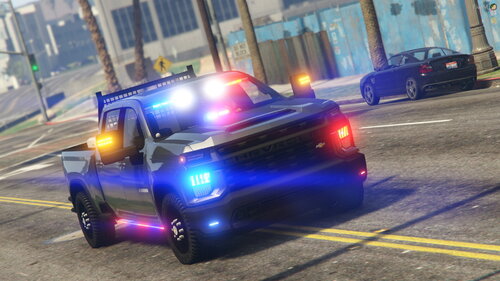 Great looking truck only thing I am having an issue with is when I downloaded it there are no els files for it..
- 49 comments
- 9 reviews
-
-
- 1
-
-
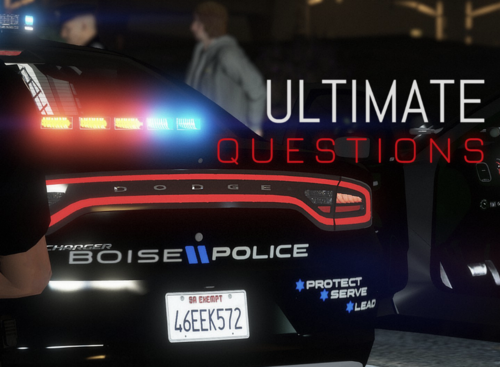 I am hooked on all of these great questions Great work Sereous. Keep up the amazing work! ⭐⭐⭐⭐⭐
- 184 comments
- 72 reviews
-
Always great and amazing work done by Sereous. Keep up the great work. These questions are great!
- 184 comments
- 72 reviews
-
.thumb.png.a8f56bdfe4aa7517ee4660233dc163a7.png) I am sure that I would be able to give this a 5 star review but there is a problem it was installed like it was supposed to be installed and it doesn't work. I did have the simple trainer but its out now and the updated native trainer is install and still nothing. Is there something I am missing to make it work? I go to the hospital and press F11 and nothing. I would like to try it out and see how it is. I see a lot of people are able to get it to work I cant. Not sure if it needs to be ran with ragehook like LSPDFR does or just through the normal GTA5. Any advice would be great. Thanks in advance.
I am sure that I would be able to give this a 5 star review but there is a problem it was installed like it was supposed to be installed and it doesn't work. I did have the simple trainer but its out now and the updated native trainer is install and still nothing. Is there something I am missing to make it work? I go to the hospital and press F11 and nothing. I would like to try it out and see how it is. I see a lot of people are able to get it to work I cant. Not sure if it needs to be ran with ragehook like LSPDFR does or just through the normal GTA5. Any advice would be great. Thanks in advance.- 101 comments
- 19 reviews

.thumb.png.a8f56bdfe4aa7517ee4660233dc163a7.png)