
TheJoshi42
Members
-
Joined
-
Last visited
Everything posted by TheJoshi42
-
tried reinstalling it but it didn't help
-
When I call for backup or a callout comes through, there is no actual radio sound. Also the cuffing sound does not play when arresting someone
-
RagePluginHook.log @Lennyy
-
yes, LSPDFR works fine as long as I dont use EUP
-
When I have EUP installed and load up lspdfr the game crashes. However I can play with RPH and EUP installed as long as I dont load lspdfr. I dont know whats causing this, anyone has an idea what the issue is?
-
 Does it work with Gta 5 Enhanced? I installed it but the game crashes after 1-2 minutes ingame
- 2,349 comments
- 237 reviews
-
anyone else has no police radio sound?
-
 Is it possible that under specific weather conditions, for example when it rains, the lspdfr cops can use a pre-configured outfit? I imagine that you could select an outfit in your .ini file that is already configured in the lspdfr outfit xml files or configure an outfit in your .ini file itself But I don't know if that's even possible, just imagining that would be pretty cool.
- 403 comments
- 24 reviews
-
I dont know too but its happening. For now I changed the voice in the .ini file to "S_F_Y_COP_01_WHITE_FULL_01" and press Alt+Y everytime I play a female character. Otherwise it would automaticaly use a male voice. I know its caused by your plugin because if I play without it, it works as it should. Can you try it yourself and see if it happens to you as well?
- 403 comments
- 24 reviews
-
There is currently a bug where when going on duty with a female character, it also automaticaly sets the male voice for her
- 403 comments
- 24 reviews
-
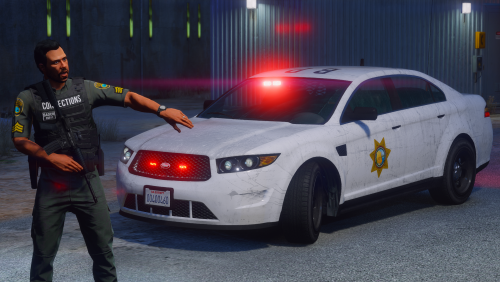 You should make the siren for all the vehicles the same as the Stanier has in your DPPD pack, please
 -
-
You could also try to change the key used for takedown in the Lspdfr settings
-
I think the the vehicle engine setting should be on "always on" by default, so we dont have to go to the vehicle settings every time when going on duty 🙂
-
Try restarting your computer
-
Try updating to the latest version of RageNativeUI https://github.com/alexguirre/RAGENativeUI/releases
-
try going to your agency_eupfr.xml and look for the LSPD in it. It should be the first agency in there. Then check if Police3 and Police4 are listed as vehicles inside the loadout
.thumb.png.211e5ee68696e2fae950a7924375bd44.png)
-
It has probably to do with StopThePed. Try removing it and see if it works then, at least with the default LSPDFR system. Then we can go on from there to fix the problem, so you can use StopThePed agein.
-
-
 EUP Menu crashes as fast as I press F11 with the new game update and the new LSPDFR update. Pls fix and update the plugin
- 635 comments
- 73 reviews
-
-

- 1
-
-
nice
-
 I know 😄 but it still shows the vanilla fib one. I added the <BadgeModel>prop_sahp_badge</BadgeModel> to SAHP for example and installed the dlc correctly but it still doesnt work. I dont know....probably something on my end. Does it maybe conflict with the lspd badge dlc from Sam? I have that one installed as well.
- 23 comments
- 2 reviews
-
-
- 1
-
-
I have EUP Badges and the new agency xml installed but when I do flash badge, it still shows the vanilla fib badge. Can anyone help me?
- 23 comments
- 2 reviews
-
-
- 1
-
-
Please add another flag to the Loadouts or another component for the Loadout like spawn chance for outfits. With this new flag we could define that a specific outfit or loadout only spawns for a specific weather like rain and snow.
-

.png.3f21bb67176a1a6acfae3b3cbe00c715.png)