nertervern
Members
-
Joined
-
Last visited
Everything posted by nertervern
-
Just go to GTA V main directory and search ELS. Look for the INI file, it will be in there
-
Had the same problem and what @Kucho posted works.
-
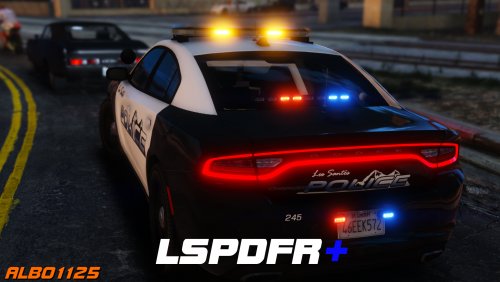 No when i try to pull them over, they just drive straight. They dont make turns or stop for anything in their way. It's not a pursuit either. They just drive straight ahead. So once i put my lights on and press shift to pull them over, instead of pulling over they just go straight and dont stop.
- 1,178 comments
- 137 reviews
-
Sorry i meant try to pull them over. I can't access Comp+ while driving, so no.
- 1,178 comments
- 137 reviews
-
I've been having a weird issue with my LSPDFR... Whenever I pull someone over or get in a chase, the perps just gas it straight ahead without stopping for anything, the only time they stop is if they get stuck or hit a wall. Any suggestions?
- 1,178 comments
- 137 reviews
-
A lot of agencies use the civilian variant and just install packages on it for admin/unmarked use.
-
put a thumb tack in your shoe
-
Should I tho? So y'all could make sounds like this.
-
Lol they should just use comic sans
-
metaphysically
-
Never. Alex Died.
-
ScripthookV has not been updated for the new patch. ELS runs on scripthookv.
-
offer is over, someone claimed them.
-
Hello! I have high quality Federal Signal Smart Siren Sounds. Well, all are great quality except for the "Priority." All these sounds were recreated or edited. Reply if interested, they're in wav format.