


you_cat_heel
Members
-
Joined
-
Last visited
Everything posted by you_cat_heel
-
Can someone please help me! I am still having the same problem. Thanks!
-
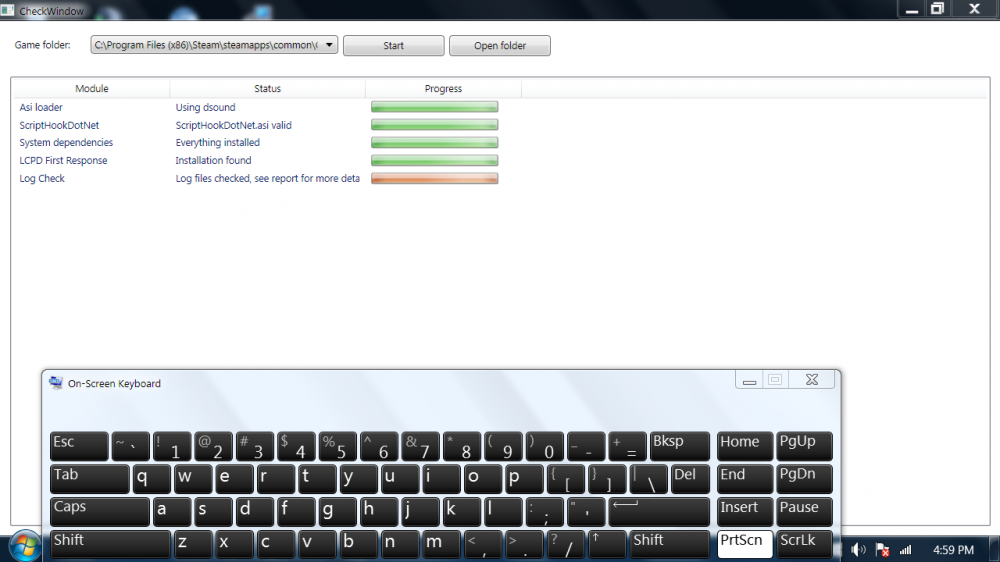
@CouthInk4 I did just that, but it still gives me the same error and picture comes up when I start the game and run as Administrator in my LaunchGTAIV. I ran a diagnostic check and this what occurred. I'm also copying and pasting my diagnostic log file if that can be an assistance as well to my problem. Thanks again! . Diagnostic log file:
-
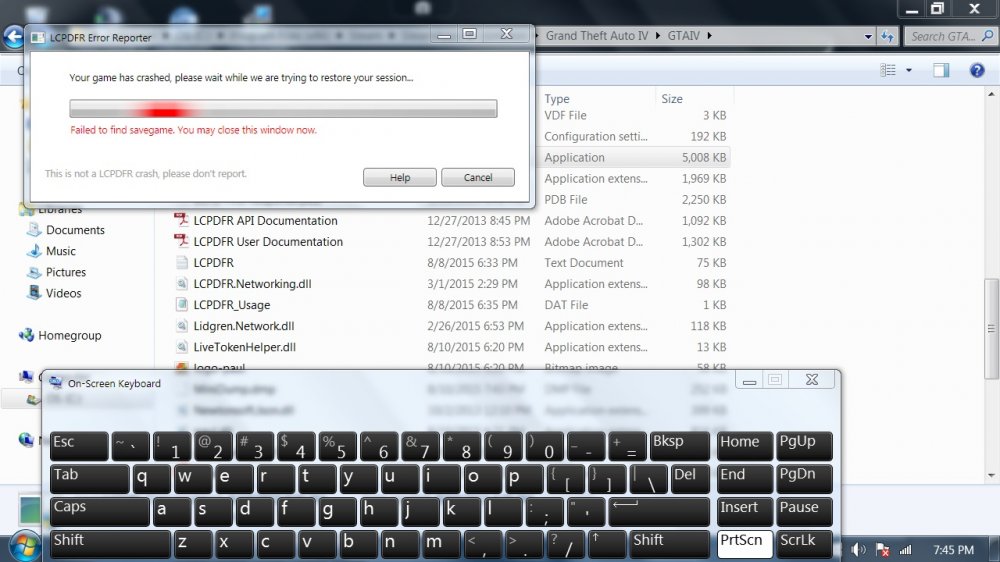
I am having trouble starting LCPDFR, it worked just fine earlier today, but all of a sudden I got this which want let me play LPDFR, but it will let me play GTA IV. I don't know what to do, I uninstall LCPDFR and all, and when I reinstalled it, it still gave me the same message. The following attachment is the problem I keep running into. I tried everything, but I can't seem to find the problem to play LCPDFR. Thanks!
-
Lol, I downloaded it now, but I'm confused as to what file goes where. Help please?? Thanks!
- 17 comments
- 2 reviews
-
I this be a nice desktop computer, to run GTA IV on and play lcpdfr?? If not where can I get a better deal, and a great one ranging from 500-750?? I am only buying it, just to play lcpdfr so I need y'all help. Below item is the one I am thinking about getting. Thanks!! I don't know a lot about computers, but it seems like it will get the job done. ASUS CM6730-US011S Desktop Processor 3.1 GHz Core i5-3330 RAM 8 GB DDR3 Hard Drive 1024 GB SATA Graphics Coprocessor Intel HD Graphics

