
krul
Members
-
Joined
-
Last visited
Everything posted by krul
-
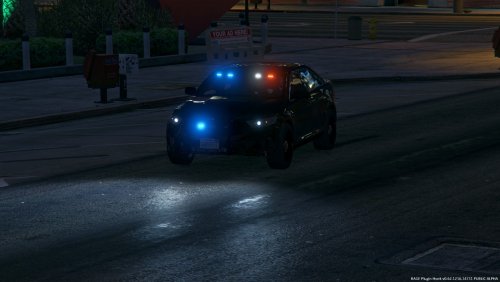 Idk whats wrong with the taurus,it works fine for me. Vpd uses 2 antennas actually just Google it
- 80 comments
- 28 reviews
-
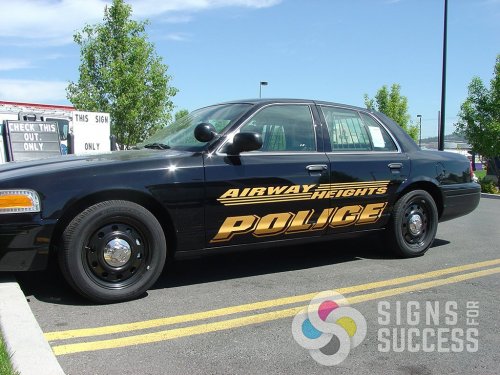 which car and any in-game photos?
 -
-
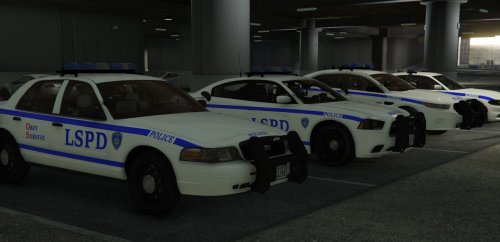 It works in png And you cant just edit the dds, i think you need to convert it to png or jpg first
- 10 comments
- 5 reviews
-
Fonts are wrong and you should use a badge thats more similar to the NYPD badge Also the LSPD text is too small and why did you make it to dds xD
- 10 comments
- 5 reviews
-
-
DUDE Thats not my fault my sirens work and i have the whole pack in my game If you can change the review to 5 stars...
- 80 comments
- 28 reviews
-
Your vehicles.awc cant be over 15,75kb I already responded to that I think Whats The reason for 4 stars?
- 80 comments
- 28 reviews
-
-
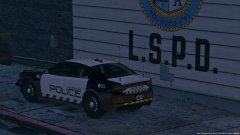
From the album: Textures
-
-
-
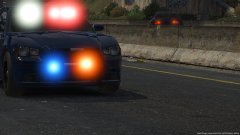 Oh, its mastercom B but it's private
 -
From the album: W.I.P.
-
-
-
-
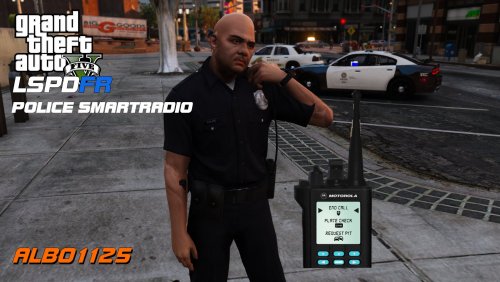 No action has (yet) been assigned to arrest manager/coroner. You may have gone on duty twice - make sure only to go on duty once. Did someone solve this issue?
- 1,196 comments
- 127 reviews
-
 Just PM me if you want 🙂
 -
The rear bar is non els and it activates at the 3rd click like normal els lightbar
-
The rear interior bar is not els so i can make some weird patterns
-
From the album: W.I.P.
-
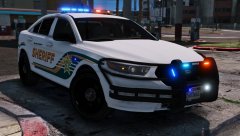 Probably yes
 -
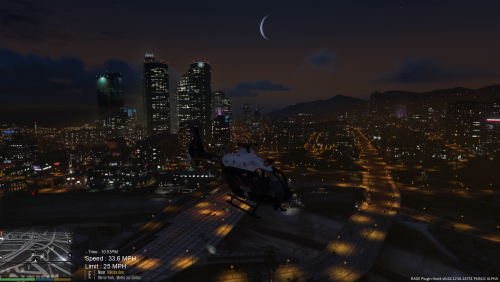 Put it into vehicle textures not vehicle models
 -