Gary.
Members
-
Joined
-
Last visited
Everything posted by Gary.
-
-
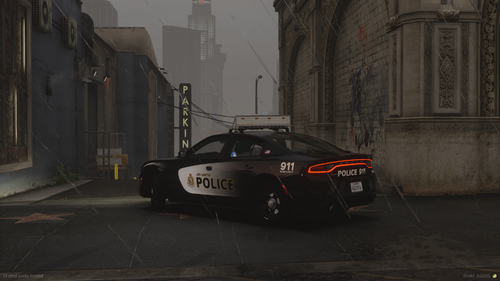 Best VPD inspired Dodge Charger that's out there. No one else has come close. Great work! - G. Sanderson
- 1 comment
- 1 review
-
-

- 1
-
-
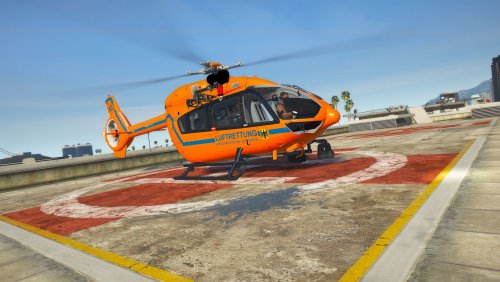 Around $5USD. Just wondering if the site is legit though.
 -
-
I see you keep linking this other site, I've never heard of it before myself. Has anyone else actually bought a model from them? It seems to be the only H145 available for GTA 5.
-
 All good bro, I don't plan on ripping these.
 -
-
.thumb.jpg.0349c60fdbc8a9b9a401f94f41059bb8.jpg) Community Safety is a meme btw.
Community Safety is a meme btw. -
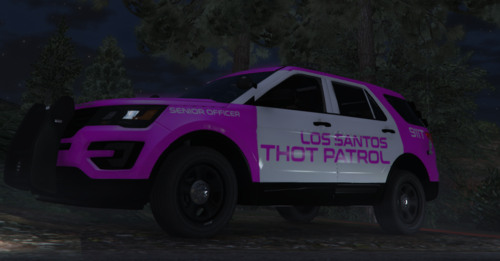 Finally I can go patrollin'
 -
2020-01-299_06_08PM.thumb.png.05419732b81f473886f7062b8903602e.png) I had bugs CVPI installed for my sheriff slot. In his DLC pack for the cvpi he has a carcols.meta and carvariations in there. so I simply removed the original lines from his carcols and carvariations. I added in the lines for the cars I wanted to use. Then I went to the vehicles.meta and replaced my sheriff and sheriff2 slots but one thing to note, in the vehicles.meta they have assigned different audiohashes to the car. For example the taurus had the Cheval Fugile or whatever so my sirens weren't working. Simple fix was simply putting <audioNameHash>Police3</audioNameHash>
I had bugs CVPI installed for my sheriff slot. In his DLC pack for the cvpi he has a carcols.meta and carvariations in there. so I simply removed the original lines from his carcols and carvariations. I added in the lines for the cars I wanted to use. Then I went to the vehicles.meta and replaced my sheriff and sheriff2 slots but one thing to note, in the vehicles.meta they have assigned different audiohashes to the car. For example the taurus had the Cheval Fugile or whatever so my sirens weren't working. Simple fix was simply putting <audioNameHash>Police3</audioNameHash> -
Took a few minutes but I was able to convert the cars I want for single player use. Thanks for releasing this!
-
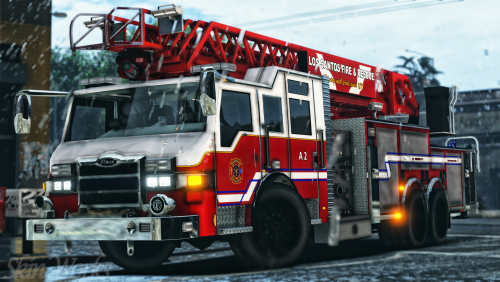 BCAS also has a Dodge Charger. Its super rare to see around. I've seen it a few times. Cool pack nonetheless.
- 54 comments
- 10 reviews
-
-

- 1
-
-
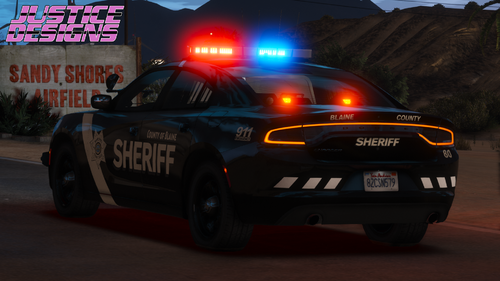 Quick question, where did you install the carcols and carvariation files?
 -
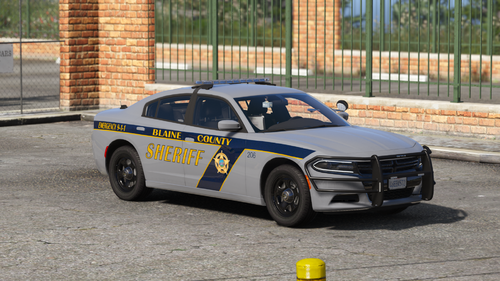 In the installation read me. There's an error. It says to put in <Item>dlcpacks:/bcso2019/</Item> but if you read the uninstall it says <Item>dlcpacks:/bcso2020/</Item> **fixed my issue
- 20 comments
- 8 reviews
-
Sorry to bug you again, but it looks like the vehicles are still spawning with random extras. Some models I use have multiple light bars so it gets weird.
-
Yessir, it helped!
-
Tried to search up some information regarding this but couldn't really find a clear answer. If I want to force vehicles to spawn with certain extras, how would I go about editing the .xml? For example this is taken from the default agency.xml <Vehicles> <Vehicle extra_1="false" extra_2="false">police</Vehicle> </Vehicles> So would I just do <Vehicles> <Vehicle extra_3="true" extra_4="true" extra_5="true">sheriff2</Vehicle> </Vehicles> Thanks in advance.
-
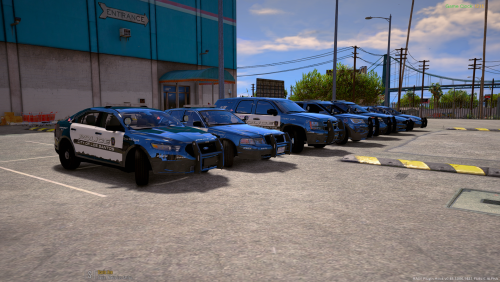 For the life of me, I forgot what I need to .meta I need to edit to swap the cars around. For example police - cvpi police2 - fpis police3 - fpiu 16 police4 - fpiu 13 etc
- 779 comments
- 187 reviews
-
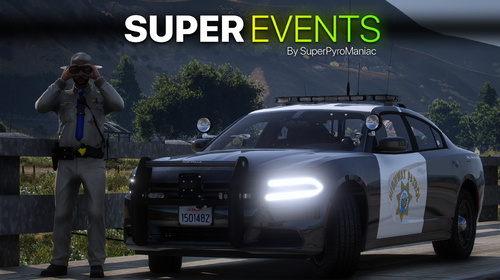 My games not crashing, but however when I approach these events and press Y it will automatically just end the event and then I am no longer able to receive any call outs.
- 222 comments
- 22 reviews
-
Thanks a ton! I appreciate you taking your time and doing this.
-
Nope, ELS controls got to confusing for me and I couldn't be asked to change everything that conflicted haha. Just using regular models. Also meant to include remove looking back in vehicle
-
I see the OP isn't very active anymore, but if anyone else is able to fulfill the request or point me in the right direction, that would be great. Phone Up (in vehicle/on foot) [LB] Aim (in vehicle) Radio Wheel (in vehicle) Character Wheel (in vehicle/on foot) Select Weapon (in vehicle) Expanding Minimap (in vehicle/on foot) Cinematic Mode (in vehicle) Light Melee (on foot)
-
-
-

.thumb.jpg.73477c821c4db0a5310a1983b5d74b4c.jpg)
.thumb.jpg.0349c60fdbc8a9b9a401f94f41059bb8.jpg)
2020-01-299_06_08PM.thumb.png.05419732b81f473886f7062b8903602e.png)