HaywoodJablomi
Members
-
Joined
-
Last visited
Everything posted by HaywoodJablomi
-
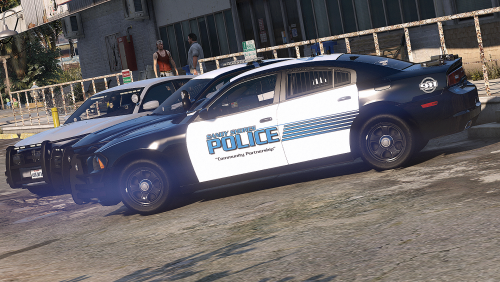 A minor pack? This for polecat?
 -
Still not showing up, on two separate computers on Google Chrome.
-
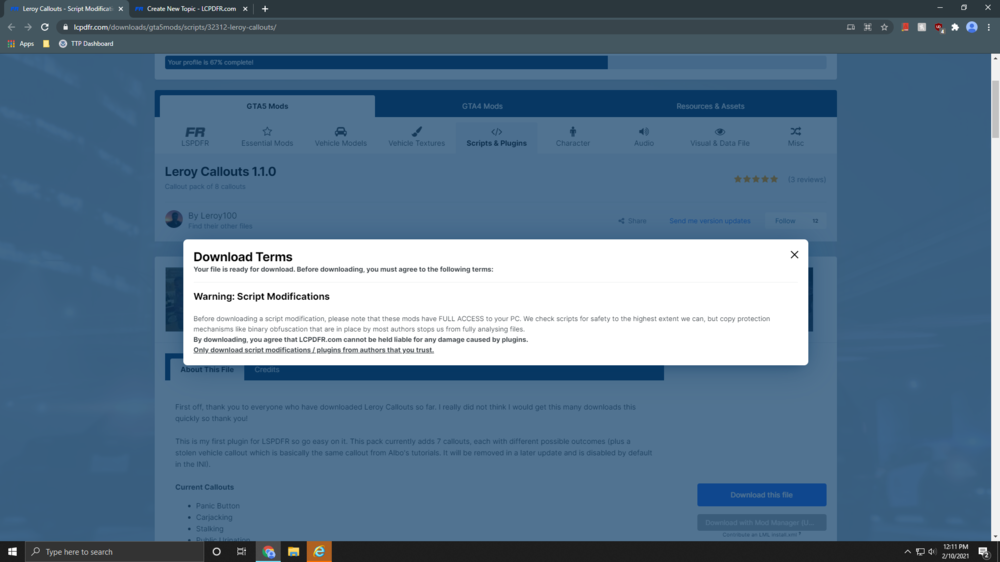
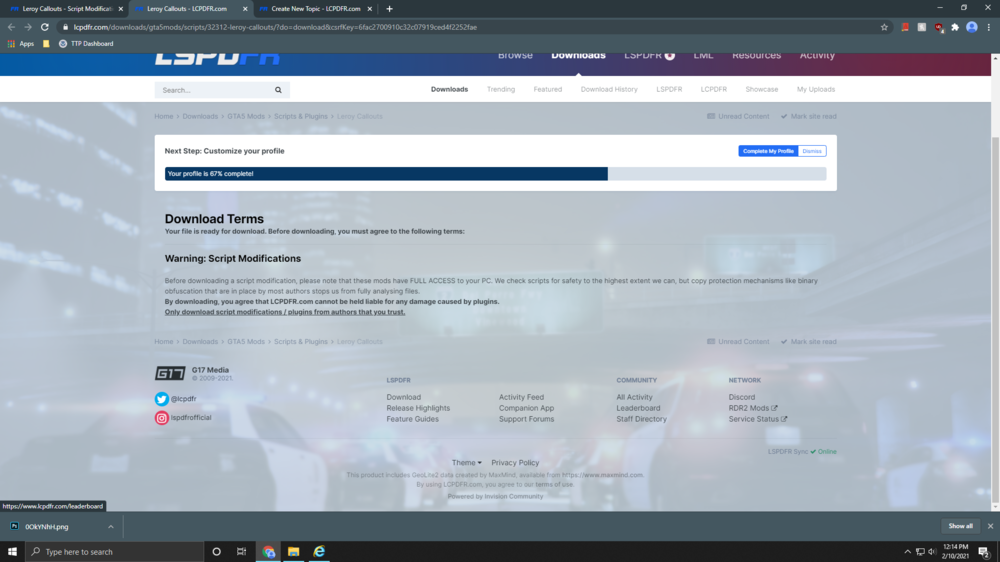
When attempting to download plugins on the website on Chrome there is no "agree to terms" button anywhere. I was able to solve the issue by downloading using Internet Explorer however was just reporting this if it was not already known.
-
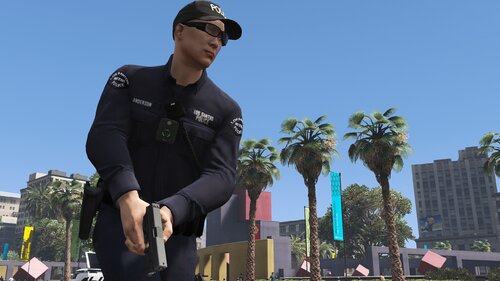 I appreciate the work it's a great addition to the game, however the ratio of regular officers to other ranks is unrealistic.
- 937 comments
- 23 reviews
-
 I think its excellent that this plugin has the ability to teleport the player to police stations which isn't in the trainer. This is also a great stepping stone for someone who might be building up skill in scripting. I wouldn't put people down for trying to improve the community this is the sort of thing that discourages people from creating things...
 -
-
From the album: Random Images
-
-
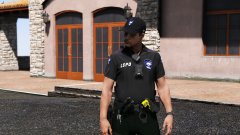 Where could I find that duty belt mod?!
 -
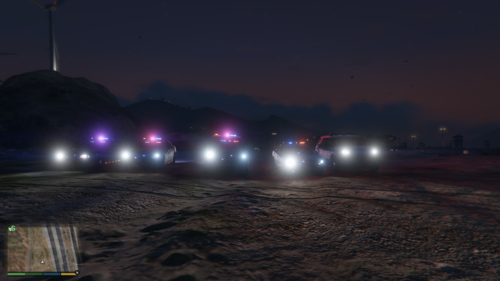 this is super sick bro thanks! game changing
 -
![[WIP] Chevrolet Tahoe (GMTK2XX) PPV '2015](//s3-gallery.int-cdn.lcpdfrusercontent.com/monthly_2019_09/small.5.jpg.1741860847b9e1db41d8cfae8db9ddec.jpg) what going on with that flag
what going on with that flag -
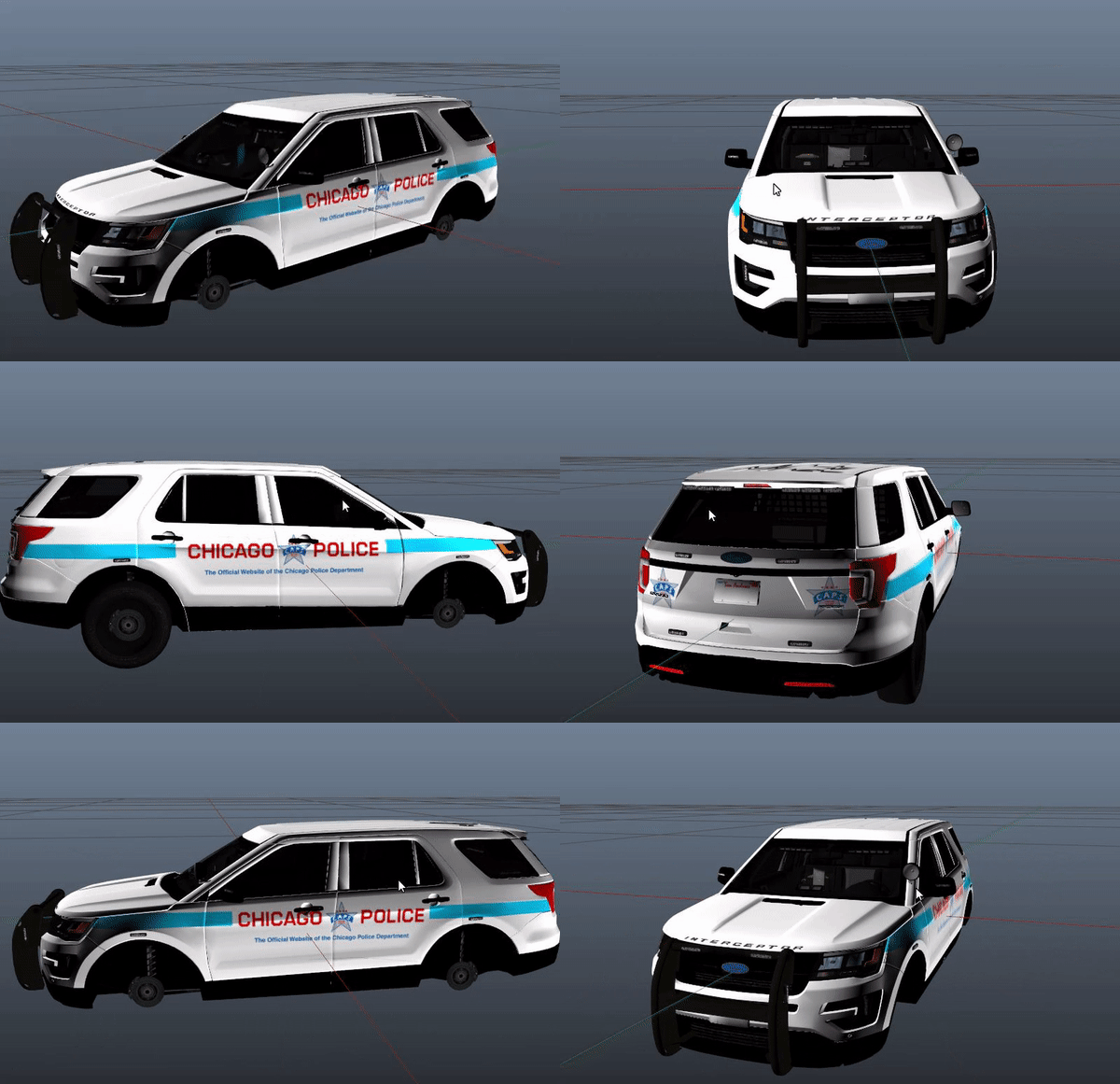 Looks like he just took the logo off of https://home.chicagopolice.org/ lmao
 -
 how exciting
 -
-
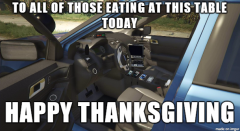
From the album: LSPD
-
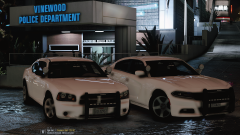 New vehicles 2008 Dodge Charger
 -
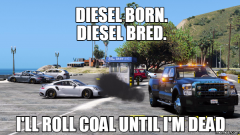 ya but this isn't funny and it's not exactly a meme so I guess its fine.
 -
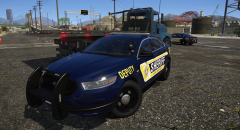
From the album: LSPD
A joint task force between the Los Santos Police, Port Police, and Sheriff's Department recovered fifteen stolen vehicles from the Port of Los Santos using LoJack Recovery Systems. -
-
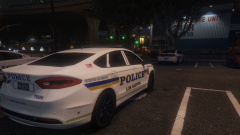
From the album: LSPD
-
From the album: LSPD
-



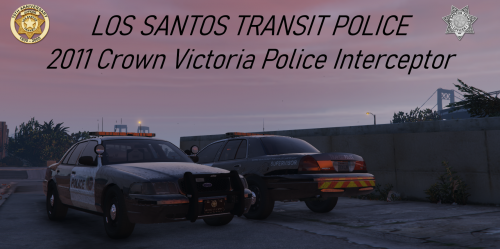
![[WIP] Chevrolet Tahoe (GMTK2XX) PPV '2015](http://s3-gallery.int-cdn.lcpdfrusercontent.com/monthly_2019_09/small.5.jpg.1741860847b9e1db41d8cfae8db9ddec.jpg)