
SilentEagle
Members
-
Joined
-
Last visited
Everything posted by SilentEagle
-
From the album: SilentEagle's Screenshots
-
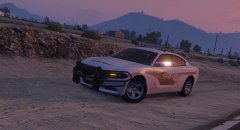
From the album: SilentEagle's Screenshots
-
The drugalyzer is under [Keybindings] section. Ped management I think is part of Arrest Manager.
-
It is part of the traffic policer by Albo. Go to the ini file and change the keybindings to whatever you like
-
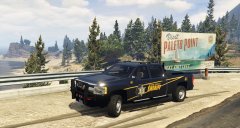
From the album: SilentEagle's Screenshots
-
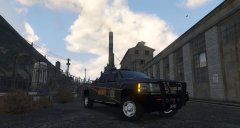
From the album: SilentEagle's Screenshots
-
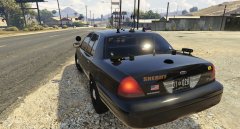
From the album: SilentEagle's Screenshots
-
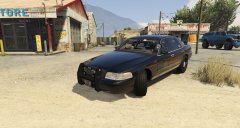
From the album: SilentEagle's Screenshots
-
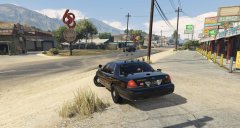
From the album: SilentEagle's Screenshots
-
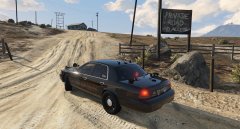
From the album: SilentEagle's Screenshots
-
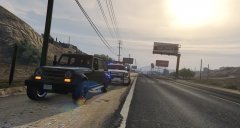
From the album: SilentEagle's Screenshots
-
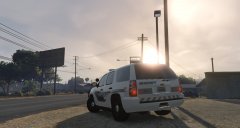
From the album: SilentEagle's Screenshots
-
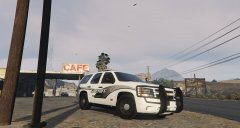
From the album: SilentEagle's Screenshots
-
Yet! you never know
-
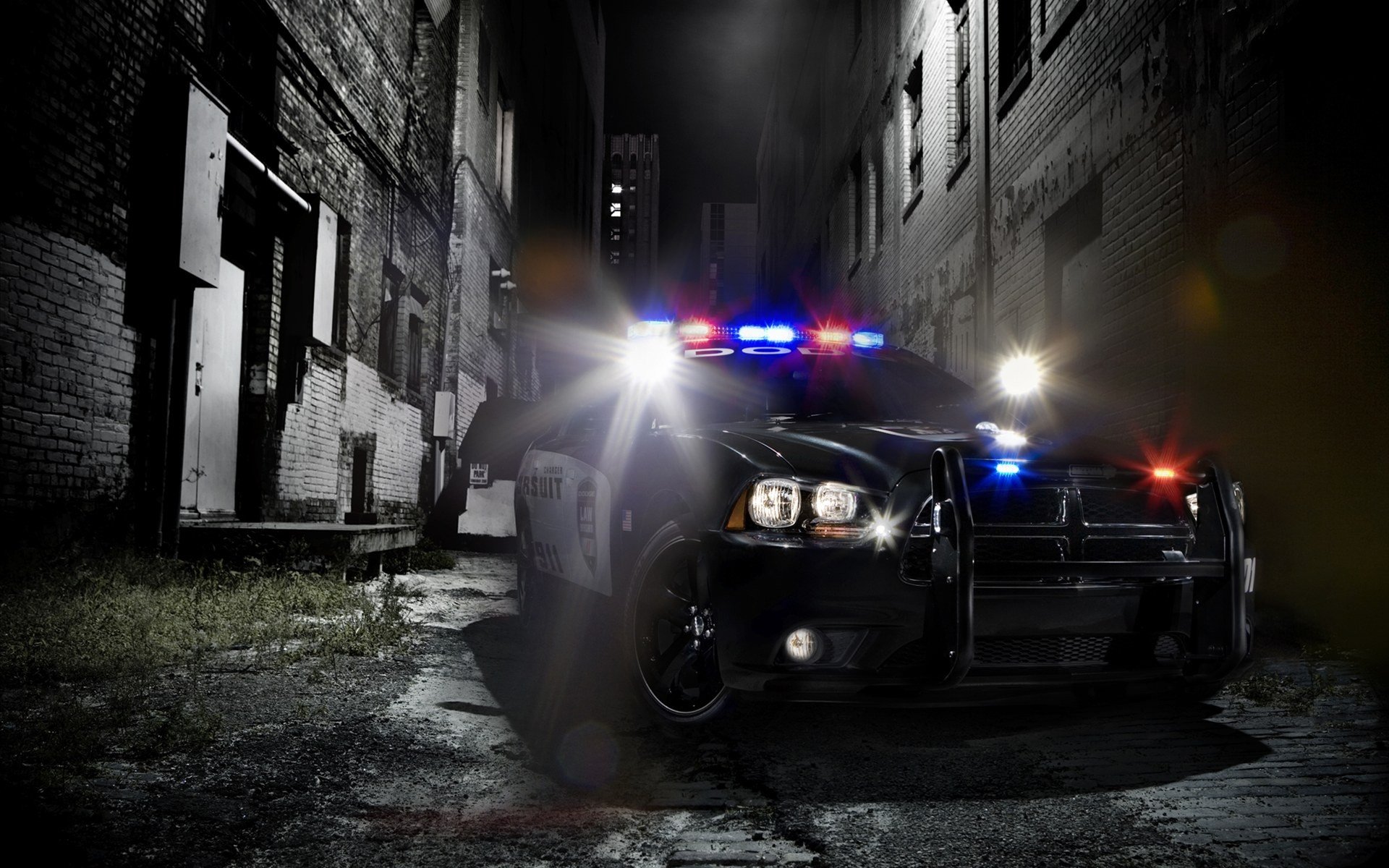
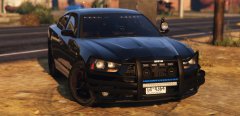 WOW!! I love this Charger!!!
 -
My favorite movie of all time!!!
-
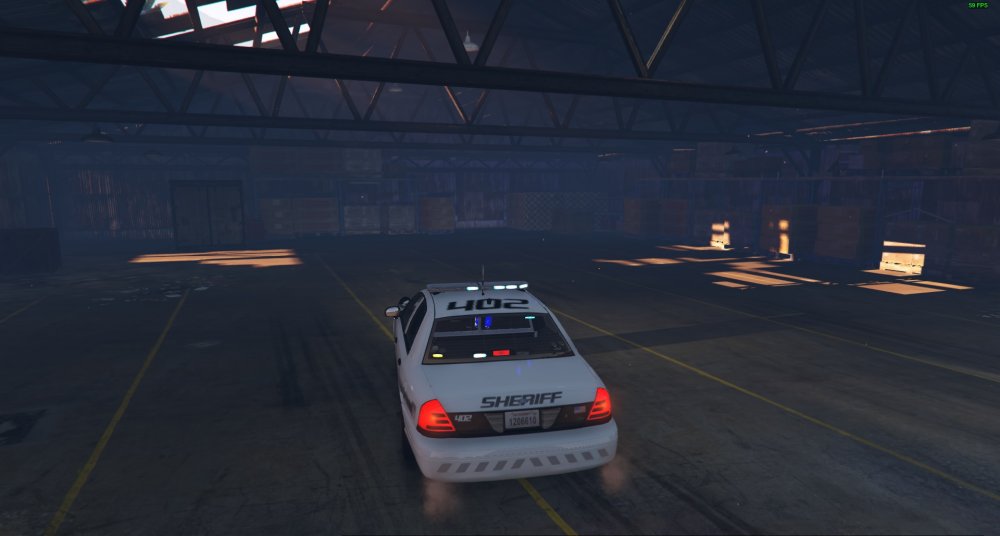
So I checked my game because I was using the same mod and found out that I get the same problem with orange lights and even the blue is dim. I've tried to uninstall VisualV and the LED mod and found out that it's the visualsettings file. With the original file it works fine but the lights are dim of course. I used RADIANCE V and tried to change the values myself but get the same results. I've found this thread with the same problem but with no solution:
-
What the last car you added? the first entry? Did you check the carvariations too?
-
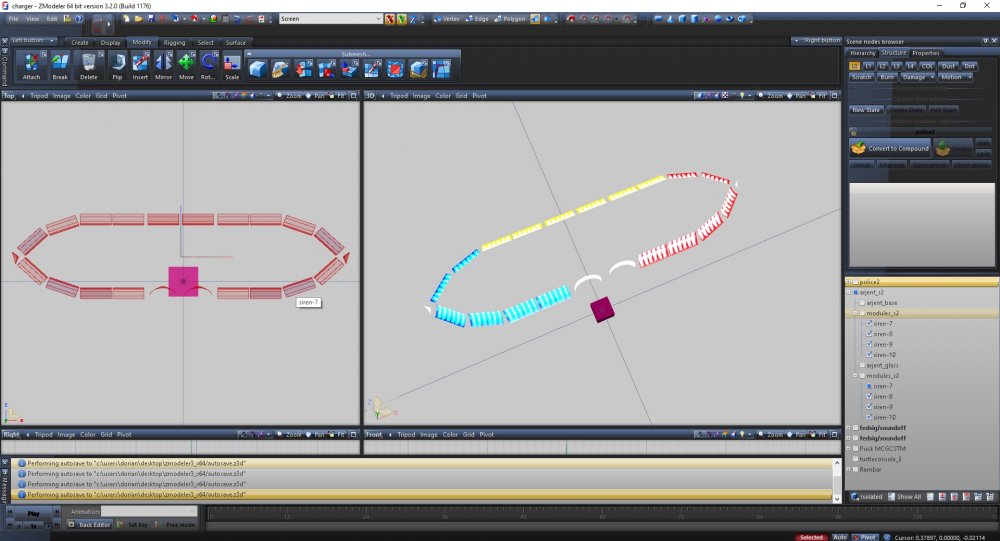
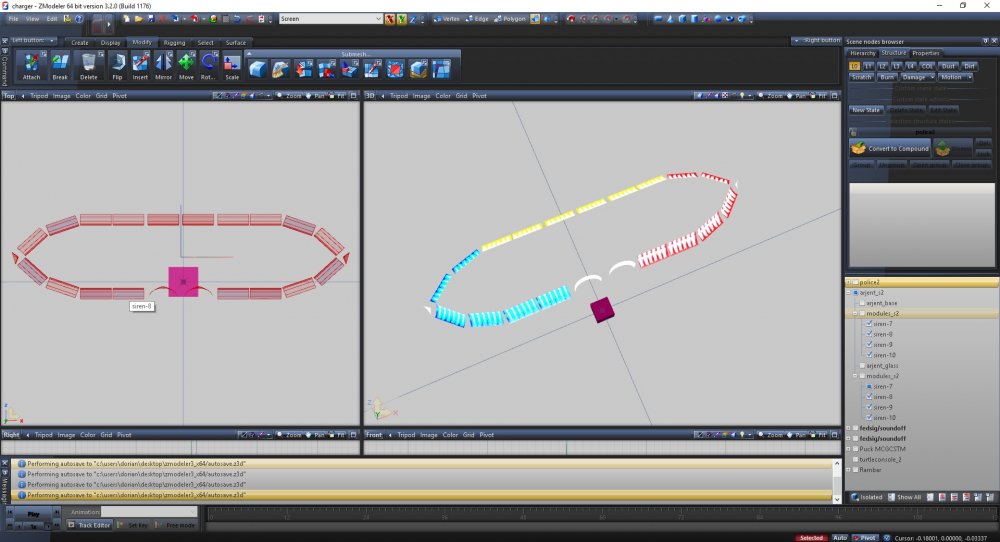
I'm following the great tutorial by "Thero" on how to set up ELS and the lightbar that I'm working with has already attached lights which leaves me with less extras. I want the lightbar to be accurate to LAPD ones. I also would like to know how to set a steady burn light since LAPD is using steady burn light. (I'm new to modeling).
-
Try to replace the graphics.ytd file with the one from VisualV and see if it's any better
-
I'm using this mod to keep the door open. You can customize it with the ini file The spotlight mod is still working so maybe try this mod for visuals:
-