.gif.e441e9fc669ec51045cdd68759e09fda.gif)
Sinnisa
Members
-
Joined
-
Last visited
Everything posted by Sinnisa
-
-
From the album: Long shift
-
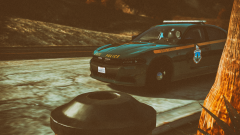
From the album: Weddings, Holidays & Celebrations
-
-
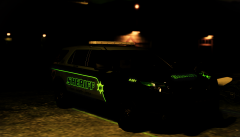 @theninja35 I'm just hoping they'll do some magic and make it available for GTA 6
 -
@RogueThunder Unfortunately neither one... xD @theninja35 This is achieved trough photoshop xD Wish that this could be replicated in-game.
-
From the album: Long shift
-
-
-
-
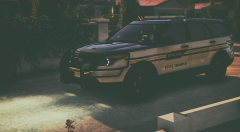
From the album: Weddings, Holidays & Celebrations
-
-
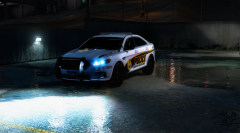
From the album: Policing the city
-
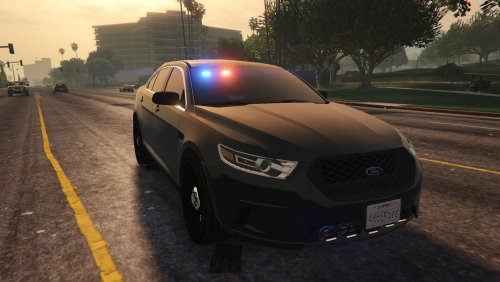 @SamualC0n Man I agree with you 100%, but I think that with this particular model he was going for something different.
- 6 comments
- 7 reviews
-
I personally like it. If you went for the minimalistic lighting you did a good job and don't listen to others telling you to put something on the sides.... but also don't go calling it undercover like you did at first xD
- 6 comments
- 7 reviews
-
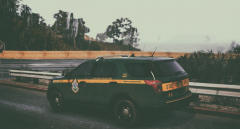
From the album: Weddings, Holidays & Celebrations
-
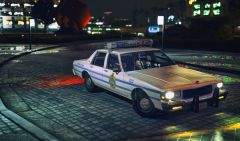 @AC-Teddy Thanks man!
 -
From the album: Weddings, Holidays & Celebrations
-
Goddamn Thero stop moving and let me see...xD I think the new one is definitely an improvement
-
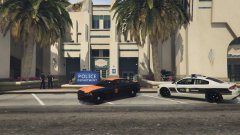
Wow the new livery sucks... looks like a f1 safety car.... First of all why the hell would the car number be two times bigger than POLICE??!! I need glasses to see that's the actual police department car coming to save me, not some promotional van of a nearby shopping mall...
-
 Love your username xD
 -
-
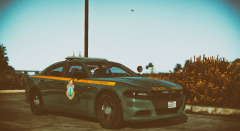
From the album: Weddings, Holidays & Celebrations
-
-
.thumb.gif.d4932ee9e40386bd9bc3782f9432147a.gif)

.thumb.png.6f99bb4fad52c9370106155e3469f842.png)