



Zell101
Members
-
Joined
-
Last visited
Everything posted by Zell101
-
.thumb.png.8e98b2dd13b62621b6949d58d5398259.png) Here is a Skin that replicates the current ALEA. The Alabama Law Enforcement Agency. It's Lore friendly & it is also in our server on FiveM. I invite you to join our community and use more vehicles like this one in our RP community. No lengthy processes. https://www.excelrp.org/. My DISCORD Zell#2314 Check us Out 🙂 We're new and looking for more staff as well. But if not, Make sure you enjoy this Skin. Skin is best replicated with Make Visuals great again. For the best visual look create the primary car color as Metallic Cream while creating the secondary color Pearlescent to White. - Best replicated with Blue Lights. You can get it with the link below. Just press "Download" , & search for POLICESCO's Caprice. Link to Car Below: https://www.gta5-mods.com/vehicles/los-santos-police-chevrolet-caprice-ppv
Here is a Skin that replicates the current ALEA. The Alabama Law Enforcement Agency. It's Lore friendly & it is also in our server on FiveM. I invite you to join our community and use more vehicles like this one in our RP community. No lengthy processes. https://www.excelrp.org/. My DISCORD Zell#2314 Check us Out 🙂 We're new and looking for more staff as well. But if not, Make sure you enjoy this Skin. Skin is best replicated with Make Visuals great again. For the best visual look create the primary car color as Metallic Cream while creating the secondary color Pearlescent to White. - Best replicated with Blue Lights. You can get it with the link below. Just press "Download" , & search for POLICESCO's Caprice. Link to Car Below: https://www.gta5-mods.com/vehicles/los-santos-police-chevrolet-caprice-ppv -
-
From the album: DELTA RP
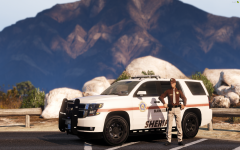
Blaine County Sheriff's Dept. Based off of the current Baldwin County, Alabama Liveries. -
From the album: DELTA RP
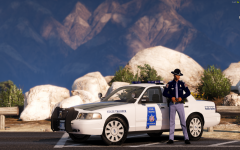
San Andreas Highway Patrol. Based off of the old Alabama Liveries. -
From the album: DELTA RP
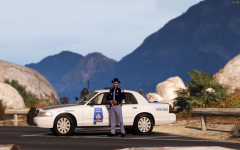
San Andreas Highway Patrol. Based off of the old Alabama Liveries. -
.png.8f560ed2039ee2df8526594cbf21c753.png) We are, We have just been developing. Would you be interested possibly in talking?
We are, We have just been developing. Would you be interested possibly in talking? -
From the album: DELTA RP
-
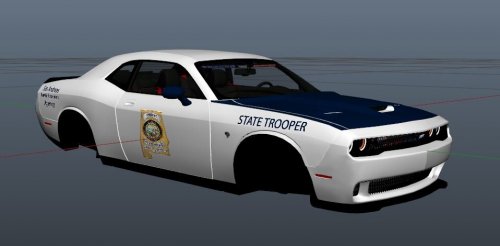 Great Pack! Highly recommend for anyone looking for some unique schemed cars Alabama has some great looking colors.
- 5 comments
- 1 review
-
I was looking for his content too! All I see is his profile page with a "depressed" message on his background and under his files nothing is there like he just deleted his work or someone seriously hacked or lcpdfr removed his content
-
 These callouts are fantastic LowRid3R. I hope to see more of your content soon.
- 166 comments
- 75 reviews
.thumb.png.8e98b2dd13b62621b6949d58d5398259.png)

.png.8f560ed2039ee2df8526594cbf21c753.png)
