Skip to content
View in the app

A better way to browse. Learn more.

LCPDFR.com

A full-screen app on your home screen with push notifications, badges and more.

To install this app on iOS and iPadOS
  1. Tap the Share icon in Safari
  2. Scroll the menu and tap Add to Home Screen.
  3. Tap Add in the top-right corner.
To install this app on Android
  1. Tap the 3-dot menu (⋮) in the top-right corner of the browser.
  2. Tap Add to Home screen or Install app.
  3. Confirm by tapping Install.

181Dispatch

Members
  • Joined

  • Last visited

  1. Shouldnt this be Compton city hall? Great work btw
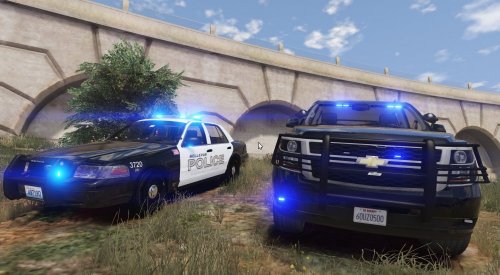
  2. whos Compton CVPI skin is that in the screen shot?
    finally!!!! so pleased best vehicle ever
  3.    DivineHustle reacted to a comment on a file: [WIP] Enhanced LSPD Cop
  4.    rukrim reacted to a comment on a file: [WIP] Enhanced LSPD Cop
  5. i have the same problem, wont let me cycle through the glasses and hats and dosnt come up in even if i do randomize ped. i use thios trainer any chance you can do a showcase video and use the trainer?
  6.    rukrim reacted to a comment on a file: [WIP] Enhanced LSPD Cop
  7.    181Dispatch reacted to a comment on a file: [WIP] Enhanced LSPD Cop
  8. dont make us wait too long now for V5 ;)
  9.    rukrim reacted to a comment on a file: [WIP] Enhanced LSPD Cop
  10.    1ADAM26 reacted to a comment on a file: [WIP] Enhanced LSPD Cop
  11.    Dogpatch06 reacted to a comment on a file: Bellevue Police Skin Pack
  12.    TrooperA1868 reacted to a review on a file: Bellevue Police Skin Pack
  13. Can you do it for the models that are already in the pack?
  14.    Dogpatch06 reacted to a review on a file: Bellevue Police Skin Pack
  15. Any plans on doing the back seat window emblem to make them even more realistic?
    Absolutely beautiful, simple and elegant . love it!! do you plan on doing the window emblems ?
  16. im confused which light set up is it gonna be this or this?

Account

Navigation

Search

Search

Configure browser push notifications

Chrome (Android)
  1. Tap the lock icon next to the address bar.
  2. Tap Permissions → Notifications.
  3. Adjust your preference.
Chrome (Desktop)
  1. Click the padlock icon in the address bar.
  2. Select Site settings.
  3. Find Notifications and adjust your preference.