


matos0922
Members
-
Joined
-
Last visited
Everything posted by matos0922
-
 now to think of it, same happens to me
 -
 Awesome thank you!
 -
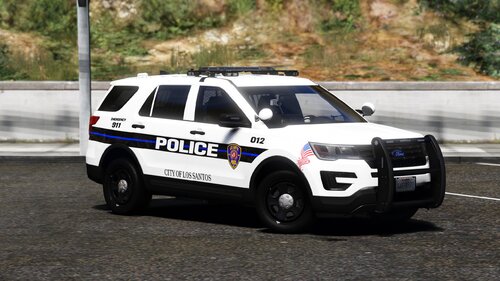
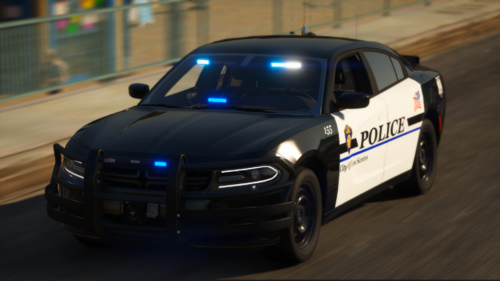
They look great but is there any way you can label which textures go to what kind of vehicles? i can make out some of them but it isnt clear which explorer is which or what Charger it is. Thank you
-
-
-
-
-
 hey man love the pack but im having the same issues as someone else had where the explorer is flipping very easily for some reason. i always put the metas in
- 29 comments
- 4 reviews
-
 I might be crazy but is the 2014 fpiu in the police2 slot the one that doesnt have a 3 stage lighting?
- 25 comments
- 7 reviews
-
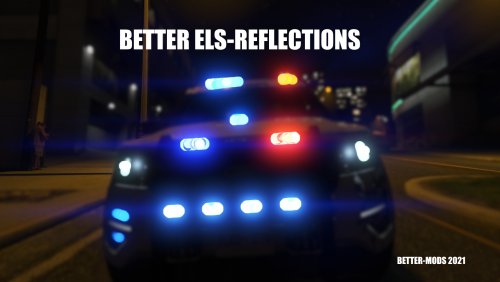 Always nails it! amazing mod!!
 -
-
-
-
-
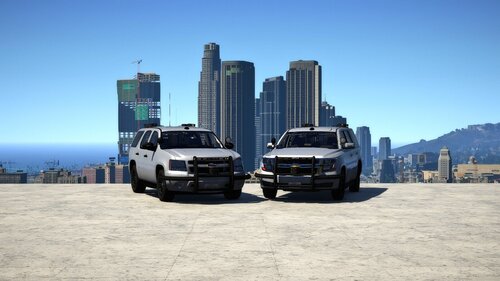 great job as always with your stuff man
 -
-
-
-
-
-
-
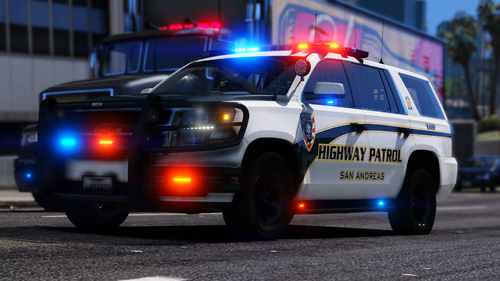
.thumb.png.ba16264072b928b7dbcc04451084b822.png) Love the pack. Had one issue which you addressed with the latest update but any possibility you can have different stages of the lights for els? not a complain in the slightest bit but more of a preference on my part. Thank you
Love the pack. Had one issue which you addressed with the latest update but any possibility you can have different stages of the lights for els? not a complain in the slightest bit but more of a preference on my part. Thank you- 24 comments
- 7 reviews
-
-

- 1
-
-
-
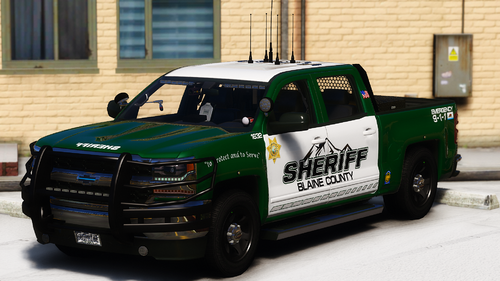
.thumb.png.33fff017a7f22be60828941a34bc4a22.png) Anyway you can pm me the link to the vest in the pic and the belt or even the shirt used? lol i wanna use them for this texure pack as well. Btw great job!!
Anyway you can pm me the link to the vest in the pic and the belt or even the shirt used? lol i wanna use them for this texure pack as well. Btw great job!!- 6 comments
- 1 review
-

.thumb.png.791f9c11f7748109be8c32d7fe4ce16a.png)




.thumb.png.ba16264072b928b7dbcc04451084b822.png)
.thumb.png.33fff017a7f22be60828941a34bc4a22.png)
.thumb.png.96cbc7ab33be28209c8843c7b92b1cf3.png)