



SleepyKevin
Members
-
Joined
-
Last visited
Everything posted by SleepyKevin
-
thanks so much
-
what FPS are you getting with those plugins cause i dont have a super good PC but i get 40-60 with a few plugins
-
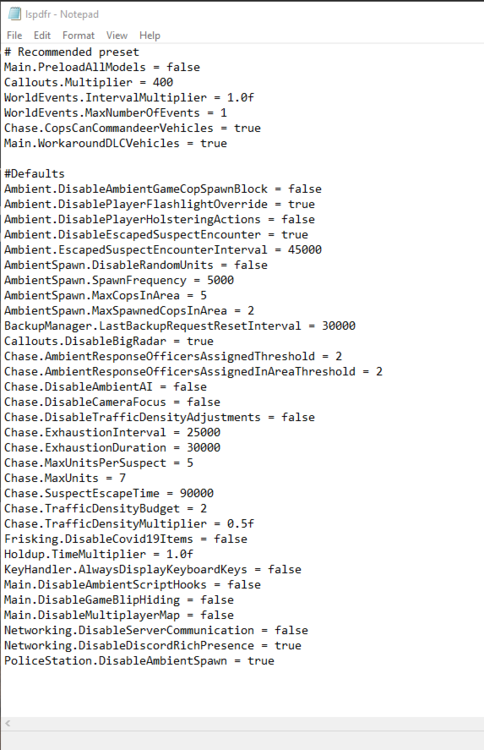
hello i was wondering if i should change anything in the lspdfr INI to help with a performance
-
i use https://www.gtabase.com/grand-theft-auto-v/vehicles/#sort=attr.ct3.frontend_value&sortdir=desc model number of the car is down below
-
so my weapon offsets are find but after 45mins to 1 hour of gameplay they messed up as in the sights go to high
-
this worked for me
-
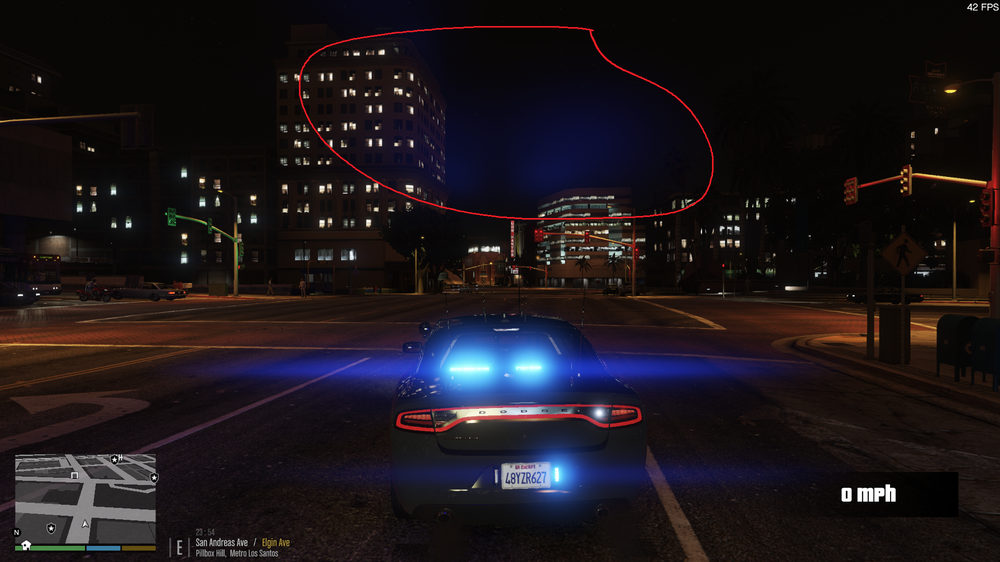
i have this strange issue with only my FBI els picture for reference and els file this is the only car its going it with i also have visualV and better els with better radiance fbi els.txt
-
its a custom pack of random cars not sure how i can send it to you im going to do a fresh install of everything
-
ok ill give it a test
-
ok so heres the crash log without mods RagePluginHook.log
-
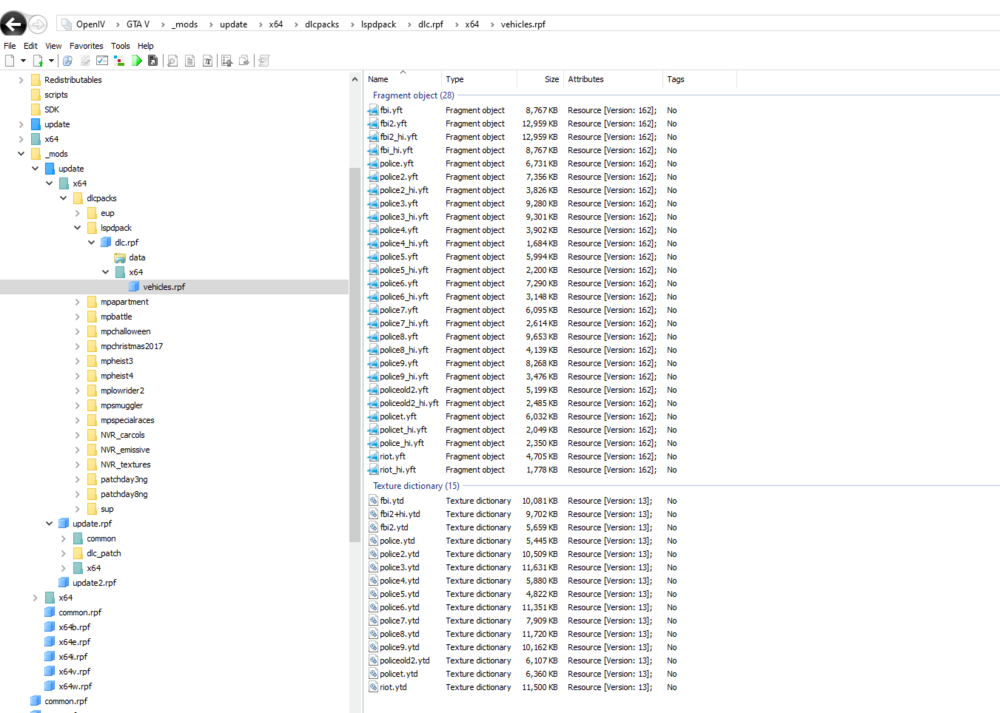
i replaced them this is how i have it setup
-
ok ill try that out and if i dont crash after some time ill re fix my car mods folder would you know what car mods are doing it i only have ELS compatible cars
-
ill give it a go i do also have car mods installed aswell
-
Hello my lspdfr crashes after some time playing my plugins https://gyazo.com/6e4d675097bb6e521c842b1e86b709df RagePluginHook.log




