


FameGTA
Members
-
Joined
-
Last visited
Everything posted by FameGTA
-
@ElijahHaydes @Straypuft Here is an example how to change back to the old system
-
Its not there by default. You have to manually add to the lspdfr.ini file.
-
Yes, "X" key doesnt work anymore. To force a callout you have to use the police radio by pressing "m".
-
hi, can you maybe post a error log so that others can have a look?
-
I had the same problem. installing this was the working solution for me.
-
-
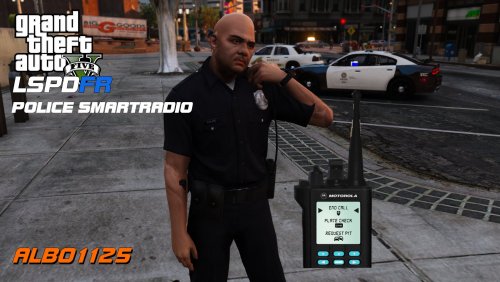 All i have installed is the Smart Radio + Traffic Policer by Albo and Ultimate Backup - Only thing that doesnt work is the Radio. So what could it be then?
- 1,196 comments
- 127 reviews
-
same here
-
Sadly it does not 100% work on 0.4 at this time, at least not for me. It loads and i could configure the radio buttons, but now as soon as i press the key to bring up the radio lspdfr crashes.
- 1,196 comments
- 127 reviews
-
Yeah thats correct. Sadly, if you choose to use the old system you cannot have a custom character either.
-
@terminator123 for that you need to edit the agency.xml file, heres an example:
-
@LMS alreadyknows about that issue and said they will look at it. As a workaround until its sorted out by @LMS you can use the plugin ULTIMATE BACKUP, which changes the backup menu navigation back to the numpad keys.
-
Thing is... you can either choose to use the new multiplayer character system in lspdfr 0.4 or you can change it back to the old one (with the default characters which you can easily edit using the mods folder) If you want to use the new system you need a plugin like EUP to change the uniforms. If you want the old system then you cannot create a custom character at all, you are forced to use a preset character and you will miss the stuff with apartments etc.. I personally dont like how this was done, .. however iv changed my lspdfr back to the usage of the old uniform system, coz its the only way i can keep the uniforms i like, since they aren't compatible with EUP.....
-
A important rand note: It works fine, i also did this because my uniforms arent EUP compatible. But If you do it this way, you are not able to use a custom outfit while onduty . You will have to use the preset characters.
-
Hello, i had the following situation today: At the end of a pursuit, a shootout happened, the suspects and some civilists (who had guns) died. I called EMS for them (ultimate backup) , and while the EMS was looking at them, they started the shootout again. After EMS threaded them, they was lying on the ground again (dead) or the AI officers shoot the suspect down again everytime it is recovered. This also starts new pursuits with 0 suspects, which im not able to force end aswell. SO the bugs iv found: - Dead people still have their weapons and start shootouts while EMS is with them. - Recovered suspects are shooted down right again by AI cops everytime they are recovered by EMS - After EMS finishs the work, there is a outstanding pursuit with 0 suspects
-
Yeah, either you have to download EUP or you must change the agency.xml file, but then you will only have less customized AI officers. For me personally the second variant is my favorite, because my uniforms are not EUP compatible. In the agency.xml file i suggest you look in the ped parts of LSPD and SHERIFF department.. i think you will see the difference between the peds they use. Sheriff uses the default ones (which you can easily replace like you did), the lspd is using the multiplayer character sets and can only be changed with EUP so far. But if you replace the LSPD Pedswith the SHERIFF ones and then replace "s_m_y_sheriff_01" with "s_m_y_cop_01" and such you can still use non-eup uniforms. Just found that out for myself a moment ago and im happy now it works like a charm EDIT: I noticed if you do it that way, u also can only use the preset characters for some reason, your created custom character will stop working 😕 maybe this can be worked out somehow, ill keep trying.
-
I just found a temporarily (but for me personally also a perfect) solution until its offically fixed. I've just downloaded ULTIMATE BACKUP. This plugin changes the keybindings of the backup menu back to the ones we are used to have. That way we could at least play the game for a while, lol
-
Sometimes the same happens for me, then i do the following: 1. I wait until story mode is fully loaded and minimize GTA 2. I start RPH again 3. I change the active window back to GTA wola, after waiting a few seconds, everything loads fine.
-
Hi tango21, thanks for the reply. Theres a reason why i changed the keybindings like i have them now. In 0.3 this was not a problem. I was able to play with arrow keys movement and could also call backup and such, as the menus was controlled via numpad. I'v read another post about the same issue , there one of the staff already answered, they would look at it, so im posting it here again, just in case they may loose the issue.
-
Hi, i notice mainly two problems, 1. I can not play the game at all, because i can not request backup while moving or driving. Im using the arrow keys to move, lspdfr 0.4 uses the arrow keys to navigate due the menues. So theres a conflict. In 0.3 the same keybindings was NOT a problem. 2. Sadly im not able to use my own uniforms anymore. I understand that the new system allows more customized AI officers and other benefits, but on the other side, its not a good thing to force players to use EUP now, if they want to use their own uniforms. The ones i used are not EUP compatible, so thats there i stand now.
