
DriftyWood
Members
-
Joined
-
Last visited
Reputation Activity
-
 DriftyWood got a reaction from Deputy Brand for a gallery image, Miami PD UnmarkedThe Miami Police Unmarked FPIS. As seen on Miami Police Vlog! Thank you @TWISTEDSCOPES for creating a great pack!
-
DriftyWood got a reaction from TWISTEDSCOPES for a gallery image, Miami PD UnmarkedThe Miami Police Unmarked FPIS. As seen on Miami Police Vlog! Thank you @TWISTEDSCOPES for creating a great pack!
-
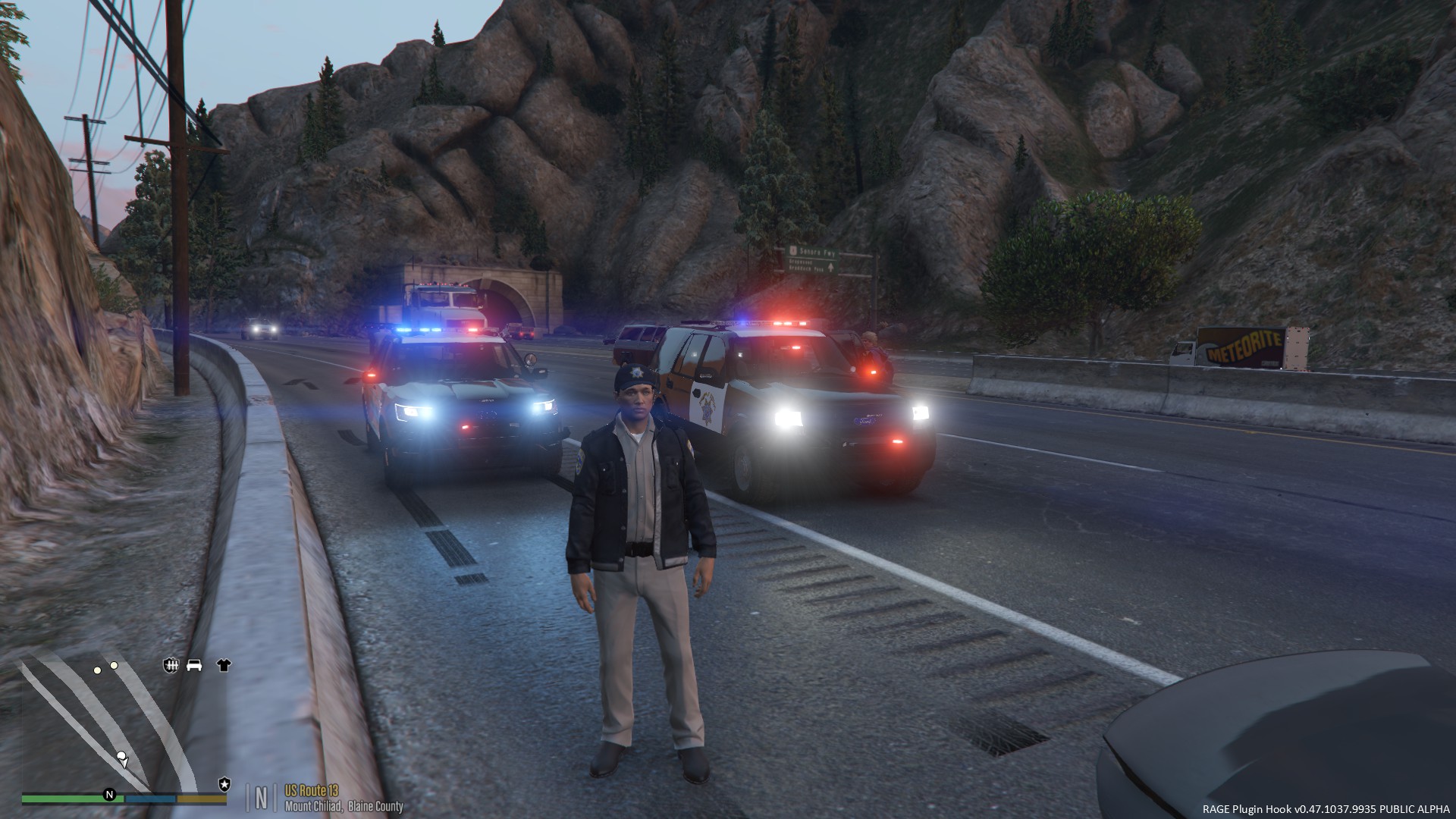
DriftyWood got a reaction from NewbCrazy for a gallery image, CHP PulloverUsing thehurk's CHP Harley, pulling over this driver due to reckless driving and reckless endangerment to other drivers on the road. She was found using her cellphone while I was driving right next to her. Now she has a big ticket :p
-
DriftyWood reacted to winglesschip209 for a gallery image, 80's Decade to remember
-
DriftyWood reacted to LoneWolfSpecter for a gallery image, Lets Ride!
-
DriftyWood reacted to Griswald for a gallery image, Explorer unitsJust a couple things left to do.
-
DriftyWood reacted to Griswald for a gallery image, WIP Whelen Legacy ExplorerWIP BCSO Explorer with the whelen legacy lightbar on top. This model may eventually turn into a K9 unit.