
Ruskiyvix
-
Joined
-
Last visited
Everything posted by Ruskiyvix
-
-
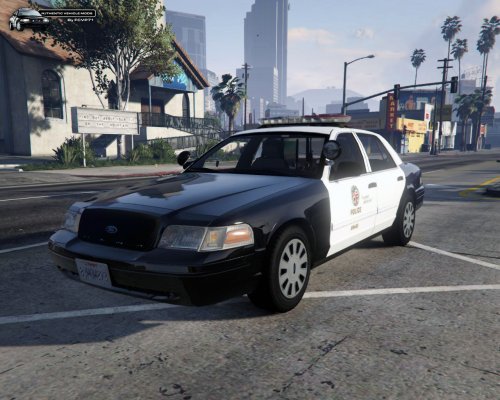
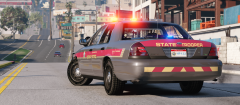 @NoNameSet lmao I found the release shortly after posting that comment. I've put it on FCVP71's 2011 CVPI, it looks great. Thanks mate :)
 -
-
I've installed PCVP71's 2011 CVPI in the police4 slot with a new skin to use as a highway patrol vehicle. The only issue is that by default, police4 is an unmarked unit and the light bar isn't lighting up properly. I just need to get police4 working identically to police1. Any help would be greatly appreciated, thanks.
-
That grey CVPI is perfect. Really looking forward to this one.
-
-
-
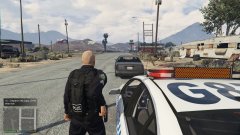
From the album: South Australia Police (SAPOL) Uniform & Cars [WIP]
-
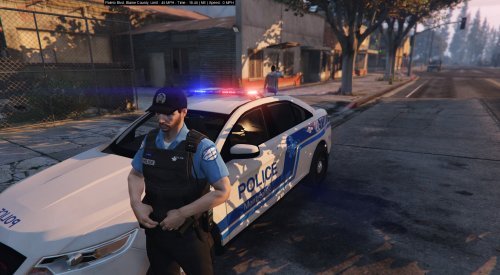
Work in progress. A fictional uniform I'm working on using Rekram's New LSPD COP M V3 uniform pack. Vehicle models credited to several modders, notably SkillfulCorpse and Macgregor. Vehicle liveries have been altered by me but are originally from another modder. If I can find out where I got it from, I'll be sure to credit you.
-
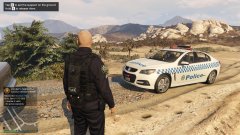
From the album: South Australia Police (SAPOL) Uniform & Cars [WIP]
-
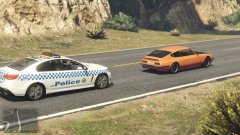
From the album: South Australia Police (SAPOL) Uniform & Cars [WIP]
-
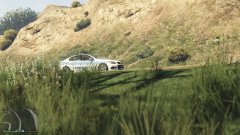
From the album: South Australia Police (SAPOL) Uniform & Cars [WIP]
-
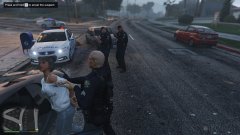
From the album: South Australia Police (SAPOL) Uniform & Cars [WIP]
-
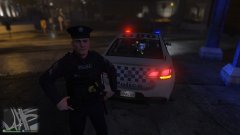
From the album: South Australia Police (SAPOL) Uniform & Cars [WIP]
-
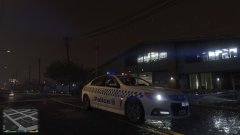
From the album: South Australia Police (SAPOL) Uniform & Cars [WIP]
-
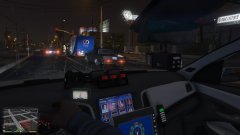
From the album: South Australia Police (SAPOL) Uniform & Cars [WIP]
-
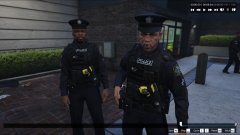
From the album: South Australia Police (SAPOL) Uniform & Cars [WIP]
-
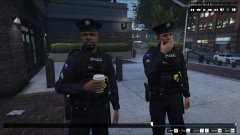
From the album: South Australia Police (SAPOL) Uniform & Cars [WIP]
-
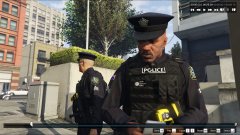
From the album: South Australia Police (SAPOL) Uniform & Cars [WIP]
-
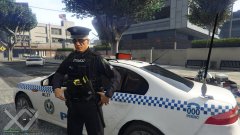
From the album: South Australia Police (SAPOL) Uniform & Cars [WIP]
-
-
-
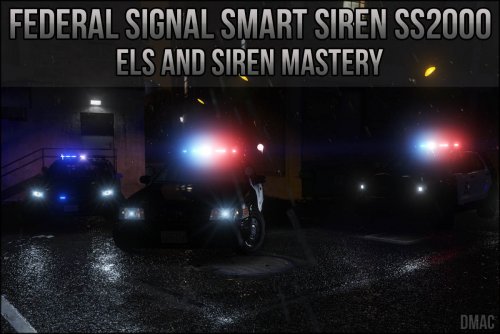
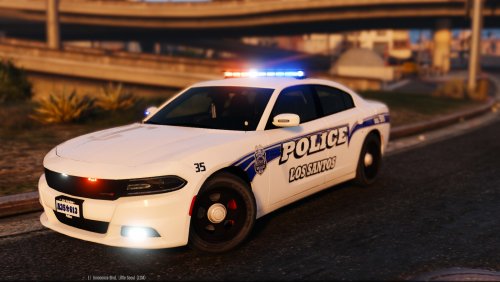 I changed <modelName>REPLACE ME WITH MODEL NAME</modelName> to <modelName>police2</modelName>, unfortunately the lights are still like in my screenshot.
- 74 comments
- 30 reviews
-
-