



sixium
Friends of LSPDFR
-
Joined
Everything posted by sixium
-
 Will this be on a new car you will be releasing?? Nudge nudge lol =D If you need a skin let me know haha
 -
![LVMPD New-Livery Pack - 2012 Ford F-150 [FINAL]](//s3-gallery.int-cdn.lcpdfrusercontent.com/gallery/album_3066/sml_gallery_29300_3066_2165891.png)
From the album: sixium's WIP
Final version of the Ford F150 skin for LVMPD's new livery. Based on their current F150s, some of which have been switched over to the new livery in real life. Model by EVI. Charger is next, then release. -
 Love the stripe =)
 -
 As far as I can tell, their standard patrol cruiser will be the FPIU from now on forward, as they retire off their CVPIs. I'm not sure, but I think they're still evaluating the FPI sedan. I assume they will be using a mix of FPIs and FPIUs in the future. LVMPD seems to be a "Ford house" so they'll probably stick to Fords. There are pictures of Chargers and Caprice PPVs, but I've never seen one in use in real life.
 -
![LVMPD New-Livery Pack - Ford Police Interceptor [FINAL]](//s3-gallery.int-cdn.lcpdfrusercontent.com/gallery/album_3066/sml_gallery_29300_3066_457681.png) It's released, it's Cj's 2013 LCPD FPI with a FedSig Valor: http://www.gtainside.com/en/download.php?do=detail&cat=371&start=&orderBy=&id=54536
It's released, it's Cj's 2013 LCPD FPI with a FedSig Valor: http://www.gtainside.com/en/download.php?do=detail&cat=371&start=&orderBy=&id=54536 -
From the album: sixium's WIP
OMG loving it on the FPI!!! Can you tell I'm excited? hahaha Hooray for FS Valor!!! XDXD Model by Cj24! More awesomeness after the spoiler: -
From the album: sixium's WIP
SO SEXXX ON THE FPI!!! =OOO Finalized FPI skin for LVMPD's new livery. Looks amazing on the FPI!!! (in my opinion) Loving the Valor too, LVMPD was evaluating an FPI with a Valor, but I guess that never panned out since they went with the FPIU with their pre-existing Vision SLRs. Well, here's how it would look if they went with the Valor/FPI combo lol =DD Model by Cj24. More prettiness after the spoiler: -
 Not sure yet =( Someone has already released a Liberty styled version of LVMPD's new livery though, so I'm probably not going to.
 -
Cool! Thanks. =) And I guess their new livery is not for everyone. Did you like their previous livery?
-
My heart will always and forever be with Bxbugs/Schaefft's Crown Vic. I "grew" up with it, since I was playing LCPDFR before the DSF model came into being. I am warming up to the DSF/Cj24 CVPI now, since they are much higher quality than before, but my loyalty is with the Bxbugs/Schaefft CVPI.
-
![LVMPD New-Livery Pack - Ford CVPI [FINAL]](//s3-gallery.int-cdn.lcpdfrusercontent.com/gallery/album_3066/sml_gallery_29300_3066_1941270.png) Thanks! =D Here is the link to the model. It's Cj's LVMPD CVPI: '?do=embed' frameborder='0' data-embedContent>> It's one of the first models I ever downloaded when I started off with LCPDFR, and now it has come full circle haha =)
Thanks! =D Here is the link to the model. It's Cj's LVMPD CVPI: '?do=embed' frameborder='0' data-embedContent>> It's one of the first models I ever downloaded when I started off with LCPDFR, and now it has come full circle haha =) -
No, it's not private. The CVPI, as Crizby said, is Cj's LVMPD CVPI. Although, if someone can make a DSF version of the LVMPD CVPI with the Vision SLR, IT WOULD BE SOO MUCH AWESOME. Also, a FPIU with the same setup!!!
-
From the album: sixium's WIP
Finalized CVPI skins for Las Vegas Metro PD's new livery design. This is fictional since this livery isn't on their CVPIs, they all still have the previous design. I fell in love with the new livery so I had to see what it looked like on the CVPI. I like it! Now I don't know what vehicle to do next. FPI? Have to look for an FPI with a Vision SL or SLR and Setina push bar, if such exists. Model by Cj24. Part of my upcoming LVMPD new-livery mini skin pack. -
From the album: sixium's WIP
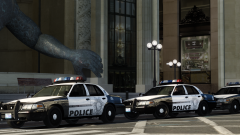
Three CVPIs of the Las Vegas Metro PD in their new-livery design, parked outside "Poseidon's Palace" lol =D I am so digging their new livery! I know it's not on their CVPIs, but I couldn't resist haha Model by Cj24 -
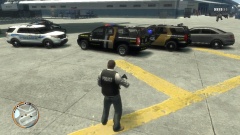 Nice! I like how the white LCPD contrasts with the black LCHP =)
 -
-
![LVMPD New Livery Pack - Ford PI Utility [FINAL]](//s3-gallery.int-cdn.lcpdfrusercontent.com/gallery/album_3066/sml_gallery_29300_3066_1066627.png) If you want an ENB that's very similar, try Nutt's ENB (of which my ENB is based off): '?do=embed' frameborder='0' data-embedContent>>
If you want an ENB that's very similar, try Nutt's ENB (of which my ENB is based off): '?do=embed' frameborder='0' data-embedContent>> -
-
Thanks! Means a lot coming from you =D Now, when are you going to release your FHP/AHP CVPI skins??? Lol ;)
-
I ran in to this issue with my JSO skin pack. "New York" is, literally, on the car only twice, real small as part of the NYSP seal on the doors. Changing "YORK" to "LIBERTY" is a nearly imperceptible change, and will only be noticed really up close. If anything, if someone is planning on making a NLSP pack, I recommend changing the color scheme too. Maybe message IronicRainbow to see if he can make that change for you? He also had a realistic NYSP Caprice PPV, but I can't seem to find it anymore.
-
Thanks! =) And I'm using a custom ENB.
-
CHP. Period.
-
From the album: sixium's WIP
Finished up the FPIU skin. I tried to make it as true-to-life as possible; the only thing that irks me is there was no window template, so I couldn't place the "Crime Stoppers" decal on the rear windows. Placed it on the C-pillar instead. CVPI is next. Model by KevinDV. -
Love the vid!! CryENBv3 looks absolutely amazing! I'm going to try installing v3 but I don't have high hopes as the first two versions of CryENB just refuses to work on my PC no matter what I try. It's not a specs issue, it just doesn't work =(((
-
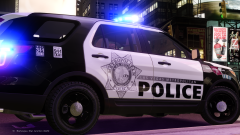 Here is a nice picture I found of the LVMPD FPIU. SO SEXXXX Lol =D I will release this as part of a pack. I am in love with the new LVMPD FPIU livery (just saw it in real-life recently), so I'm going to "apply" it to my favorite car of all time, the CVPI, along with a bunch of others, hopefully XD

![LVMPD New-Livery Pack - 2012 Ford F-150 [FINAL]](http://s3-gallery.int-cdn.lcpdfrusercontent.com/gallery/album_3066/sml_gallery_29300_3066_2165891.png)

![LVMPD New-Livery Pack - Ford Police Interceptor [FINAL]](http://s3-gallery.int-cdn.lcpdfrusercontent.com/gallery/album_3066/sml_gallery_29300_3066_457681.png)
![LVMPD New-Livery Pack - Ford CVPI [FINAL]](http://s3-gallery.int-cdn.lcpdfrusercontent.com/gallery/album_3066/sml_gallery_29300_3066_1941270.png)
![LVMPD New Livery Pack - Ford PI Utility [FINAL]](http://s3-gallery.int-cdn.lcpdfrusercontent.com/gallery/album_3066/sml_gallery_29300_3066_1066627.png)
