
sixium
Friends of LSPDFR
-
Joined
Everything posted by sixium
-
 Awesome image man! Love it =) In a lot of ways, your ENB looks even better than GTAV.
 -
-
 I haven't decided whether or not to release it. If I do, it would be released here. =)
 -
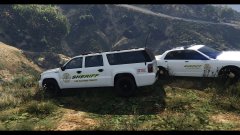
From the album: Los Santos Views
Los Santos Sheriff's Department repaint, all-original design with an all-white Granger. Offroad on Vinewood Hills. -
From the album: Los Santos Views
Los Santos Sheriff repaint, with an all-white Granger. Atop Vinewood Hills. -
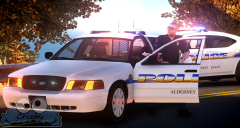 Awesome dude =D
 -
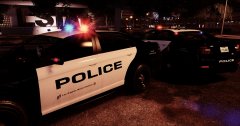 Thanks! And it's great to hear from you, it's been a while hasn't it? :)
 -
Awesome!! :)
-
From the album: Los Santos Views
LAX Police Interceptors on standby during a storm at LAX... Los Angeles World Airports Police skin by me. -
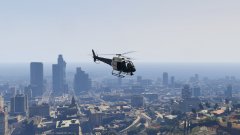
From the album: Los Santos Views
Ending the air patrol day shift in the late afternoon with one more pass of Vinewood Hills. -
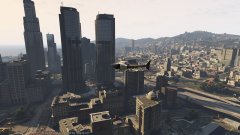
From the album: Los Santos Views
Afternoon air patrol of LS downtown and the Federal buildings... -
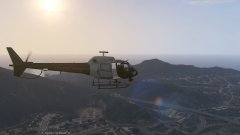
From the album: Los Santos Views
Routine helicopter patrol of Vinewood Hills in early morning... -
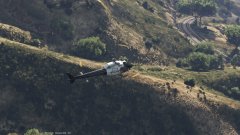
From the album: Los Santos Views
Routine helicopter patrol of Vinewood Hills in early morning... -
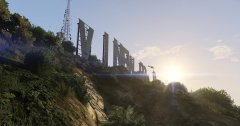 Early morning shot of the Vinewood sign with a helicopter flying over in the background =)
 -
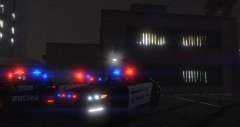 Lighting effects test shot. Interceptors and a Stainer with MX7000-clone. Pretty =) Props to A320FlyBlueJB, Drunkpolice, and Sgt.Kanyo for making the pretty lights.
 -
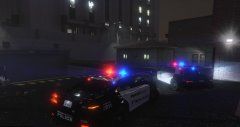
From the album: Los Santos Views
Lighting effects test shot. Interceptor and Stainer with MX7000-clone. Pretty =) Props to A320FlyBlueJB, Drunkpolice, and Sgt.Kanyo for making the pretty lights. -
I agree with this. It's the main reason why I'm holding off releasing anything until this site works the kinks out. Well, also, the elephant in the room is that, with V out, IV is quickly becoming irrelevant.
-
Here's hoping things will be improving as time moves on, and I commend the staff on maintaining this enormous site. However, I rather dislike it the way it currently is. The gallery only shows six images, I can no longer hover over the "Forum" or "Downloads" tabs for a list of the most recent submissions, the site looks cleaner but fits a whole lot less information in more space. "Embrace change" they say.
-
-
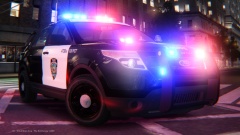 Yes, but it's NYC, California ;)
 -
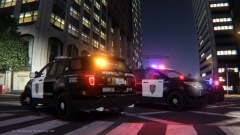
From the album: Liberty Views
FPIU's in NYPD CA Concept outfits. Whooo! Model by KevinDV Spoiler -
From the album: Liberty Views
Ford Police Interceptor Utility in an NYPD CA Concept outfit. Oh yeah XD Model by KevinDV -
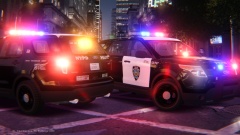
From the album: Liberty Views
Ford Police Interceptor Utilities in NYPD CA Concept outfits. Yummy XD Model by KevinDV -
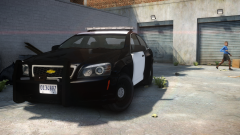 AWWW YEAAAAAAA
 -
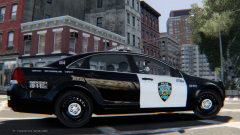 Oh, I didn't know that.