Rabbitmcv
Members
-
Joined
-
Last visited
Everything posted by Rabbitmcv
-
@Wilhelm Hello! Just wondering if there is any update for this or any paperwork type project? Thanks!!
-
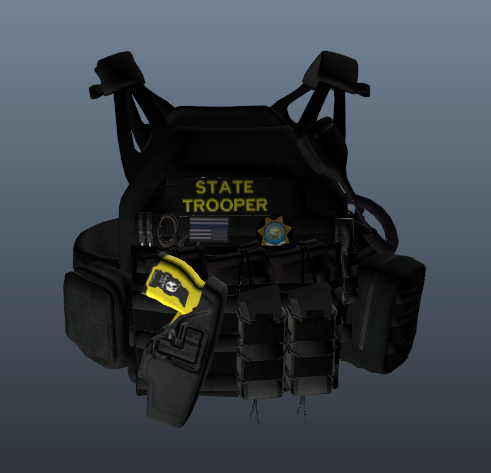 I may have installed this wrong? Can you help me? @undeadXpotato
 -
 @KonovalovSV Hey, just to let you know ALBO's LSPDFR troubleshooter no longer works on the new version of LSPDFR (It stopped working I think on .3; now LSPDFR is on .4.6). I run Traffic Policer w/ Stop the ped so maybe try STP out (Google LSPDFR Stop the Ped). Good luck!
- 3,646 comments
- 306 reviews
-
Hello there, I'm posting today because I just installed LSPDFR .4 to a virgin copy of GTA V (Steam edition) and no plugins, latest RPH. Now I've installed a few plugins however the issue of no dispatch audio has been present the entire time. I just hear the radio background sound but no dispatcher is talking. If you need any info from me I'd be happy to help. Thank you, Matthew. EDIT: I also reinstalled LSPDFR once and restarted my computer. EDIT 2: I'm reinstalling a clean copy of GTA and starting over EDIT 3: After reinstall issue is still present. No dispatch and no audio from other police AI in game.
-
-
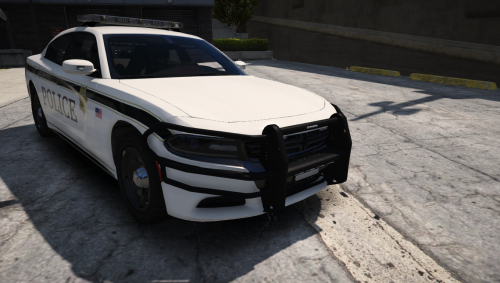 @SeboI tried that but it didn't work. I just might not be good at modding though.
- 31 comments
- 2 reviews
-
@StraightGlitcheZ Thanks! Will you be updating this mod or uploading it as something else?
- 31 comments
- 2 reviews
-
I was wondering if you could add an option to addon the model instead of replacing Police2. Thanks!
- 31 comments
- 2 reviews