CommanderJK10
Members
-
Joined
-
Last visited
Everything posted by CommanderJK10
-
i did that with Bxbugs CVPI ELS and it has extras but nothing happens it just seems to mess with ELS.
-
So i have a few cars installed and they have extras but when i go into extras with native trainer all i see is the extras for ELS how can i equip the extras for the car im using? Thanks
-
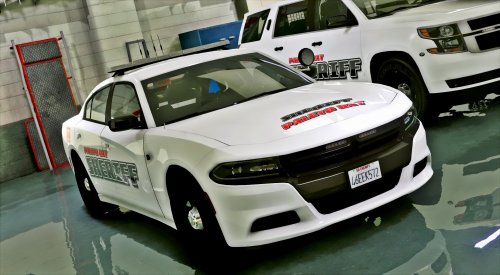 Hey just a quick question im using the car and cant seem to find the extra for the push bar... All i see when it comes to extras are for ELS? Please help. Thanks
- 36 comments
- 13 reviews
-
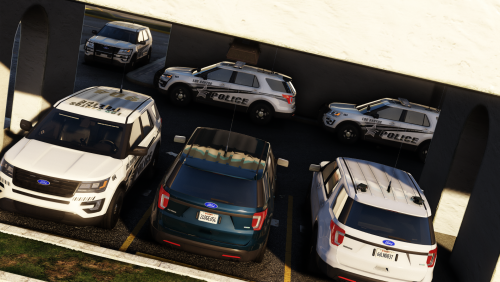 Im trying to install as FBI2 but i can get it to work. I installed it into patchday10 and put my vehicle meta in update.rpf.
- 157 comments
- 28 reviews
-
-
Got it to work now :)! One other problem im having... As you can tell im playing EFLC and TBOGT has extra cop cars, im trying to mod those cars but i replace the WTD and WTF and when i open the game the cars down show up?
-
OK thank u very much! :)
-
http://puu.sh/81kyh.png
-
http://puu.sh/81jP5.png Here is my EFLC dir. and no im using G17's
-
Im playing 1.0b on EFLC and EFLC is updated to the lastest version possible. I have LCPDFD, SparkIV, ELS, and 3 weapon mods.
-
http://puu.sh/805g9.jpg This is what i get from G17 IV Diagnostics. I also Just tried updating my .NET scripthook... Could really use some help that would be awesome! Thanks, Josh
-
what is ELS and how to you get it. my lights and sirens arent working either.
- 126 comments
- 54 reviews