
Frank Murphy
Members
-
Joined
-
Last visited
Everything posted by Frank Murphy
-
-
 What worked for me is deleting the EUP folder in Plugins and allow a new one to be created when you fire up the game again. My old wardrobe list was still coming up. (Furthur help for anyone reading this) I manually uninstalled LEO 7.5 by deleting the entire eup and sup folders in mods update folder and then the EUP files in plugins, Installed 8.0 LEO followed by S&R, EUP Menu, then the EUP LSPDFR Configs. The LSPDFR EUP configs are a work in progress and more uniforms will be corrected. Hope this helps! 👍
- 2,349 comments
- 238 reviews
-
-
Thank you for everything you have done for us! Especially "Modding the Albo way" tutorials. Many of my gaming friends have now started to check out LSPDFR now because you made it so easy to learn. Thank you from me personally for the inspiration to learn more about the mod and also to try new things. Please keep coming back from time to time, we will miss you!
-
-
-
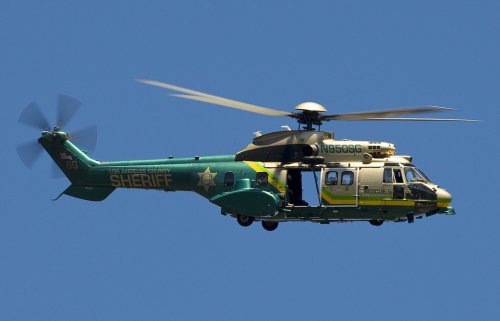 Perfect!! Thank you!
 -
-
-
-
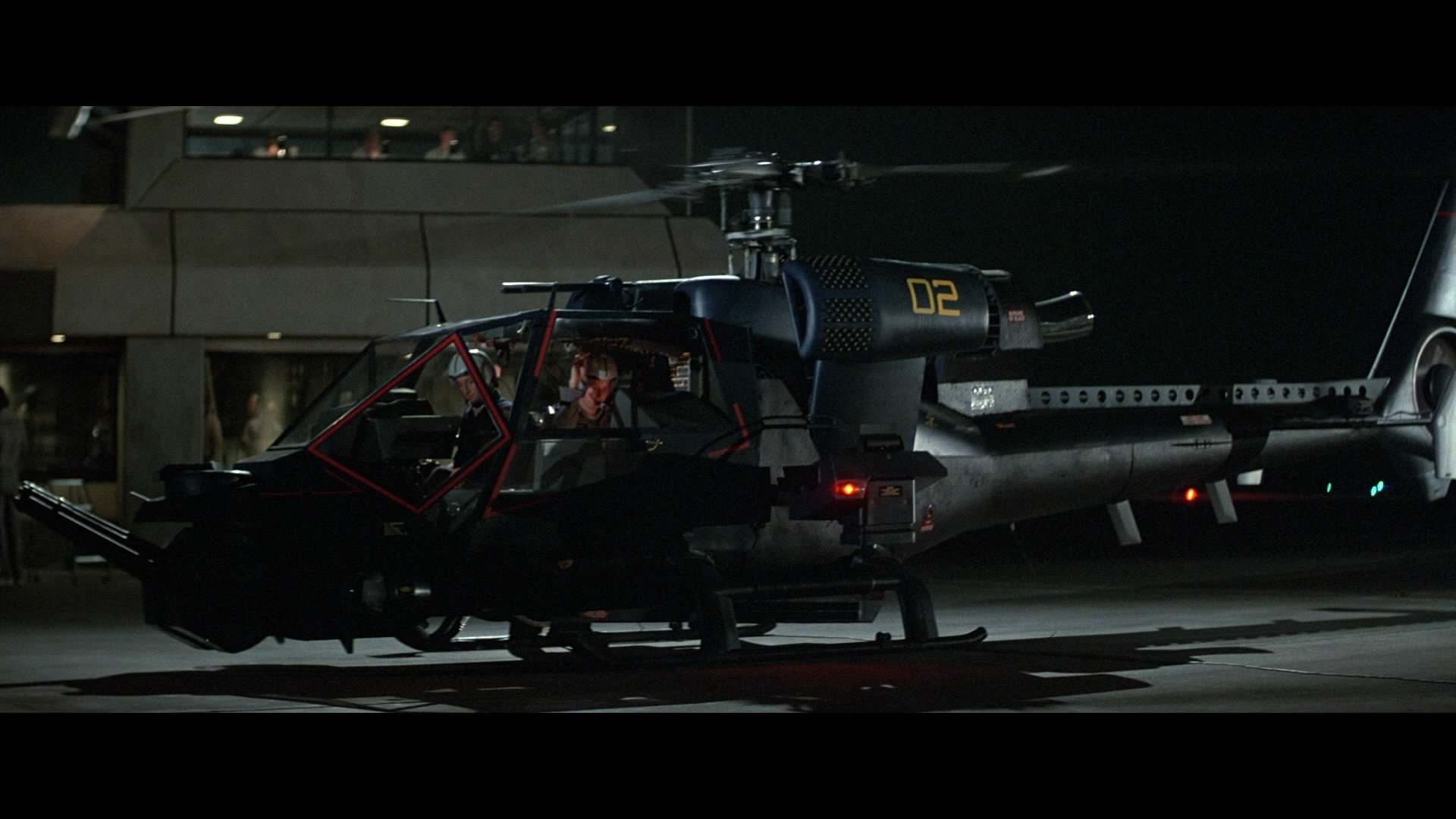
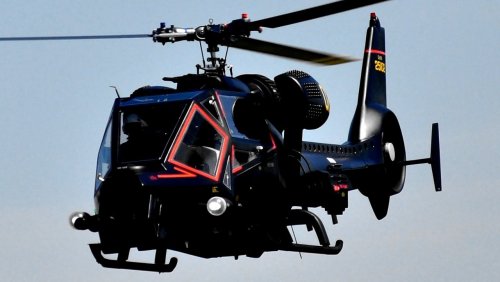 No other helicopter sounds like the Gazelle! Excellent work!
 -
 These are still the only ones I use for LAPD. Best set I have come across and I've tried a ton. Just wanted to thank you personally for these and the Sheriff set.
 -
-
-
-
-
-
-
-
Blown away by how cool and fun this is! Endless hours added to the value of the game and LSPDFR! Thank you so much!
- 2,349 comments
- 238 reviews
-
-

- 1
-
-



.thumb.jpg.7ff638437adebdc72ba9ab21b4a6f1fc.jpg)