jngo79
Members
-
Joined
-
Last visited
Everything posted by jngo79
-
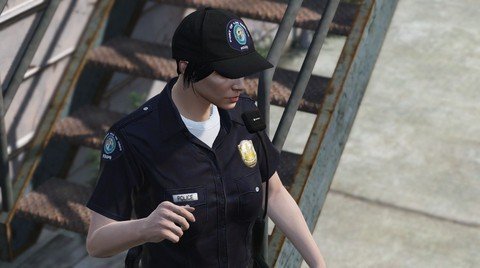
 Nice to see the Uniform here!
 -
-
-
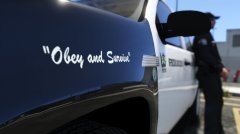
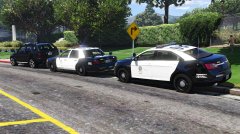
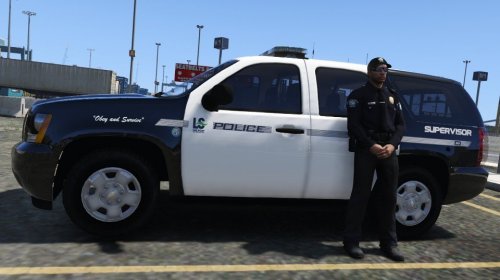 Based on the Los Angeles Port Police. Includes 3 different K9 Versions and a Supervisor Version. includes also my LS Port Police CVPI Skin. Credits: Illusionyary - http://www.lcpdfr.com/files/file/8353-los-santos-port-police-vapid-stanier-textures/ LetsPablo - http://www.lcpdfr.com/files/file/10543-port-police-lapd-crown-vic-skin/ Salashdot03 - http://www.lcpdfr.com/profile/290078-salashdot03/ Tahoe: http://www.lcpdfr.com/files/file/11740-ls-metro-transit-police-pack/ Check also out my CVPI Port Police Skin: Installation Just replace the Textures in the ytd file of the Tahoe.
- 1 review
-
-

- 3
-
-
From the album: GTA V
-
-
-
-
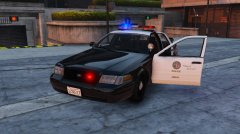
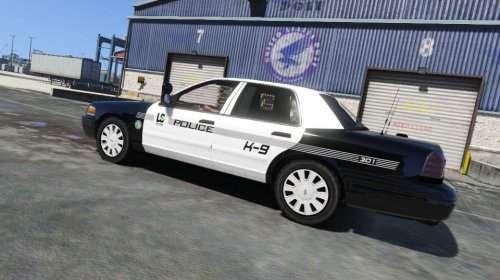 Based on the Los Angeles Port Police Includes a K9 Version. My LS Port Police Skin is a edit of two other Port Police Skins. Credits: Illusionyary - http://www.lcpdfr.com/files/file/8353-los-santos-port-police-vapid-stanier-textures/ LetsPablo - http://www.lcpdfr.com/files/file/10543-port-police-lapd-crown-vic-skin/ CVPI: http://www.lcpdfr.com/files/file/9124-cvpi-lspd-mx7000arjent/ Should also work with any CVPI of your choice. Installation Go to x64e/levels/gta5/vehicles.rpf (or where you installed the cvpi) and replace the textures in police.ytd
- 5 comments
- 2 reviews
-
-
- 4
-
-
-
-
From the album: GTA V
-
-
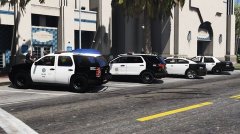
From the album: GTA V
-
-
From the album: GTA V
-
From the album: GTA V
-
From the album: GTA V

.thumb.png.84adb823f7f653b8d654f1ab13098851.png)


.thumb.jpg.4066677156985e22489bfecddc2f6c45.jpg)