


Reddington
Members
-
Joined
Everything posted by Reddington
-
Under "State Trooper", you forgot the ending / Look here The bottom <Vehicles> needs to have this </Vehicles>
-
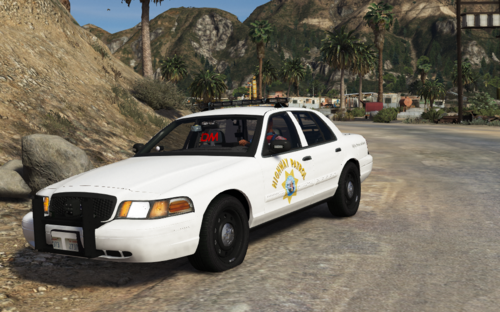 Just a suggestion - have two download archives, one for fivem and one for singleplayer. It'll make it easier on people so they don't have to look through multiple folders to find the vehicle files.
- 8 comments
- 1 review
-
-

- 1
-
-
Yes, PC only.
-
Yep, that's right! For hwaycar 3's line, just so you know, pax="1" and pax_chance"40" is for passengers. The first one means how many passengers will be in the car when it responds, and pax chance is the odds of the car having a passenger.
-
It depends on if the author added that. When in the vehicle, press CTRL P to open the ELS menu. With the menu opened, press "I" (or whatever button activates/disables it) to change the pattern, see if the message changes as well.
-
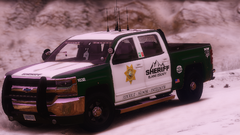 Damn, whose truck?
 -
Go in game and press K and L, see if the matrix board is connected to one of them. If it's connected to "K", open the VCF, go to the sectional lights section at the bottom. Where it says Lstg1, 2 and 3, change those to "false" If it's connected to "L", open the VCF, go to the top section "WRNL lighting format", where it says "Lstg3 enabled" set to false. Also in the VCF, under "MISC", look at "arrowborftype", set to off.
-
Go to plugins / LSPDFR/ Ultimate Backup and open defaultregions Add the car under the section you want, city county or BCSO. Add new lines that will look like this <Vehicle chance="50" pax="1" pax_chance="25">POLICE4</Vehicle> <Vehicle chance="50" pax="1" pax_chance="25">POLICEOLD1</Vehicle> and so forth
-
(Note: These are my personal opinions.) 1) As it is, when you fire a weapon in Davis/gang area, all the gangs will start opening fire on you and the cops who return fire. While it is fun to have a gang shootout every so often, it's something that I get sick of very quickly when it happens every single time I do a patrol in that area. 2) You can already set specific loadouts via the inventory XML, there's no need to lock loadouts and force everyone to use specific weapons. You really can't do that, anyway. Almost everyone uses trainers, so you can add/remove weapons. Just as an additional note, forcing everyone to use specific weapons takes away from the customization and, in a way, is power gaming because you're forcing others to adhere to what you personally want. I love switching my loadouts up. Some days I run all lethal, some days I have a heavy pistol and just a non lethal bean bag shotgun. Sometimes I run an AR, other times an SMG. 6) I'm almost positive you can disable this callout in the LSPDFR tab in the pause menu when LSPDFR is loaded.
-
If you're using Ultimate Backup - Go to plugins / LSPDFR/ Ultimate Backup and open defaultregions. Find state patrol and add the cars. If you're not using UB, go into lspdfr / data. You can add them into the Backup.xml. You can also use agency.xml, which includes more customization. Up to you which you use.
-
You're welcome.
-
That's probably the issue. 😛
-
 Thanks
 -
I can't remember, whose livery is that? I saw it a while back and loved it. Silverado is nice as well, link?
-
Not a problem. 🙂 In my experience, crashing while entering a vehicle/unable to enter a vehicle is a result of one of two things 1) Modified vehiclelayouts.meta 2) A particular vehicle not liking the vehicles.meta line it was assigned. I think this happens with SUVs, Trucks and bigger vehicles that might need a meta line base that is from an SUV, like fbi2 or sheriff2. Double check the sheriff2 meta and just make sure everything looks right. If it does, delete and re-add the sheriff 2 meta line, this time using a different meta line that works, like fbi2.
-
The patchdays need to be manually added. Go into the vanilla update folder, navigate to the patchday you need, and once inside the patchday click "edit mode". You should see a large red box notifying you that you're editing vanilla files, and it will give you an option to make that section in the mods folder.
-
Since you're using Ultimate Backup, the XML you'll be editing is DefaultRegions, which is located in the UB sub folder (plugins / LSPDFR / UB) The format looks like this <Vehicle chance="50" pax="1" pax_chance="25">POLICE</Vehicle> To add in the designated livery, just add livery="1" after ped chance. <Vehicle chance="50" pax="1" pax_chance="25" livery="1">POLICE</Vehicle> You can add the same vehicle multiple times if you have multiple liveries for the agency. <Vehicle chance="50" pax="1" pax_chance="25" livery="1">POLICE</Vehicle> <Vehicle chance="50" pax="1" pax_chance="25" livery="2">POLICE</Vehicle> In addition, Ultimate Backup has another XML called "Special Units". You can add Homeland Security as a special backup and make it so it responds in pursuits, felony stops, etc.
-
Can you link to the model you're referring to?
-
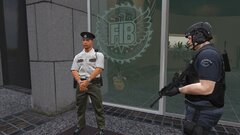
From the album: Red's LSPDFR chaos
-
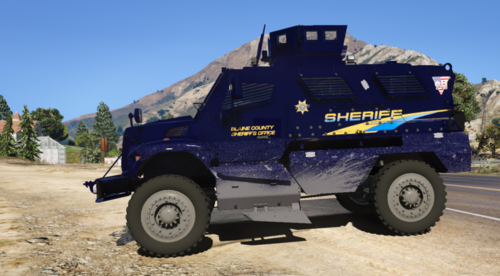 Check 5 mods, there are some MRAPS over there you can use for free.
 -
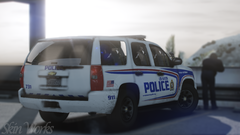 Still love that livery.
 -
I'm not sure about that, but it wouldn't surprise me given AM has its own stats and data. EUP should be working fine.
-
<Vehicle chance="70" livery="1">sheriff</Vehicle> <Vehicle chance="70" livery="2">sheriff</Vehicle> Is how it'd look.
-
What file did you recently edit prior to this crashing?
-
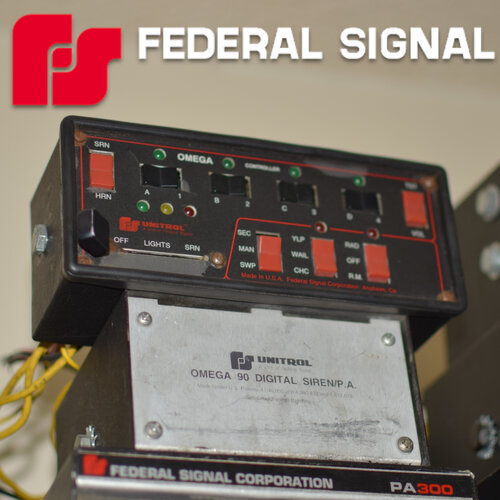 The hardest thing is choosing which siren of yours to use, because all of them are amazing! This one is on my top favorites, love the quality of the tones.
- 36 comments
- 7 reviews
-
-
- 2
-

