Creators: Due to background reprocessing of files, approvals and file security checks may be delayed. Thanks for your patience.


Reddington
Members
-
Joined
Everything posted by Reddington
-
Unfortunately I don't believe there is.
-
This was intended by Bejoljo. He is currently working on an update.
-
You don't, they are enabled by default.
-
Not to my knowledge, however LSPDFR does include ambient traffic stops that you can come across.
-
-
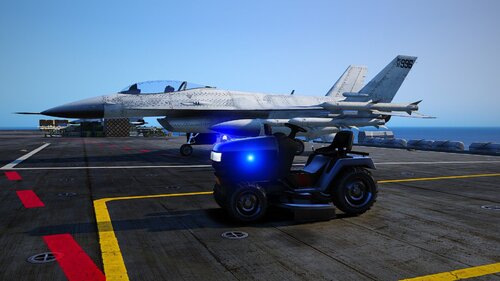
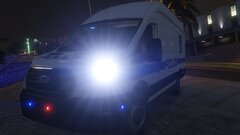
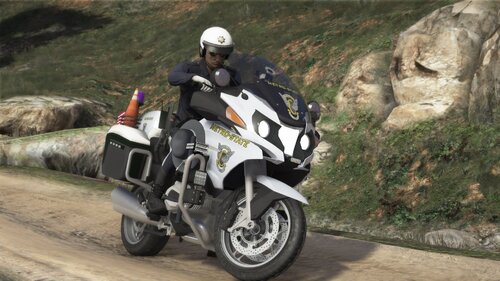 Folks who change these lights to red/blue are killing the point of this file, it breaks my heart. 😞 At least I appreciate where this comes from and the hilarity that comes from it. Awesome job, thank you!
- 89 comments
- 7 reviews
-
I had a look through visualsettings, I don't think it's in there. My assumption is timecycle1, but I don't know what exactly to edit. I just want to increase brightness of my nights. Please don't suggest increasing game brightness. That's not what I'm asking or what want.
-
-
-
This topic has been moved to the appropriate forum. Please post in the correct location in the future.
-
-
JBuzz was able to send me the screenshot, so I'm uploading it here for him.
-
 He just wants some lovin, ya dick. 😞
 -
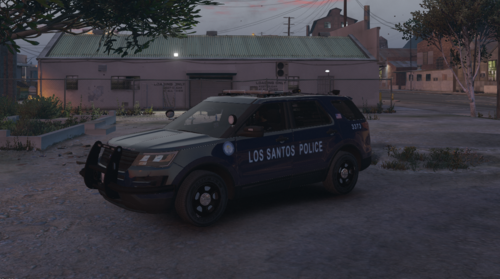 What's not good about the ingame version? You do realize the vehicle flip can be solved by changing a line in the vehicles.meta.
- 57 comments
- 5 reviews
-
Your topic has been moved to LSPDFR 0.4 Support. Please post in the correct location in the future.
-
Your topic has been moved to LSPDFR 0.4 Support. Please post in the correct location in the future.
-
Your topic has been moved to LSPDFR 0.4 Support. Please post in the correct location in the future.
-
Your topic has been moved to LSPDFR 0.4 Support. Please post in the correct location in the future.
-
Please attach your Rage log. You can find it in the main GTA directory.
-
Your topic has been moved to LSPDFR 0.4 Support. Please post in the correct location in the future.
-
Your topic has been moved to LSPDFR 0.4 Support. Please post in the correct location in the future.
-
Your topic has been moved to LSPDFR 0.4 Support. Please post in the correct location in the future.
-
Your topic has been moved to LSPDFR 0.4 Support. Please post in the correct location in the future.
-
LSPDFR needs to be loaded. You can load it by pressing F4 (Rage menu).
-
 Link?
Link?