


OfficerJJ0219
Members
-
Joined
-
Last visited
Everything posted by OfficerJJ0219
-
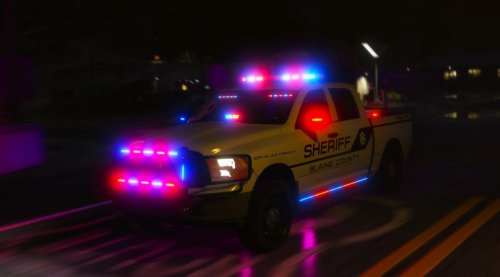 Amazing truck, nothing else to say but an amazing truck, would love to see more cars like this.
- 61 comments
- 6 reviews
-
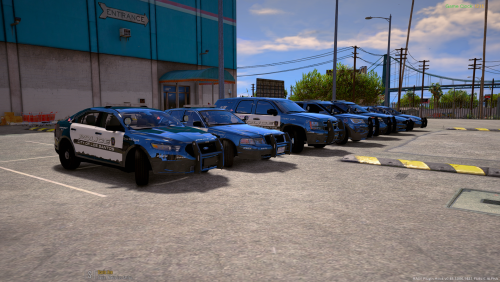 This is an awesome pack and it has many very cool cars! It is easy to install and easy to fix any errors with crashing. The cars lights are wonderful and work without any problems. An improvement that could be added is the ability to change the light bar. Other than the possible lightbar addition the cars are great.
- 779 comments
- 187 reviews
-
Sorry for wasting your time i was the ASI Loader, I recently just go back into LSPDFR and forgot about that. Thank you for your help!
-
Let me check if it installed the ASI loader again, I hope thats the problem and if it was im sorry for wasting your time. I did not think till now that we have to install it.
-
Could there possible by a script that gets installed when you make a mods folder like how openiv has a ASI loader that makes the mod folder work, that might be something?
-
Ok i will be back when i try it,
-
I put that one in and it never showed up it still shows the default taurus that i in the game.
-
Im doing that LAPD car right now and it goes n patchday 4 according to the install so im trying this one because it is the only one i have ever done in Patchday 4
-
Do yuo have any cars that go in the police 3 slot so i can try to check that because most of my cars have said go to patch day 9, (The game works before the car mod) Then if says the corruption message so i go and verify the cache and fix it with steam. But the car is not there, Im going to test it again with this car
-
I go and spawn in the vehicle with my Simple Trainer and it is not the moded car it is the vanilla car, for instance: I put a taurus in the police 2(Charger Slot) I go ingame and spawn that slot and its still the charger not the tauras even thought the taurus was named police2.ytf or the other once it still puts the stock car and the tausus is not in any other slots
-
I did all that but when i go into the game the car never is there. Im retrying it right now i remade my mods folder.
-
Yes, I was just reading an article and i do not know if this matter but it said i must copy the location like update folder to the mods folder inside of OpenIV not File explorer like i did.
-
Yes but when i do use the mods folder it does not pop up in the game it just shows the stock car, To make the mods folder got on OpenIV and made a new folder and its named "mods" I might have named it wrong or i might have to do something else?
-
It has also not worked with cars that you install with OpenIV package installerI have been having this problem for 3 days now. I put in a car mod correctly and i have also tried it with other car mods. It goes in fine no problems until i go to launch the game. I put in all other mods like scripts and LSPDFR but the car mods are what keep messing up. It will tell me Corrupt game data. Please reboot, verify the game data, or reinstall the game. More information, please visit: http://rsg.ms/verify. I was wondering if i could be that the cars are going into the update folder for the once i have downloaded so far and not a x64a-z rpf? I am very confused on this, if you know something please let me know. I have tried it with the Los Santos crown vics the look like there from laugen. I am currently trying to try it with other mods. (P.S. When it breaks i fix it with the steam verify cache thing.) Thank you OfficerJJ
