menkzy
Members
-
Joined
-
Last visited
Everything posted by menkzy
-
Not sure where to post this, but in the dark theme on edge chromium, the search bar text is the same color as the background.
-
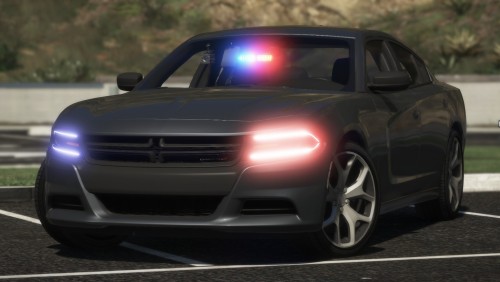 Such a beautiful vehicle, would be nice if it had a push bar and some amber lights in the rear.
- 43 comments
- 14 reviews
-
I posted these screenshots on the mod thread - they're what happens. https://i.imgur.com/nZp8XPh.jpg https://i.imgur.com/llGq2pO.jpg
-
This addon pack simply makes RDE lore based vehicles have ELS enabled. I may have missed some vehicles, so please let me know which and I'll update this pack! There is a readme included with what vehicles are done. Prerequisites : Realism Dispatched Enhanced 3.1.1 EMERGENCY LIGHTING SYSTEM V (Ver. 1.05) Installation instructions: Drag BOTH files into your Grand Theft Auto V file (C:\Program Files\Rockstar Games\Grand Theft Auto V)
-
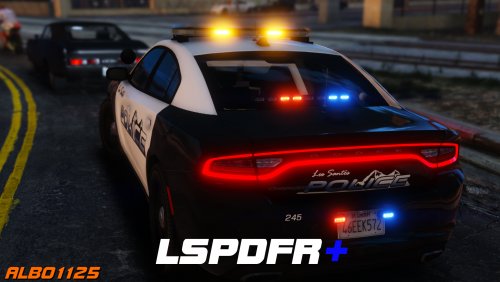 Hey mate, recently installed this but have an issue with the court cases. Pressing F9 works and stuff, but once I select a case, the plugin crashes. Here's my RPH Log. I have also used your troubleshooter.
- 1,178 comments
- 137 reviews
-