
wantedelf
Members
-
Joined
-
Last visited
Everything posted by wantedelf
-
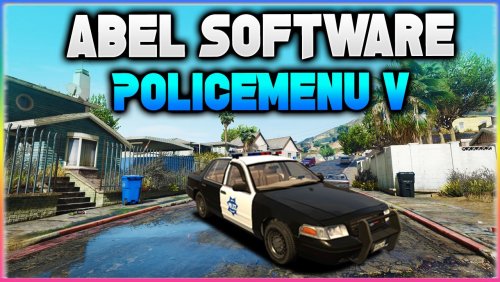 Same for me after a few minutes of using the menu it quits.........No crashes just seems to stop working. i can continue the game with no issues when i start a new game it works for a few times then its done can't open the menu anymore till i start a new game..
- 59 comments
- 6 reviews
-
-
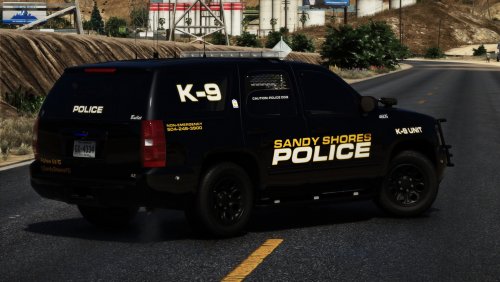
From the album: Police Department
-
-
-
-
-
-
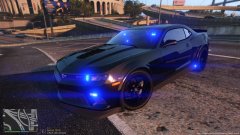
From the album: Police Department
-
-
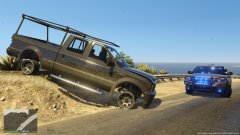
From the album: Police Department
Drove it like they STOLE it....Cause they did!!!! -
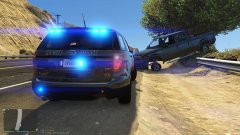
From the album: Police Department
Hope their insurance will cover this.... -
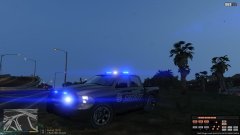
From the album: Sheriff's Dept.
-
-
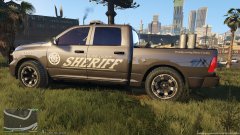
From the album: Sheriff's Dept.
-

From the album: State Troopers
-
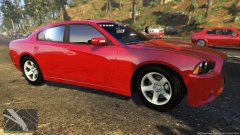
From the album: Police Department
-
-
-
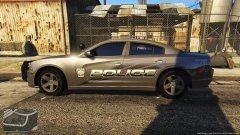
From the album: Police Department
-
-
-
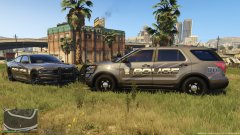
From the album: Police Department
-
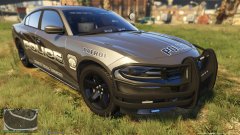
From the album: Police Department
-
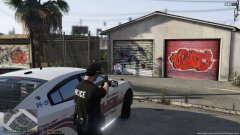
From the album: Police Department