


Creators: Due to background reprocessing of files, approvals and file security checks may be delayed. Thanks for your patience.

wantedelf
Members
-
Joined
-
Last visited
Everything posted by wantedelf
-
 lol right and joined the hair club for men...
 -
From the album: Sheriff's Dept.
noooop john mccain is going to jail which is where some of them need to be. lol -
From the album: Sheriff's Dept.
Hmmm wonder if his political power will help him out -
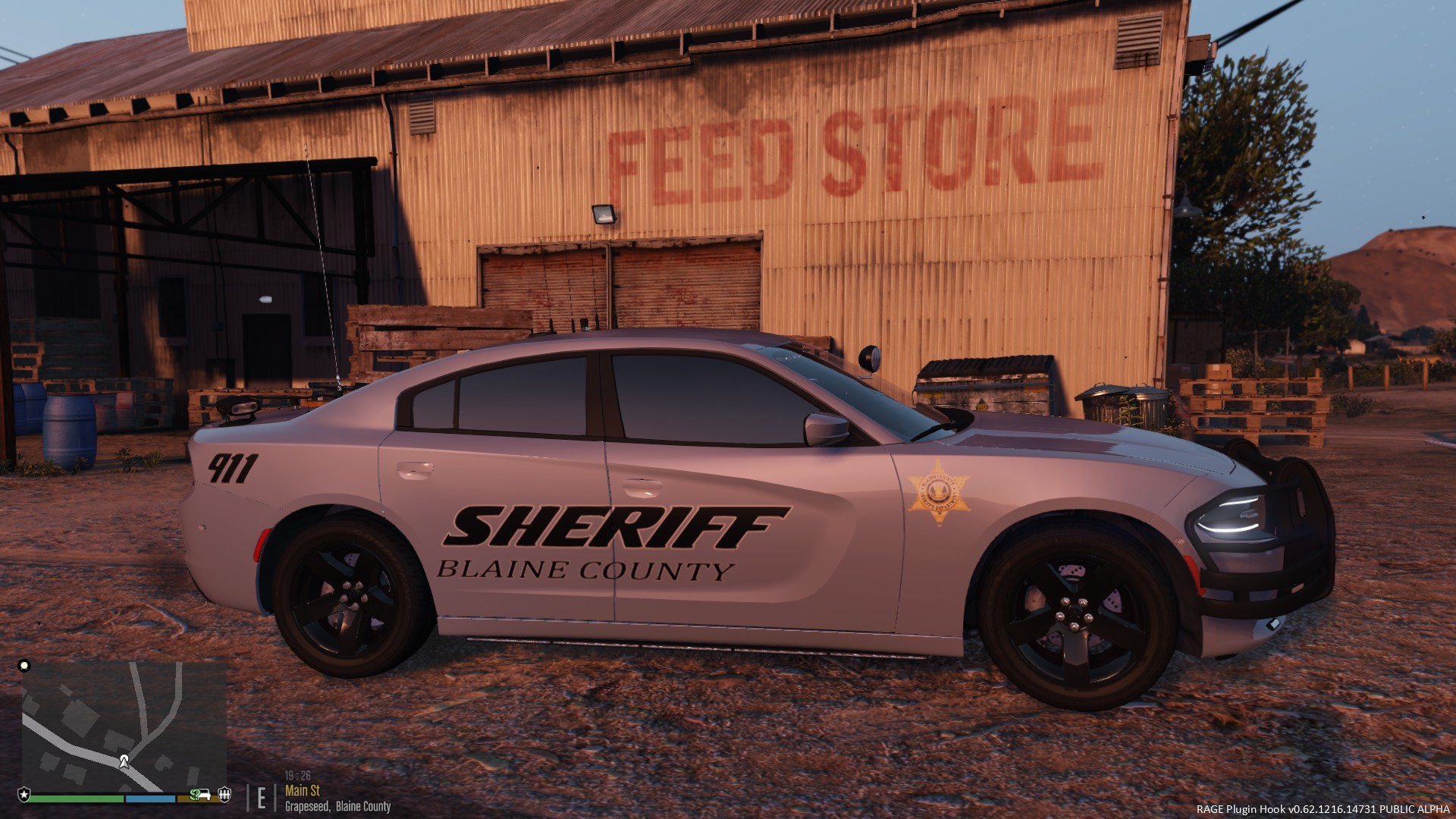
 glad to see a 2015 with a good light setup. and the options to change that setup... the moving antenna just adds to the whole setup. overall it's a five star build......glad to see that you corrected the blacking out of the lightbar...because as for me i run all my units with blacked out windows...........so with that being said for my two cents worth .......awsome job
- 74 comments
- 30 reviews
-
-
-
-
-
-
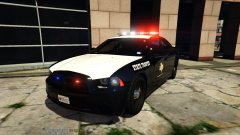 man i like all the models you have done....they all have worked great for me not really had any issues with your mods......can't wait to use this one...
 -
very nice....just like every mod that ive seen from ya...........im sure it will be just as sweet in the game as pictures are here...great job.
-
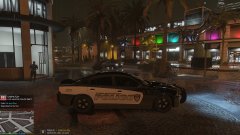
From the album: Sheriff's Dept.
-
-
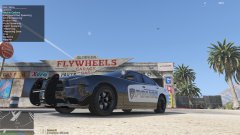
From the album: Sheriff's Dept.
-
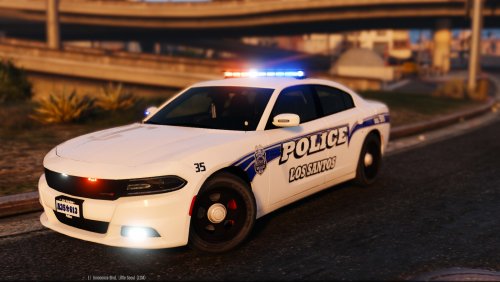
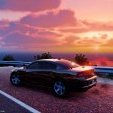
.png.690a227be9cb9692517488d50ee2d6b3.png) love that skin....... i agree with jj
love that skin....... i agree with jj -
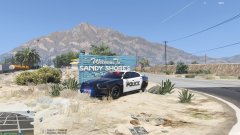
From the album: Sheriff's Dept.
welcome to sandy shores, come on vaction leave on probation...... -
-
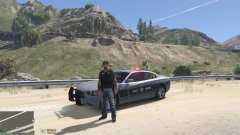 you did an awsome job......thanks got to run with it being from N.C.
 -
-
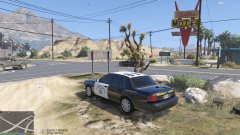
From the album: Sheriff's Dept.
the most ignored stop sign in the county... -
-
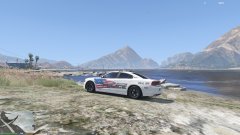
From the album: Sheriff's Dept.
-
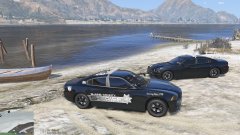
From the album: Sheriff's Dept.
-
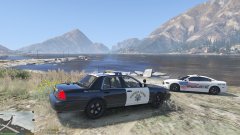
From the album: Sheriff's Dept.
-




.png.690a227be9cb9692517488d50ee2d6b3.png)


