


J.J Dawkins
Members
-
Joined
-
Last visited
Everything posted by J.J Dawkins
-
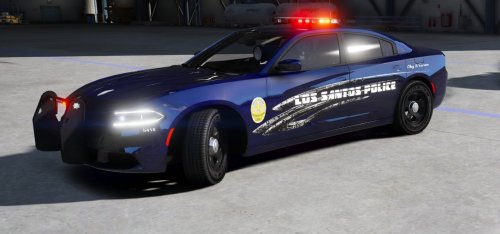 damn damn good job on this skin brother. i'm putting this in now
 -
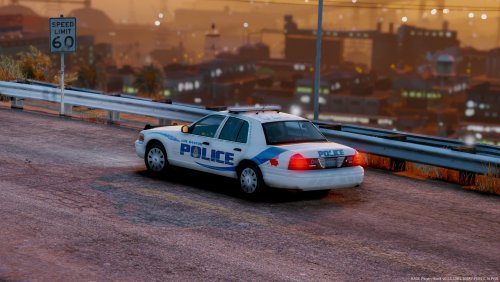 well first i like the model but i truly no i know that you didn't truly put anytime into making this model and for to be your first time making one this should have been your baby but i see you might just be like a few people and just make model and release them cause the lights might look good. Bro it's way more to it, and you have to put that time in for that. people like: @kane104 @NickieB Bxbugs123 Caperenio Lundy with the old school Models & new school @Thehurk @Thegreatham or hell even Me these are the people that put that time in and the models shows when the model get released. So i'm not bashing your model cause i love what you did but i think you could have took a little more time into your next model can't wait to see the next one p.s i can't see anything out them mirrors
- 20 comments
- 9 reviews
-
From the album: BCSO SUPER PACK W.I.P
-
From the album: BCSO SUPER PACK W.I.P
-
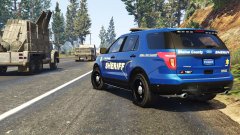
From the album: BCSO SUPER PACK W.I.P
-
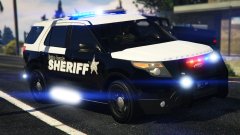
From the album: BCSO SUPER PACK W.I.P
-
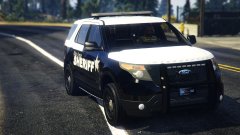
From the album: BCSO SUPER PACK W.I.P
-
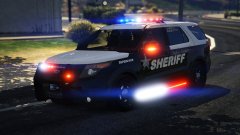
From the album: BCSO SUPER PACK W.I.P
-
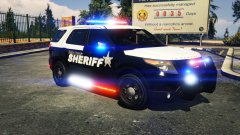
From the album: BCSO SUPER PACK W.I.P
-
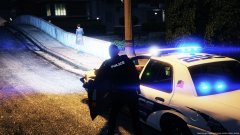
From the album: W.I.P Models
-
-
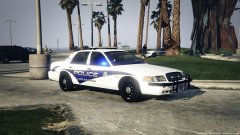
From the album: W.I.P Models
-
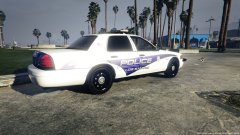
From the album: W.I.P Models
-
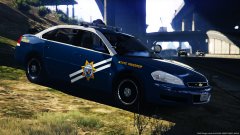 i'm going to try buddy
 -
.thumb.png.403abf273b7678001f6aee437e59589b.png) i like the pack but why you just didn't make a full pack out of this, i hate when people just make skins for 1 or 2 models but the skin was dope. that just make any sense to me
i like the pack but why you just didn't make a full pack out of this, i hate when people just make skins for 1 or 2 models but the skin was dope. that just make any sense to me- 16 comments
- 6 reviews
-
thanks alot but i'll send her to you when i get done
-
will right now i'm just setting lightbars and seeing what they look like for the next pack...My buddy was thinking about a SWAT PACK
-
thanks so much buddy
-
From the album: BCSO SUPER PACK W.I.P
skin was done by @CG Blaze -
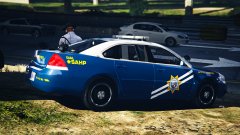
From the album: BCSO SUPER PACK W.I.P
-
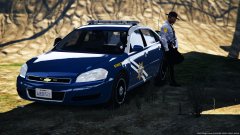
From the album: BCSO SUPER PACK W.I.P
-
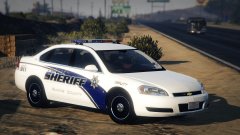 i'm glad you like the model buddy but if you look closely you can clearly see that those are Impala wheel i just edited the wheels and made a chrome lip on it. that's all I'll think about it buddy yeah i'm about to post another screenshot with the spotlights and everything else for the time begin and thank you so much
 -
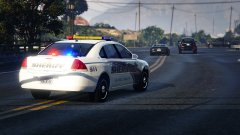
From the album: BCSO SUPER PACK W.I.P
-
From the album: BCSO SUPER PACK W.I.P
-
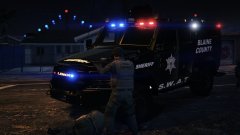
From the album: BCSO SUPER PACK W.I.P



.thumb.png.403abf273b7678001f6aee437e59589b.png)
