


J.J Dawkins
Members
-
Joined
-
Last visited
Everything posted by J.J Dawkins
-
-
 okay i see your vision about to make that change right now thanks @OfficerFive0
 -
 OMG.... @Albo1125 thank you thank you thank you. i have been trying to find a way to make all my models addons for so long now and by you doing this just saved me so so much time.. Thank you for all your hard work i will be donating to you for this cause i do appriecate all the hard work you put into callout, and all the scripts you have made thank you KING ALBO1125
- 266 comments
- 36 reviews
-
-

- 2
-
-
okay will do, but what light should i take out the one's is the window or the grill & pushbar i would love to have your advice..and thank you
-

From the album: Sexy
-

From the album: Sexy
skin is by @Bxbugs123 -
 dang that's to sexy..Absolutely fantastic job as always sir...
 -

From the album: W.I.P Packs
this beautiful dev model is by the awesome @OfficerUnderwood fantastic skin is By @BradM -
From the album: W.I.P Packs
this beautiful dev model is by the awesome @Thehurk fantastic skin is By @BradM -
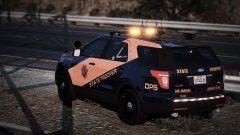
From the album: W.I.P Packs
this beautiful dev model is by the awesome @jasonct203 fantastic skin is By @BradM -

From the album: W.I.P Packs
this beautiful dev model is by the awesome @jasonct203 fantastic skin is By @BradM -
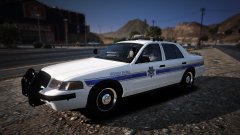
From the album: W.I.P Packs
this beautiful dev model is by the awesome @steinberg4145 fantastic skin is By @BradM -
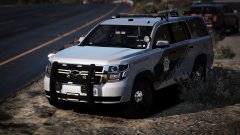
From the album: W.I.P Packs
this beautiful dev model is by the awesome @Thehurk fantastic skin is By @BradM -

From the album: MY W.I.P
(dev) model by @OfficerWalters -

From the album: MY W.I.P
(dev) model by @OfficerWalters -

From the album: MY W.I.P
(dev) model by @OfficerWalters -
 that's @BradM skin sir
 -
that's @BradM skin sir
-
 another favorite model i love
 -
 yo now that's my favor right there
 -
 ooo lord i can't wait to download this and put this in my game...you always make the sexiest well put together models as always...Much respect to you @Gump and i don't have to tell you keep up the good work cause it's already in your blood...
 -

From the album: MY W.I.P
-
-

From the album: MY W.I.P
-


