
Wayne George
Members
-
Joined
-
Last visited
Everything posted by Wayne George
-
-
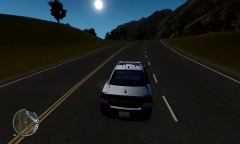 Not a lot of the time but i do sometimes. I will definitely have to download this countryside mountains mod. Thanks for letting me know, I really appreciate it:)
 -
I like the mountains. What map is this? it looks brilliant!
-
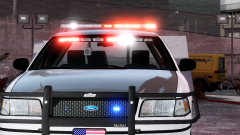 Wow now thats nice. How did you get those lights nice and bright?
 -
I dont know if anyone else has had this problem but it freezes after you accept the call Officer Requesting Assistance. It has worked before with all of the mods i am using now.
- 356 comments
- 140 reviews
-
Is this a new install or are you using the same installation as you had summertime? Also if you have any mods installed, firstly back up your modded cars, etc and then remove them with the stock mods and see if that helps any. It's also a possibility that your installation may of gotten corrupt some how even though the game said it installed correctly.
-
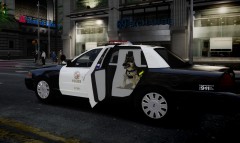 Hey CJ what model is that? Could you send me a link to it? it looks really damn good!
 -
-
All you need to do is run the setup and when it asks you for the location to where to install the mod, Click Browse, Go to your main GTA IV folder/Common/Shaders and thats all. Thanks for the compliments too:)
- 22 comments
- 11 reviews
-
-
-
Strange because that hasn't happened for me. Ever since i installed it i have not received anymore red sky bug.
- 22 comments
- 11 reviews
-
Honestly, I haven't noticed any performance drop so you should be alright. I don't believe it's intensive at all.
- 22 comments
- 11 reviews
-
-
Screenshots of my fix for the Red Sky Bug.
-
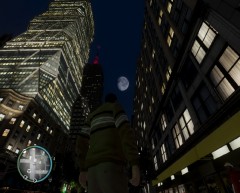 enb2013 1 31 23 56 4
-
 enb2013 1 31 23 44 22
-
 enb2013 1 31 23 48 25
-
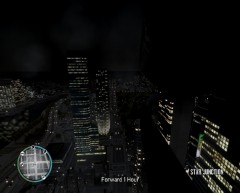 enb2013 1 31 23 44 5
-
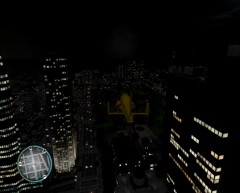 enb2013 1 31 23 44 12
-
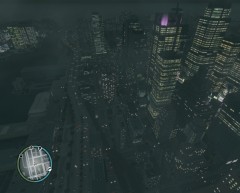 enb2013 1 31 23 43 29
-
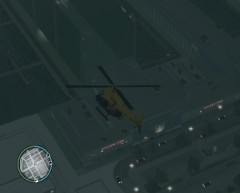 enb2013 1 31 23 43 15
-
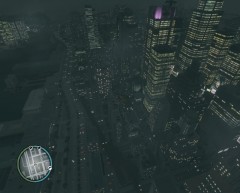 enb2013 1 31 23 43 27
-
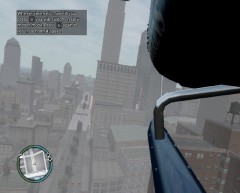 enb2013 1 31 23 42 32
-
 enb2013 1 31 23 43 12
-
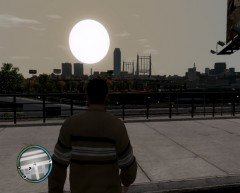 enb2013 1 31 23 37 1
-
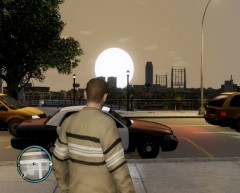 enb2013 1 31 23 36 3
-
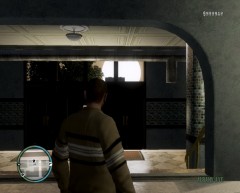 enb2013 1 31 23 35 45
-
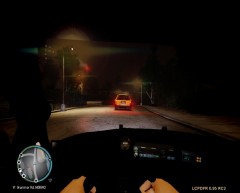 enb2013 1 27 4 20 16
-
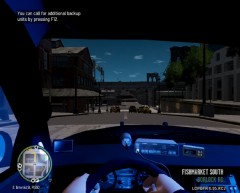 enb2013 1 28 23 33 46
-
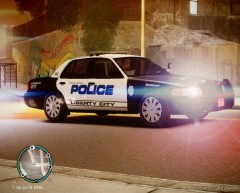 enb2013 1 27 4 17 21
-
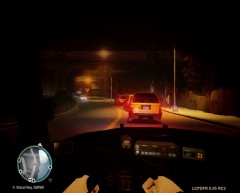 enb2013 1 27 4 18 40
-
-
From the album: ENB SERIES NO RED SKY BUG SCREENSHOTS
-
From the album: ENB SERIES NO RED SKY BUG SCREENSHOTS
-
From the album: ENB SERIES NO RED SKY BUG SCREENSHOTS
-
From the album: ENB SERIES NO RED SKY BUG SCREENSHOTS
-
From the album: ENB SERIES NO RED SKY BUG SCREENSHOTS
-
From the album: ENB SERIES NO RED SKY BUG SCREENSHOTS
-
From the album: ENB SERIES NO RED SKY BUG SCREENSHOTS
-
From the album: ENB SERIES NO RED SKY BUG SCREENSHOTS
-
From the album: ENB SERIES NO RED SKY BUG SCREENSHOTS
-
From the album: ENB SERIES NO RED SKY BUG SCREENSHOTS