
Caffeinated
-
Joined
-
Last visited
Everything posted by Caffeinated
-
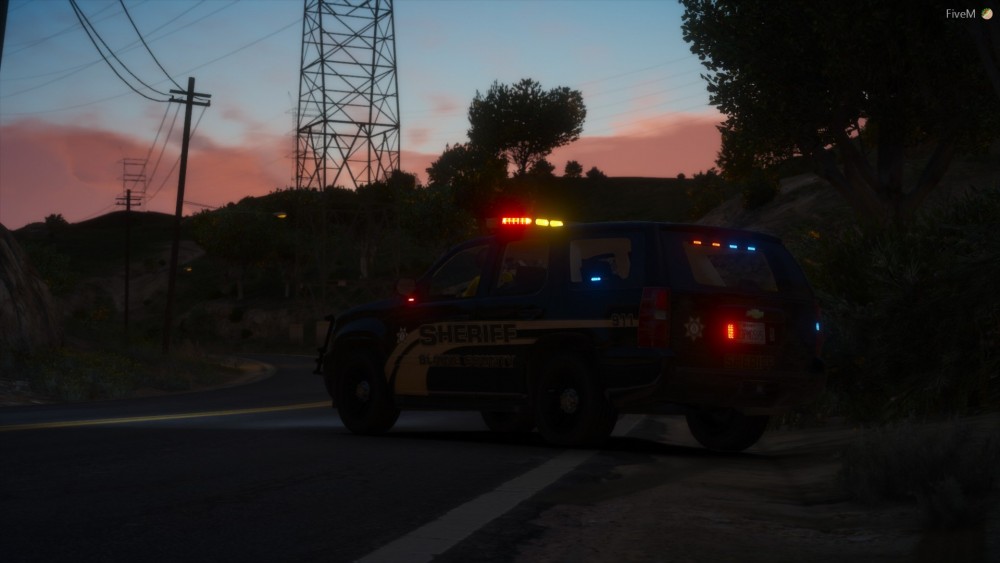
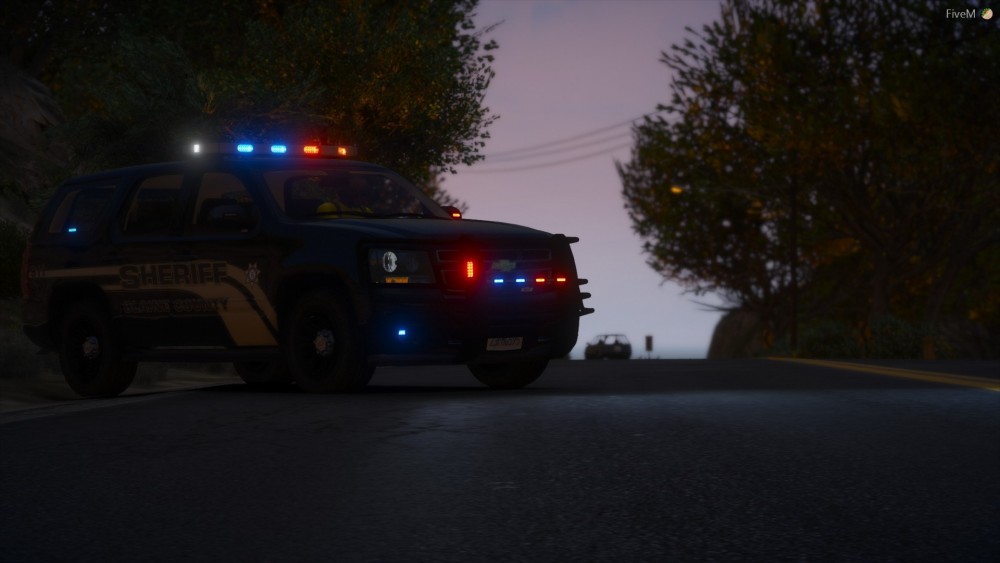
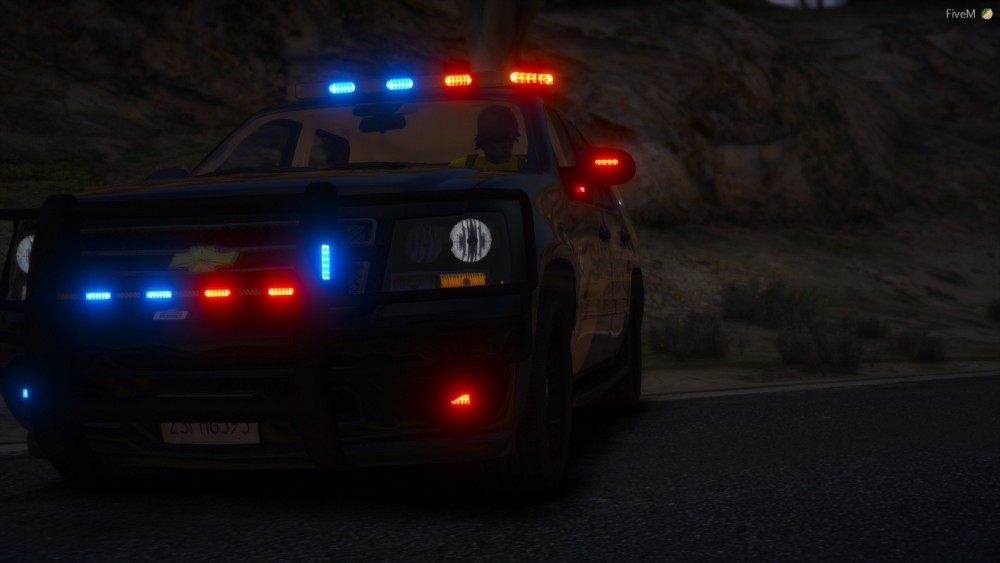
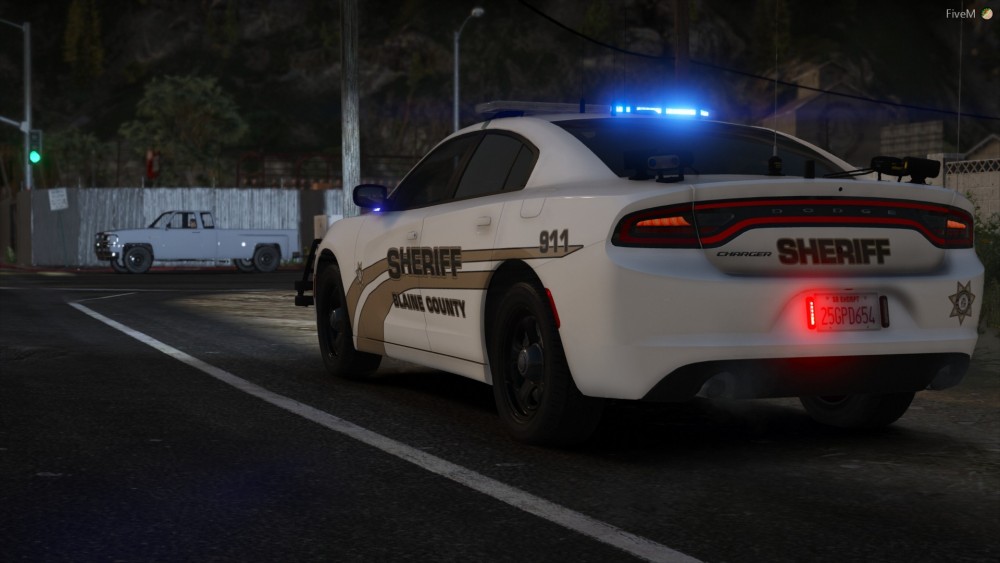
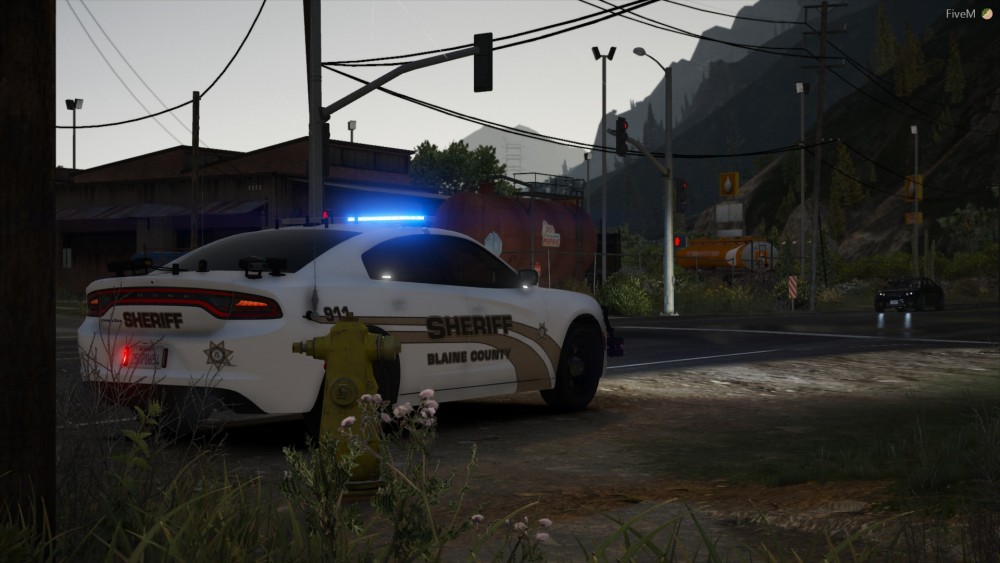
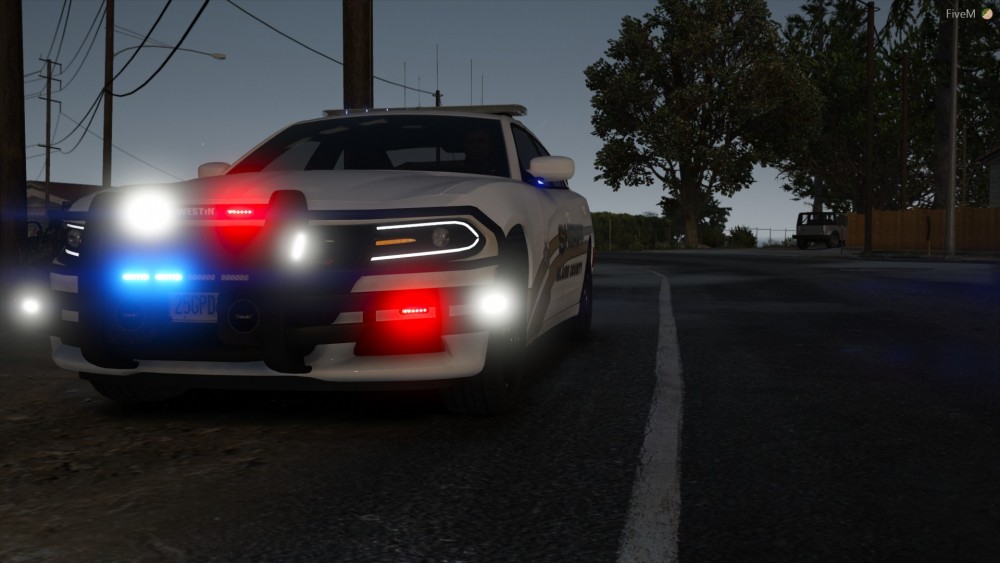
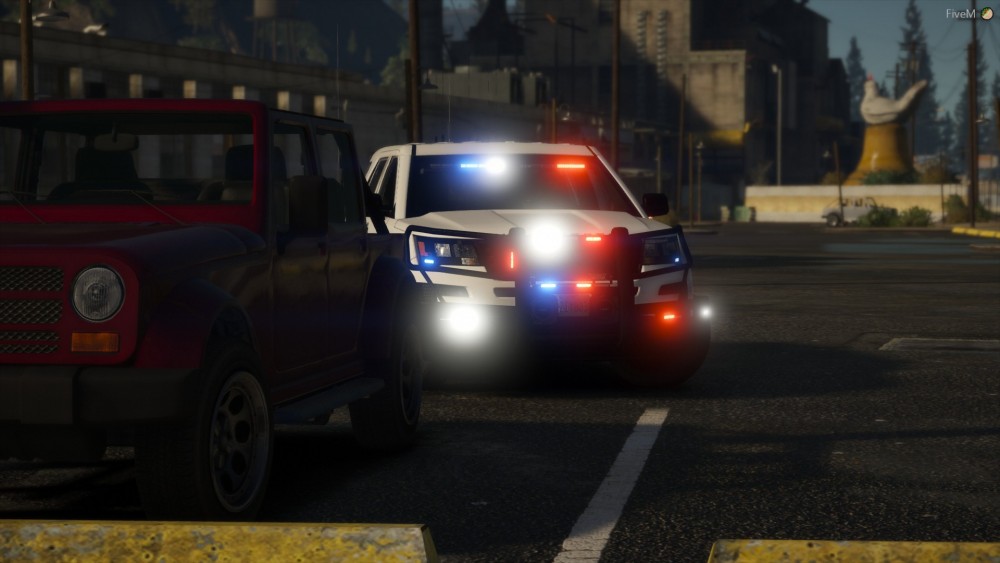
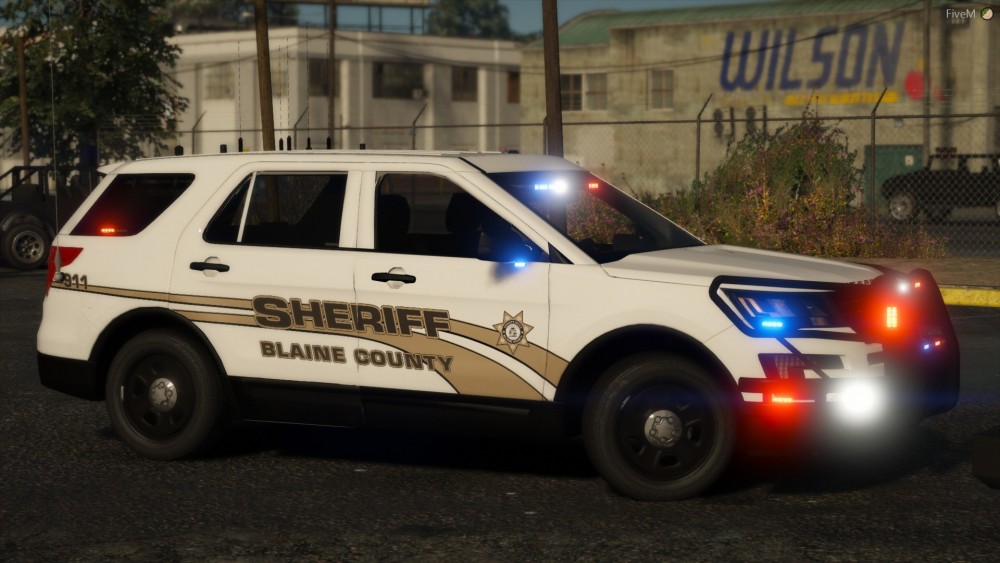
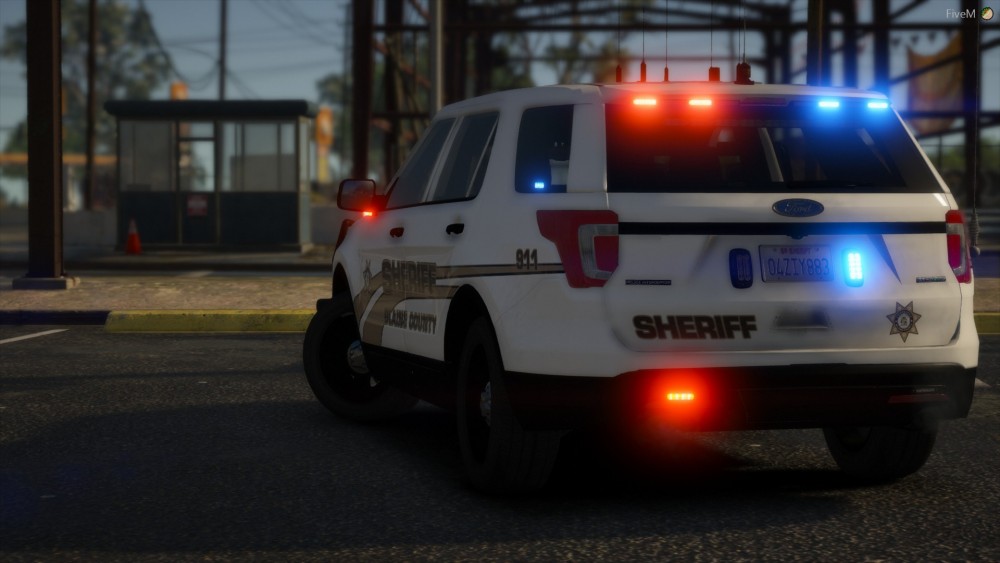
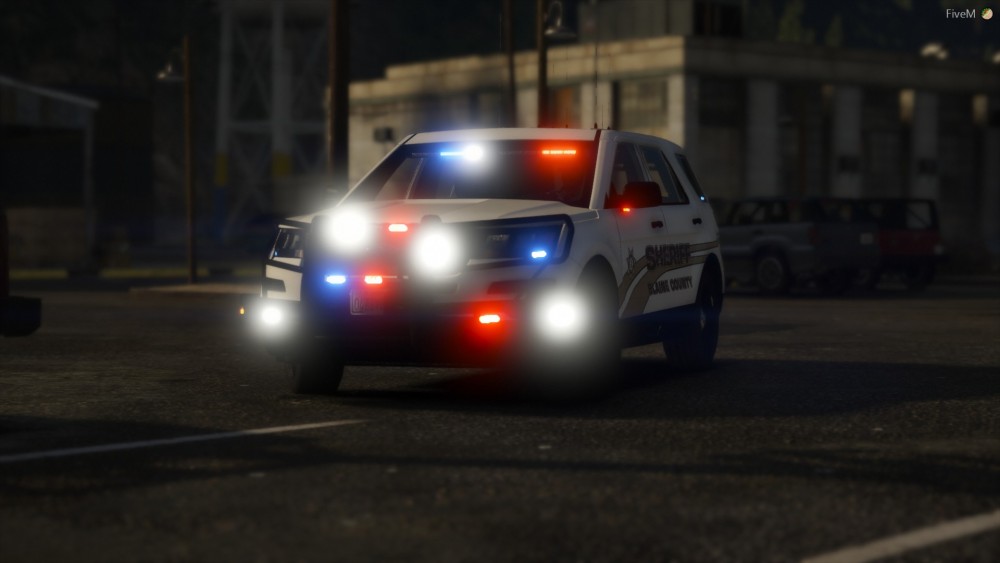
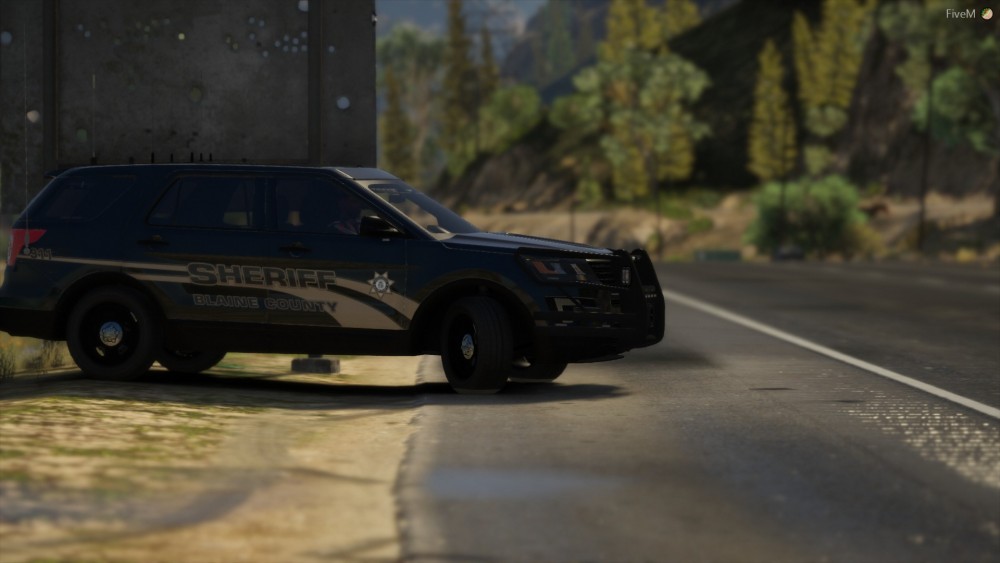
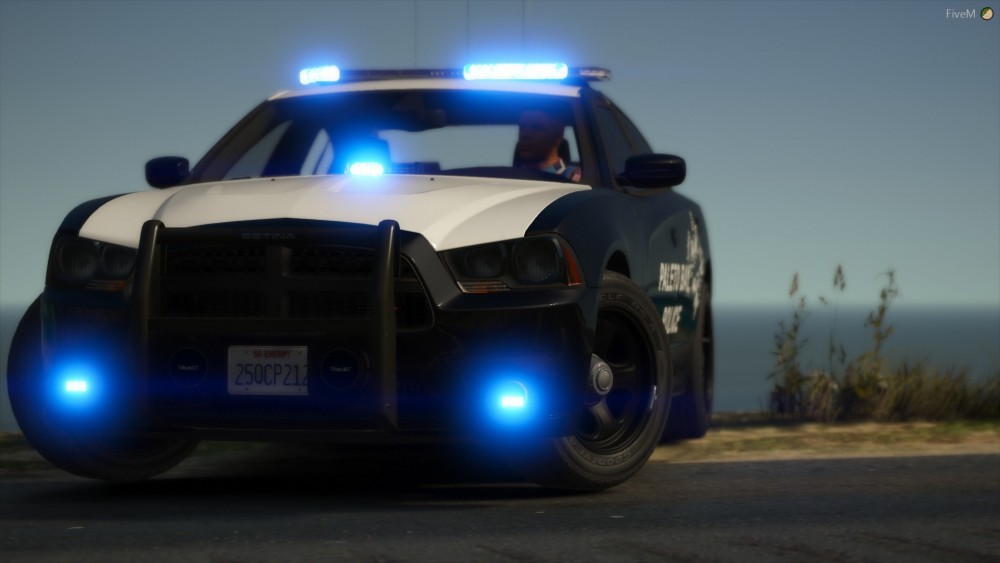
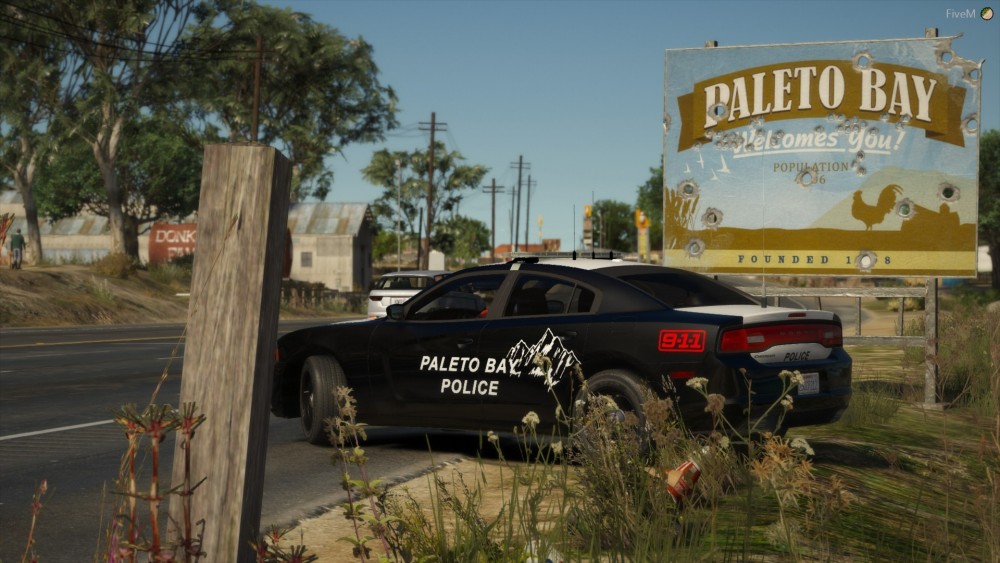
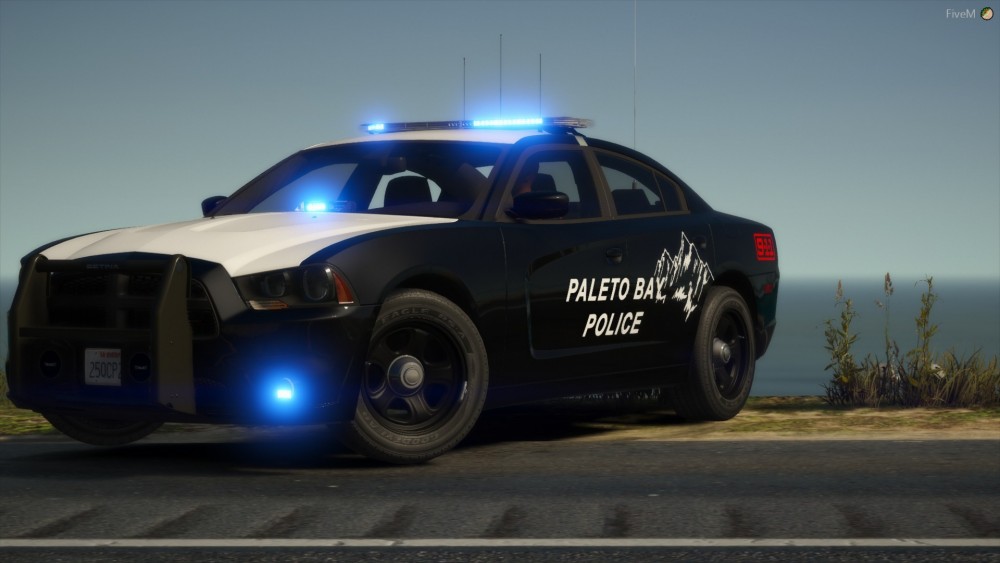
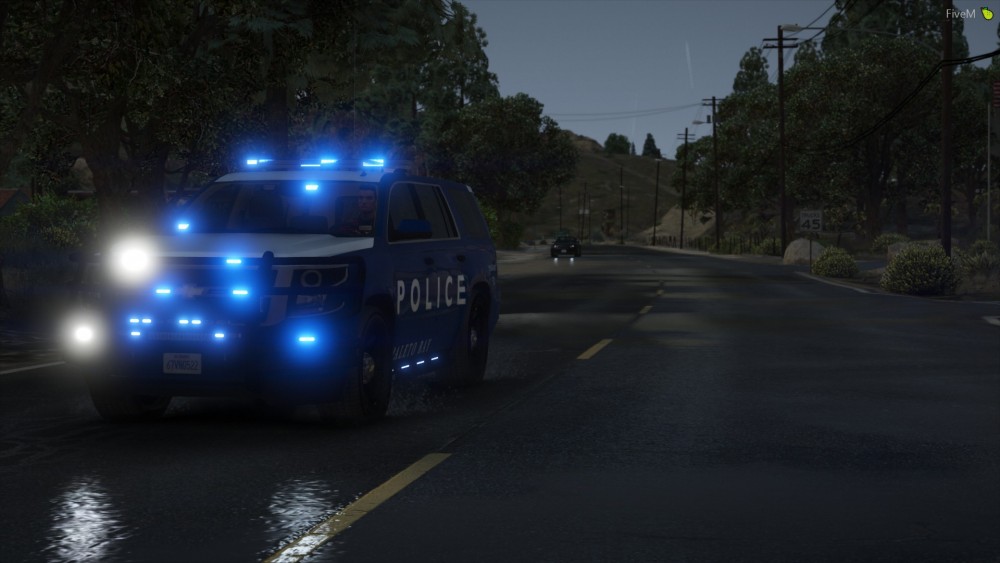
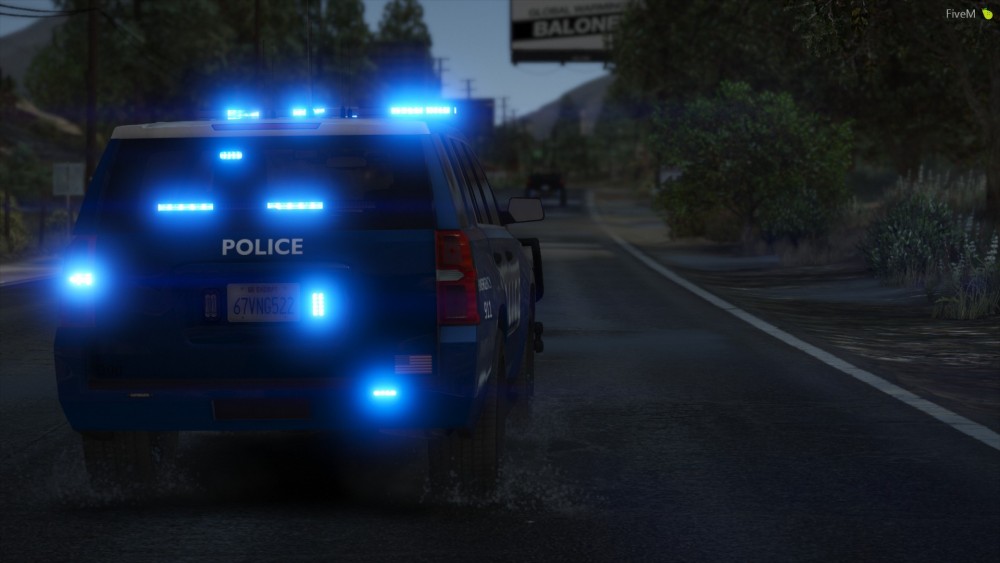
I've been doing things. I just forget to post anything I've made better ion textures since this was made so I need to update it I love this thing so much. Black Skin on the FPIU More of a simple Paleto Charger. Skin was something temp I worked up. I wanted to make a crazy Tahoe so I did. Another temp skin.
-
In addition to all of the above make sure your emissive is above the glass in the heirarchy.
-
Well I am still learning all sorts of interesting things about Zmoddler that help make models higher quality, but I can't help but drool over some of these screen shots. The Skin is temporary.
-
From the album: Caffeninated W.I.P Pics
-
From the album: Caffeninated W.I.P Pics
-
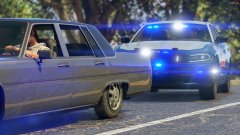
From the album: Caffeninated W.I.P Pics
-

From the album: Caffeninated W.I.P Pics
-
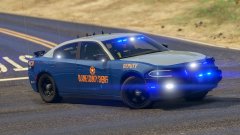
From the album: Caffeninated W.I.P Pics
-
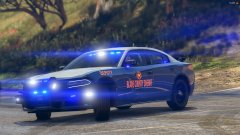
From the album: Caffeninated W.I.P Pics
-

From the album: Caffeninated W.I.P Pics
-
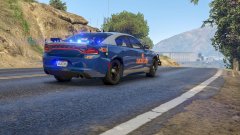
From the album: Caffeninated W.I.P Pics
-
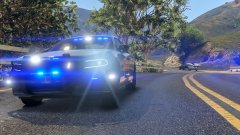
From the album: Caffeninated W.I.P Pics
-
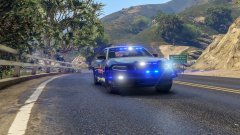
From the album: Caffeninated W.I.P Pics
-

From the album: Caffeninated W.I.P Pics
Red Steady Burn Under the Mirror -
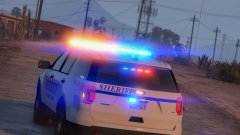
From the album: Caffeninated W.I.P Pics
Full T/A Override -
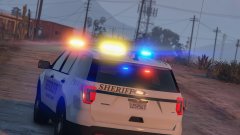
From the album: Caffeninated W.I.P Pics
Full T/A Override. It works pretty well I think. -
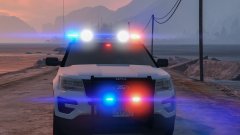
From the album: Caffeninated W.I.P Pics
Custom mapped patterns on the light bar. With white flashing in the front while the T/A is on. -
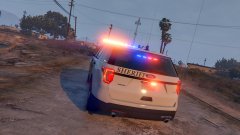
From the album: Caffeninated W.I.P Pics
Single mapped Plat lights -

From the album: Caffeninated W.I.P Pics
Dual Mapped on the Flash the side warning is blue, except for the Legacy. -
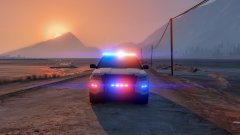
From the album: Caffeninated W.I.P Pics
-
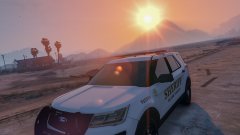
From the album: Caffeninated W.I.P Pics
-
And I fixed the issue myself. For some reason opening the z3d files on their own and saving them under a different name fixed the problem. I did this for all the parts I had problems with.
-
Place the lights and the extras used for the hatch inside the boot node. Doing this limits what extras you can use
-
I thought a zmoddler3 patch fixed this quite some time ago ? Not that it can hurt to try.
-
A bump on this. Still having this issue with certain parts and is becoming more of a problem. Thanks